

If you read my recent article on Why I Switched from OpenClaw to Hermes Agent, you know that one of the biggest advantages of Hermes is its simplicity.

Until recently, running autonomous AI agents required significant command-line experience, environment variable configuration, and constant troubleshooting. With the release of Hermes Desktop, that barrier to entry has vanished.
You can now get a self-improving, autonomous AI agent running on your Mac or Windows machine in under 5 minutes. Here is the complete step-by-step guide to setting up Hermes Desktop, complete with screenshots from my own installation process.
If you would like to explore Skills, Agents, etc… check out the articles below:


Step 1: Download the Installer
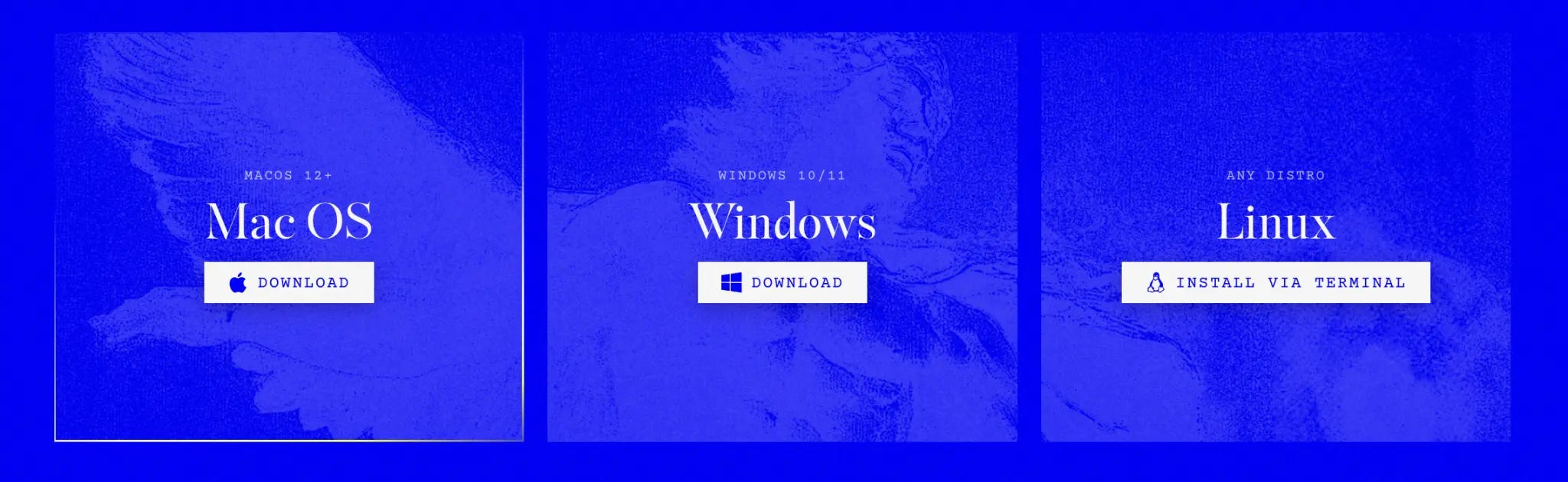
First, navigate to the official Hermes Agent website. You will be greeted by their distinctive electric blue landing page.

Click the Download for Mac OS (or Windows) button. The site will automatically detect your operating system. If you need a different version, click the “Install” link in the top navigation to see all available options.
Step 2: Run the Setup Wizard
Once the download completes, run the installer just like any standard application. When you launch Hermes for the first time, you will see the welcome screen.
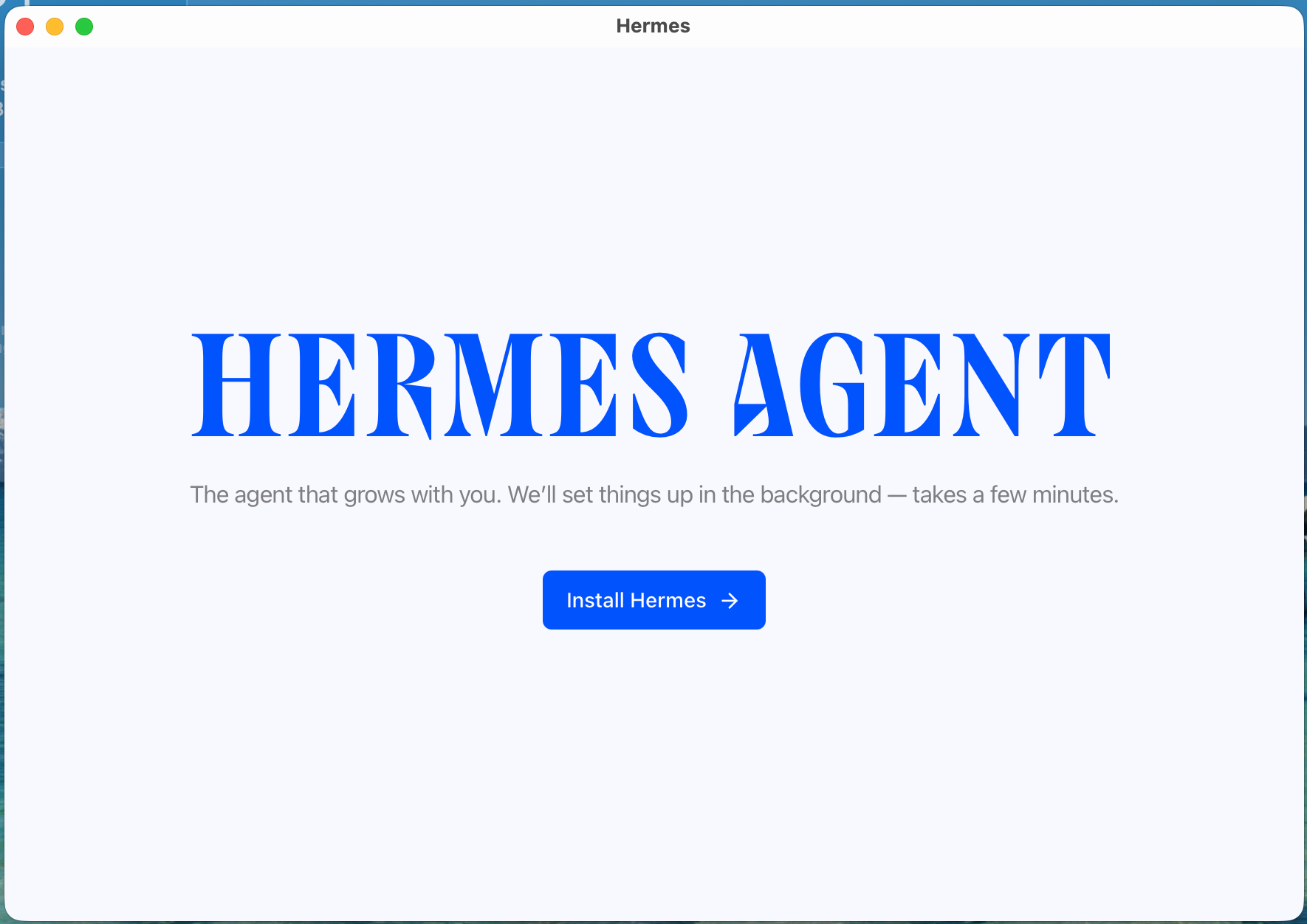
Click Install Hermes →. The application will spend a few minutes downloading the necessary dependencies and setting up the agent environment in the background.
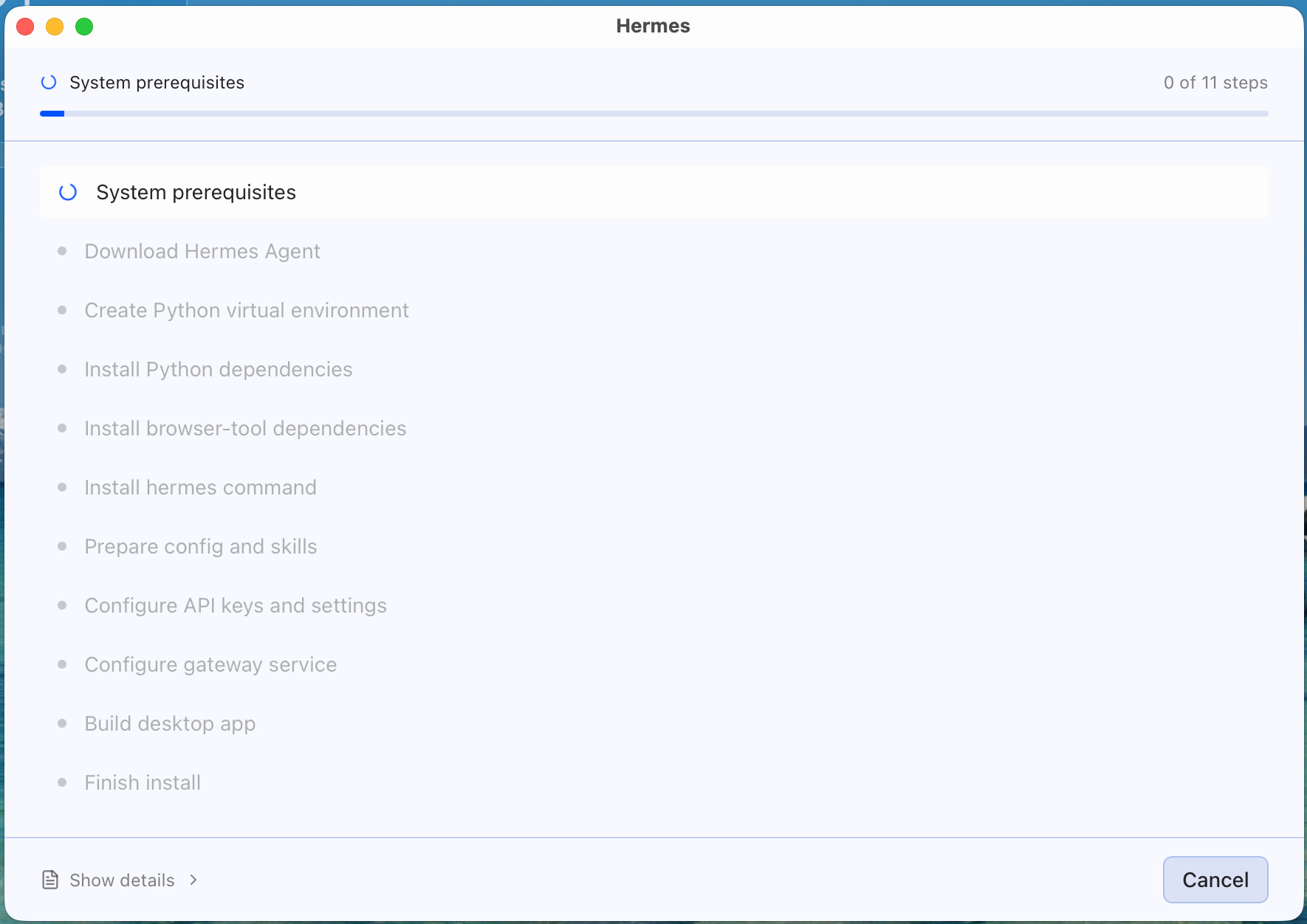
You do not need to open a terminal or run any pip install commands—the desktop app handles everything across 11 automated steps, including setting up the Python environment, downloading browser tools, and configuring default skills.
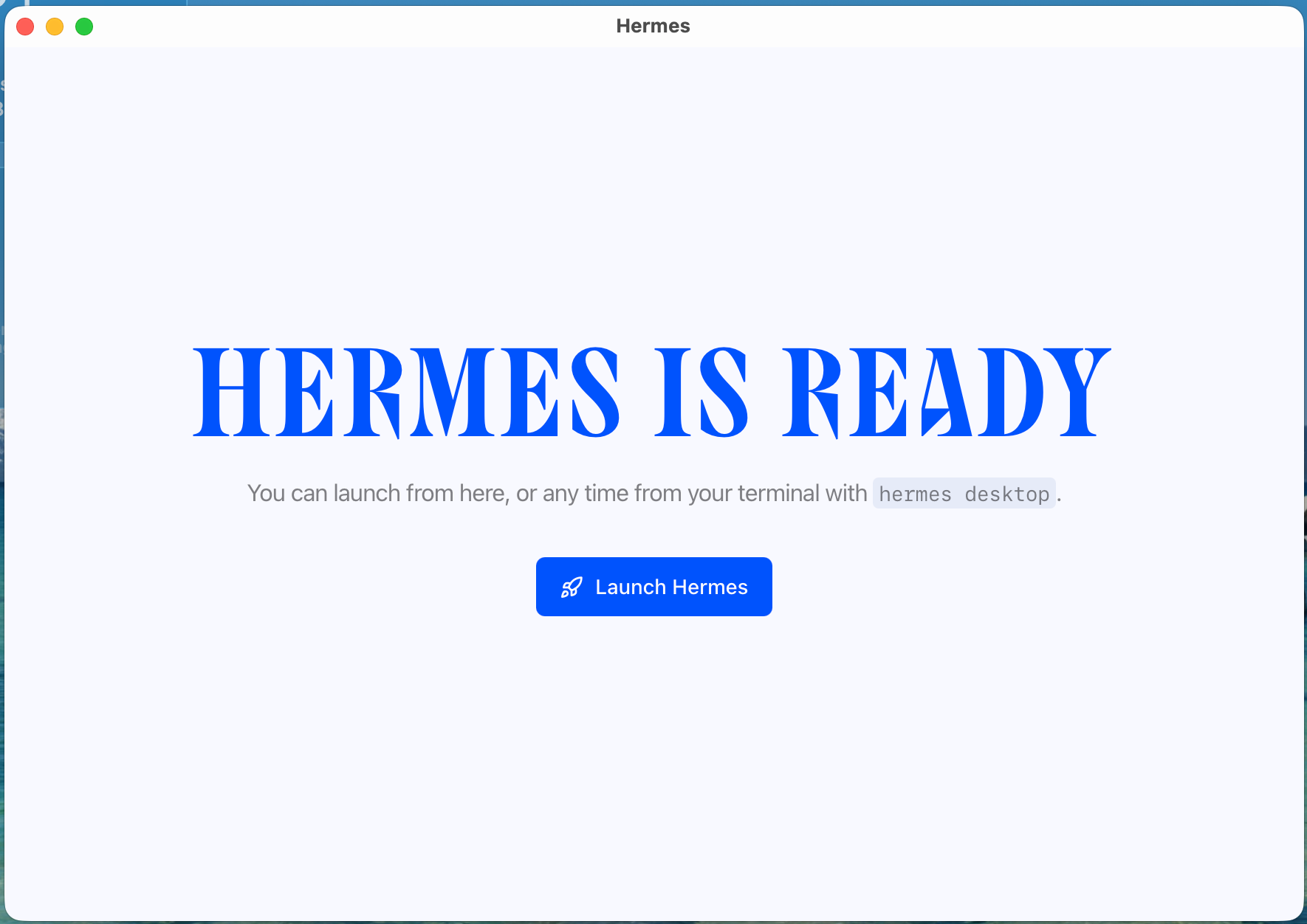
Once it says “HERMES IS READY,” click Launch Hermes.
Step 3: Configure Your Providers (API Keys)
Now you need to give Hermes a “brain” by connecting it to an AI model provider.
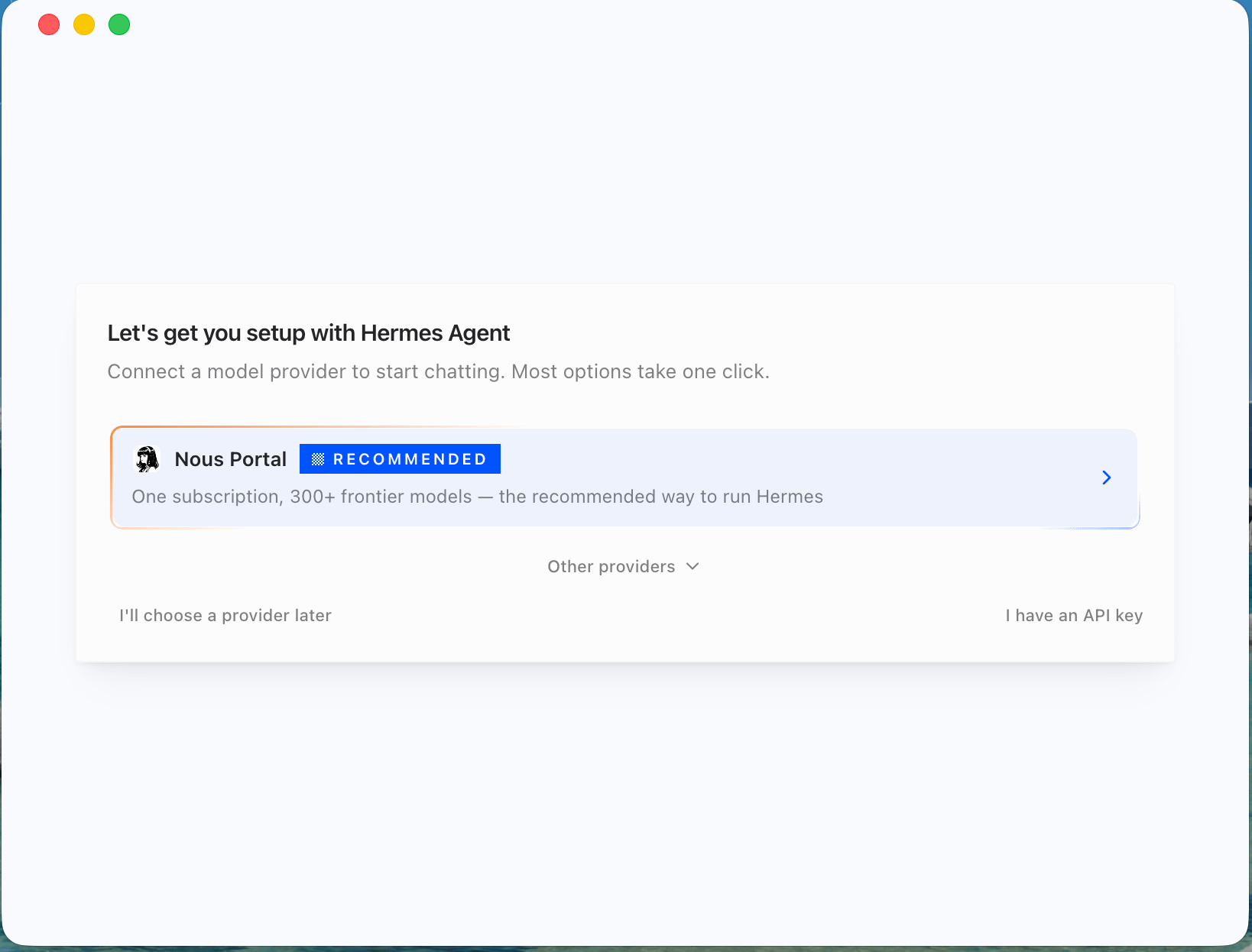
Hermes is provider-agnostic. While Nous Portal is recommended, you can click on Other providers to see options like OpenAI, MiniMax, Qwen, or xAI.
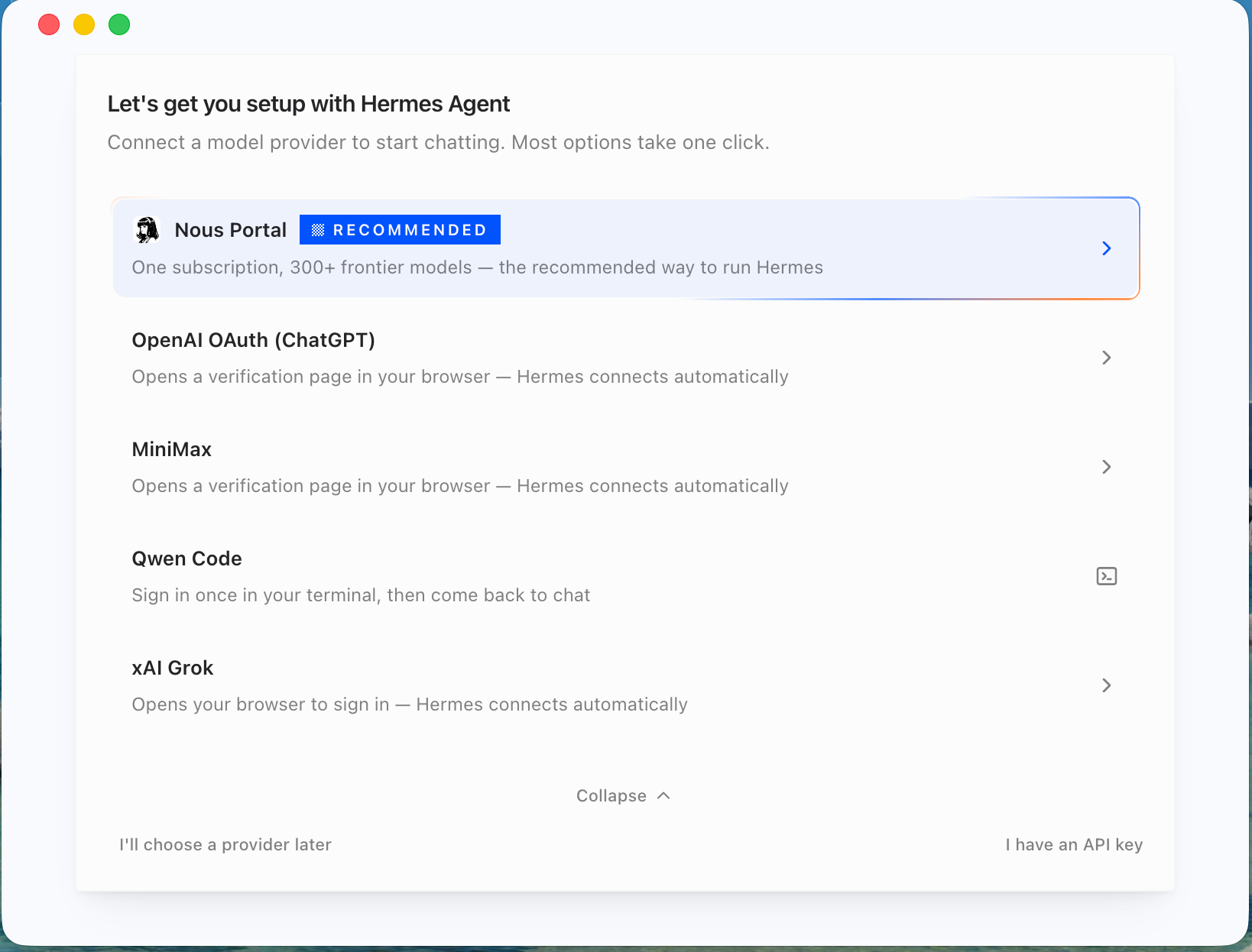
Because autonomous agents consume a significant amount of tokens, I highly recommend using open-source models to keep costs down. I personally use OpenCode Go , which gives you access to powerful models like MiniMax 3 and GLM 5.1 at a fraction of the cost of frontier models.
If you choose a provider like OpenAI, you’ll be taken through a standard OAuth flow.
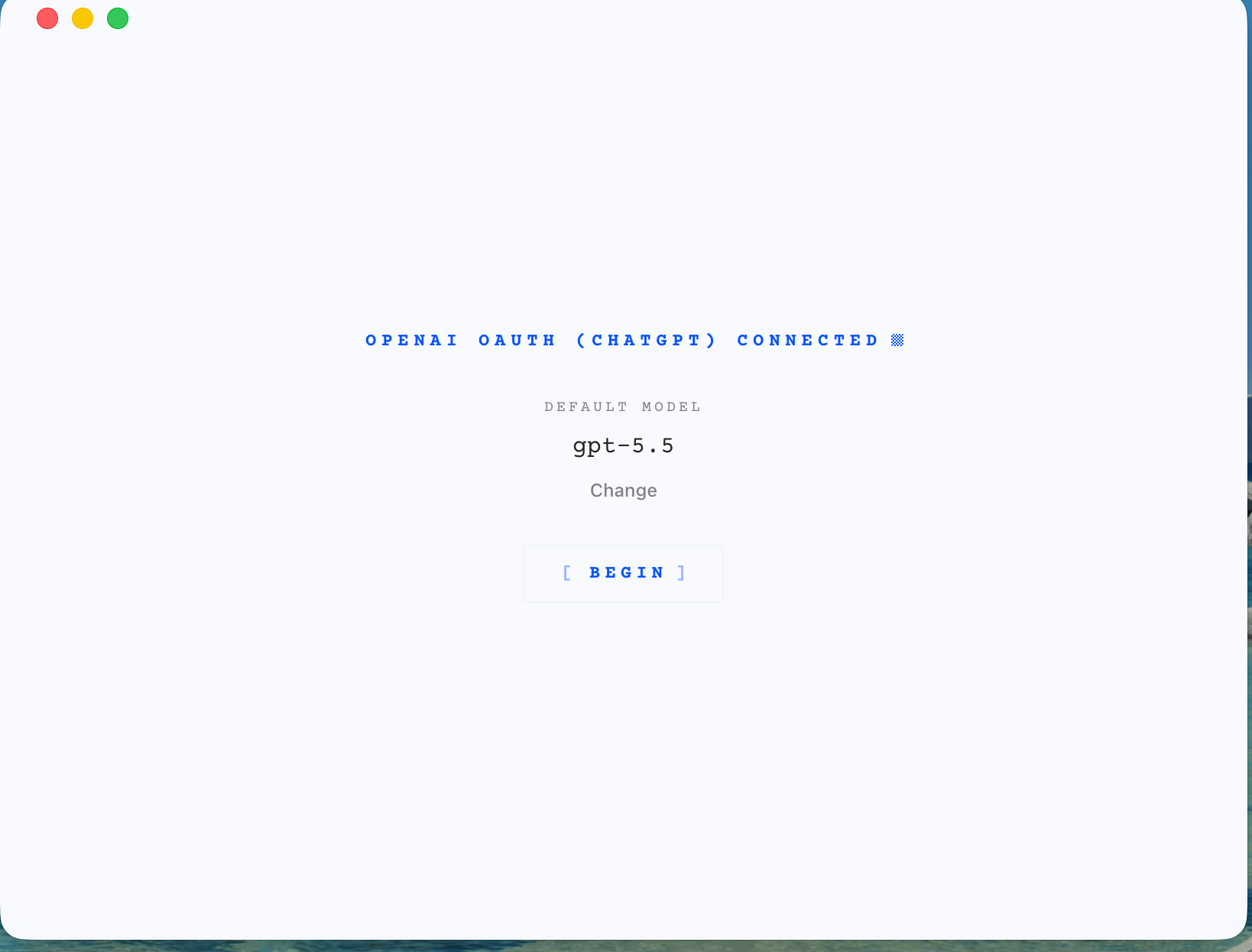
Once connected, you will drop into the main Hermes chat interface.
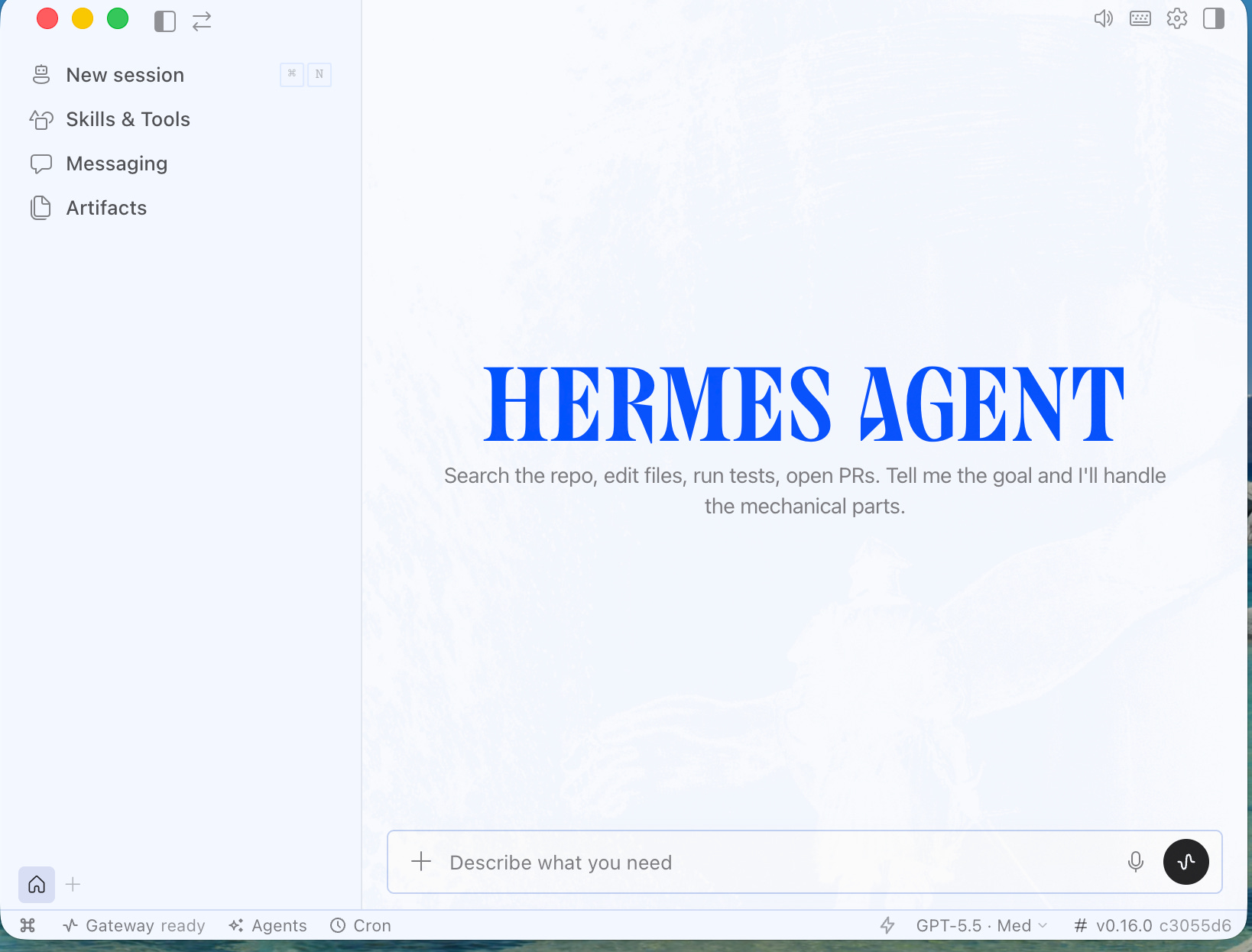
You can immediately start chatting with your agent right here in the desktop app.
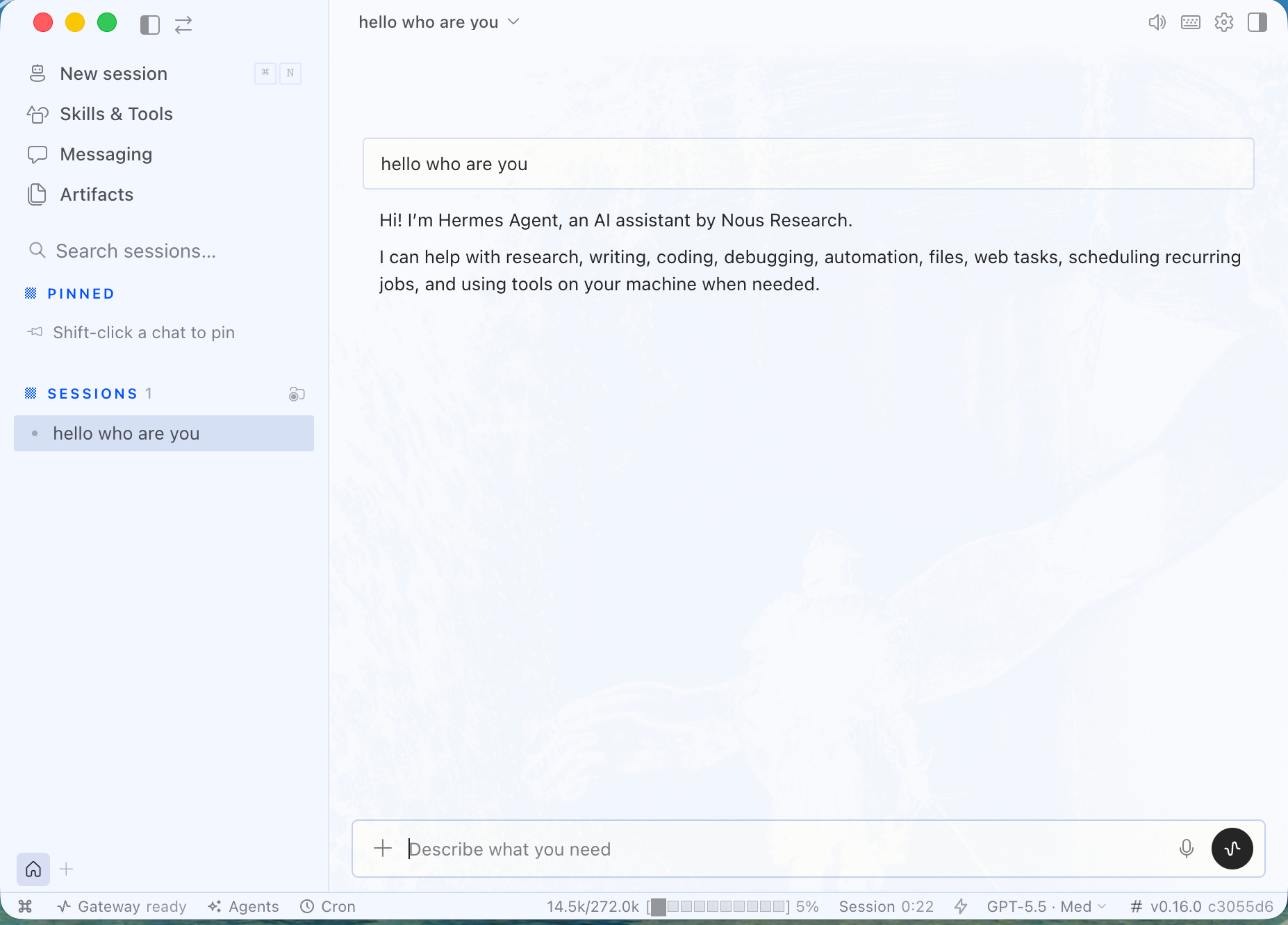
Step 4: Connect Telegram (Messaging Gateway)
One of the best features of Hermes is that it “lives everywhere.” You can communicate with it via Telegram, Discord, Slack, or WhatsApp.
I highly recommend setting up Telegram so your agent is reachable from your phone 24/7.
In Hermes Desktop, navigate to Messaging in the left sidebar and select Telegram.
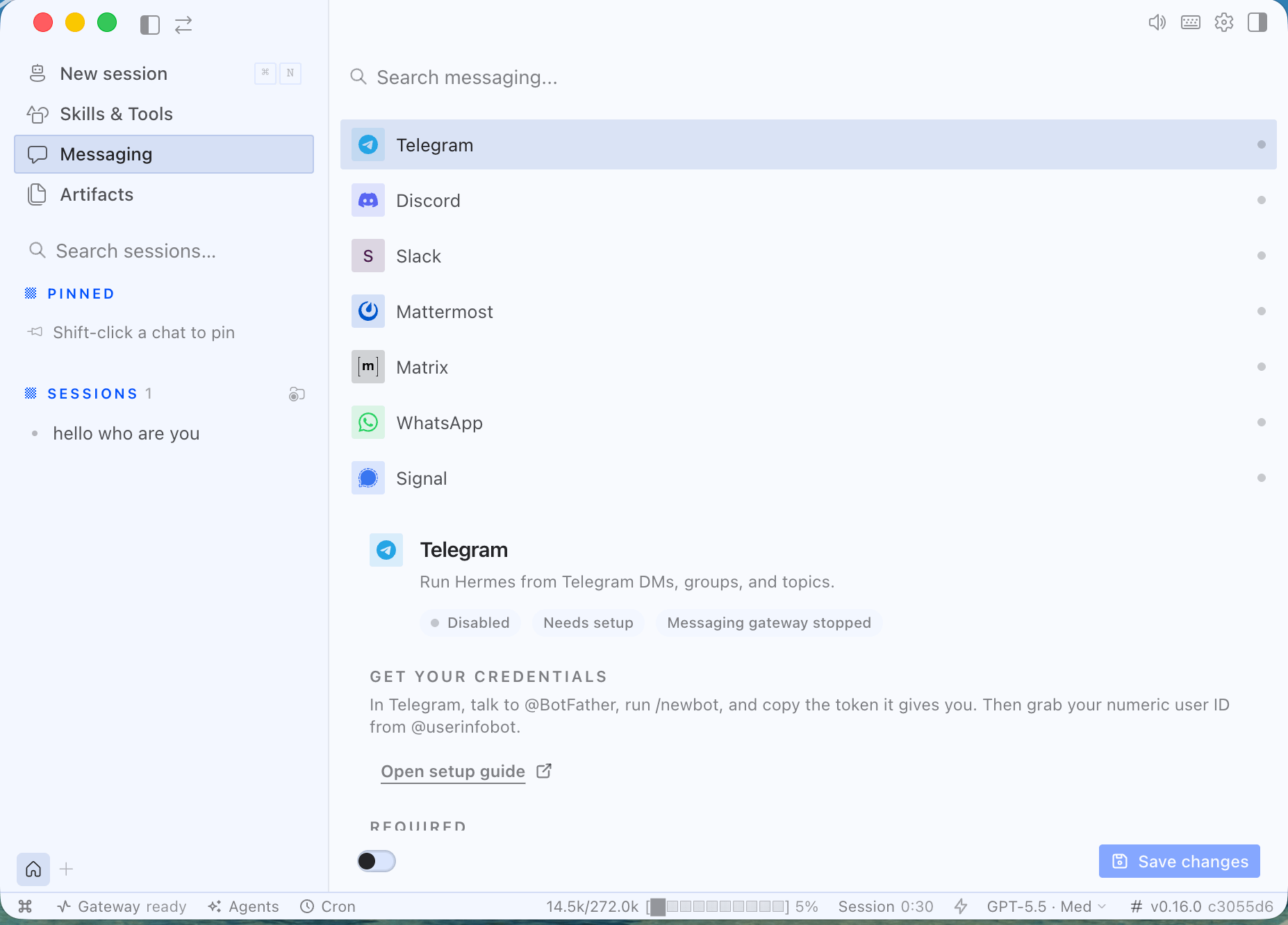
Follow these steps to get your credentials:
Open Telegram on your phone or desktop
Search for
@BotFatherand start a chatSend the command
/newbotFollow the prompts to name your bot and get your HTTP API Token
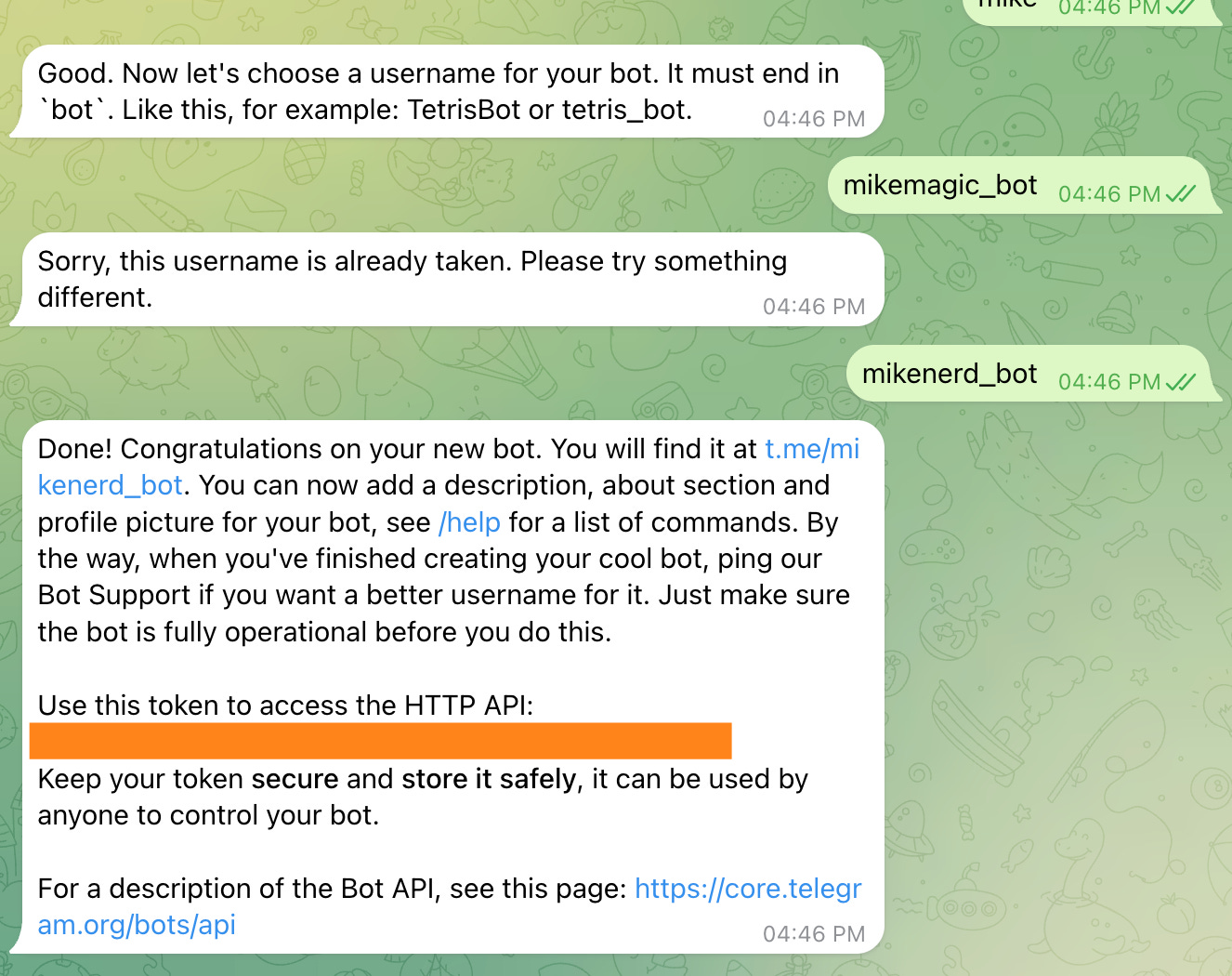
Back in Hermes Desktop, paste this token into the Bot token field.
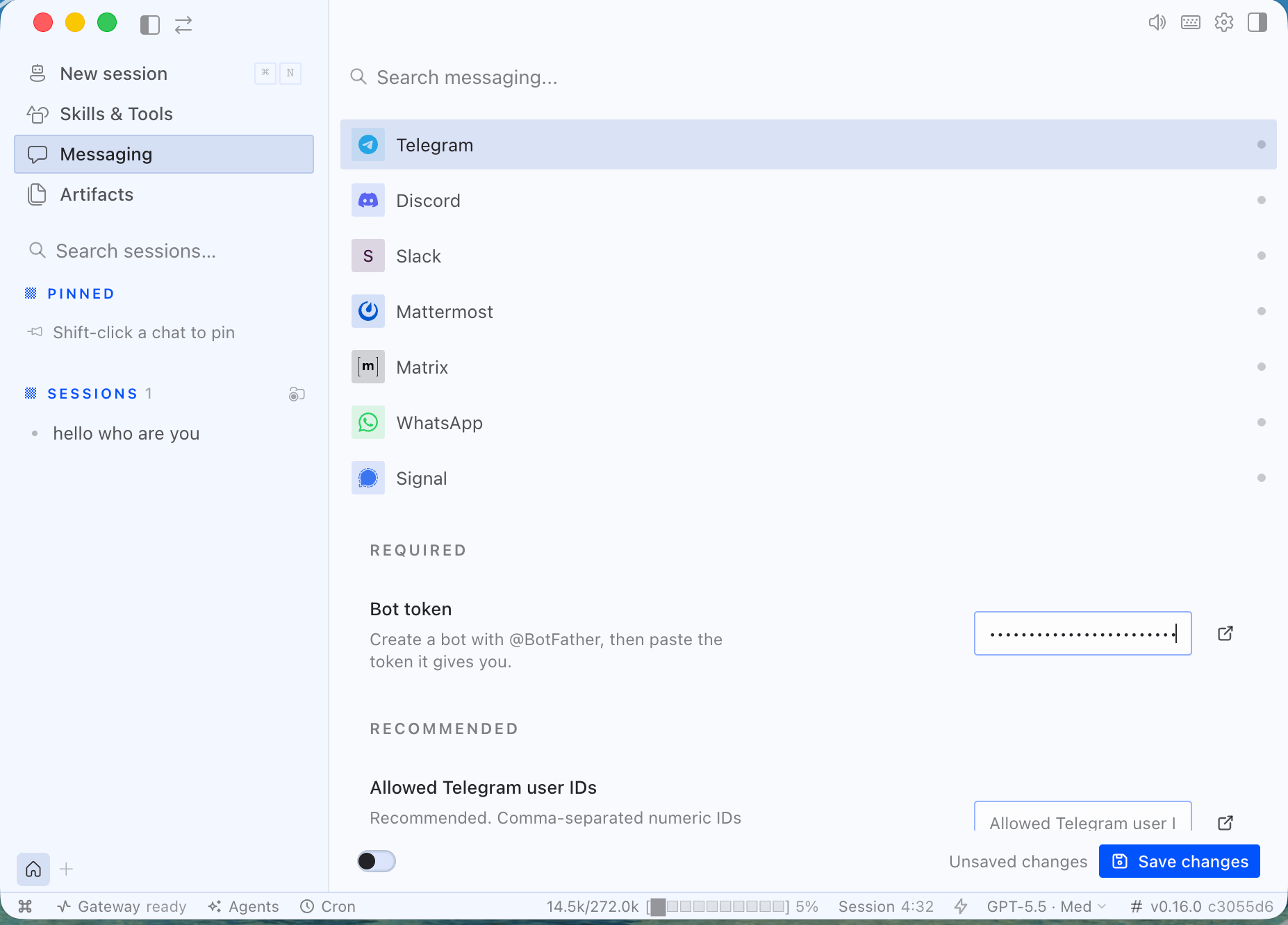
Crucial Security Step: You need to restrict access so only YOU can talk to your agent. In Telegram, search for
@userinfobotand start a chat. It will reply with your numericId.
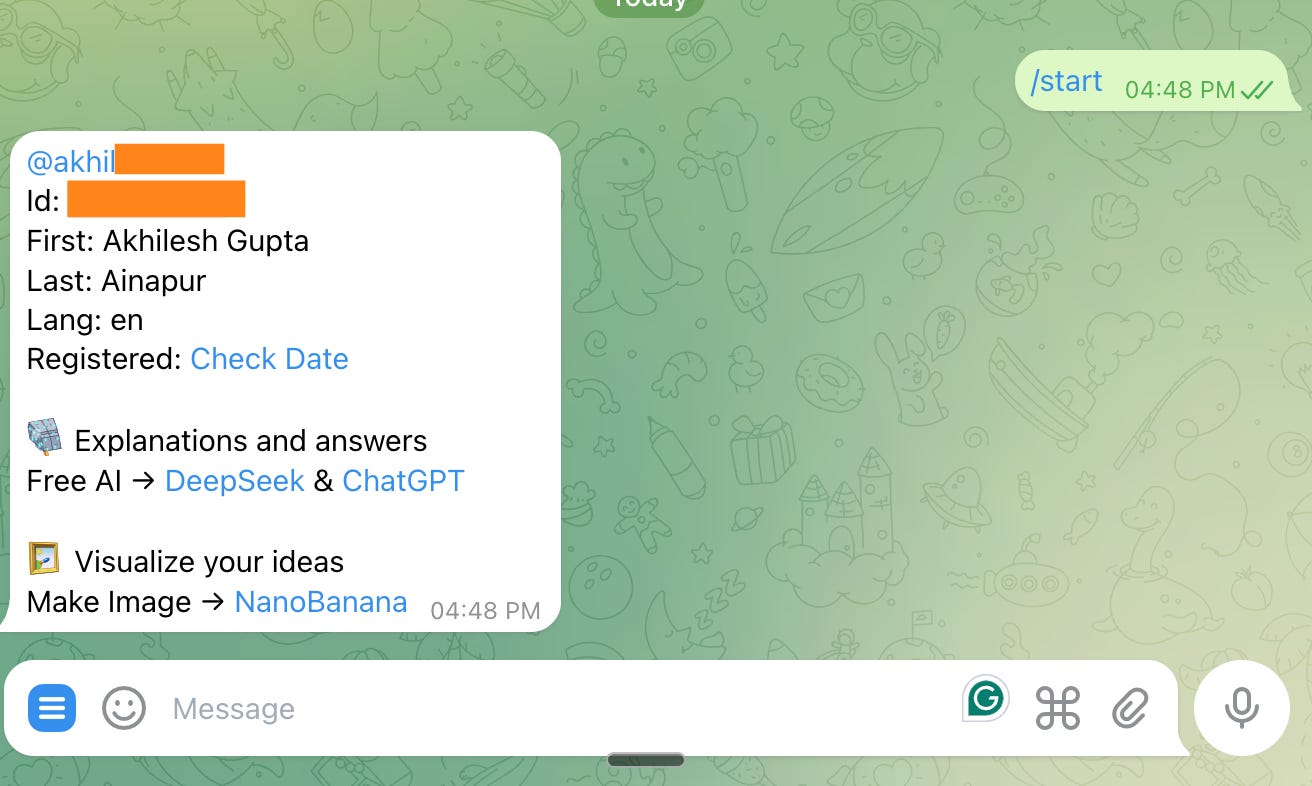
Copy that ID and paste it into the Allowed Telegram user IDs field in Hermes. Click Save changes.
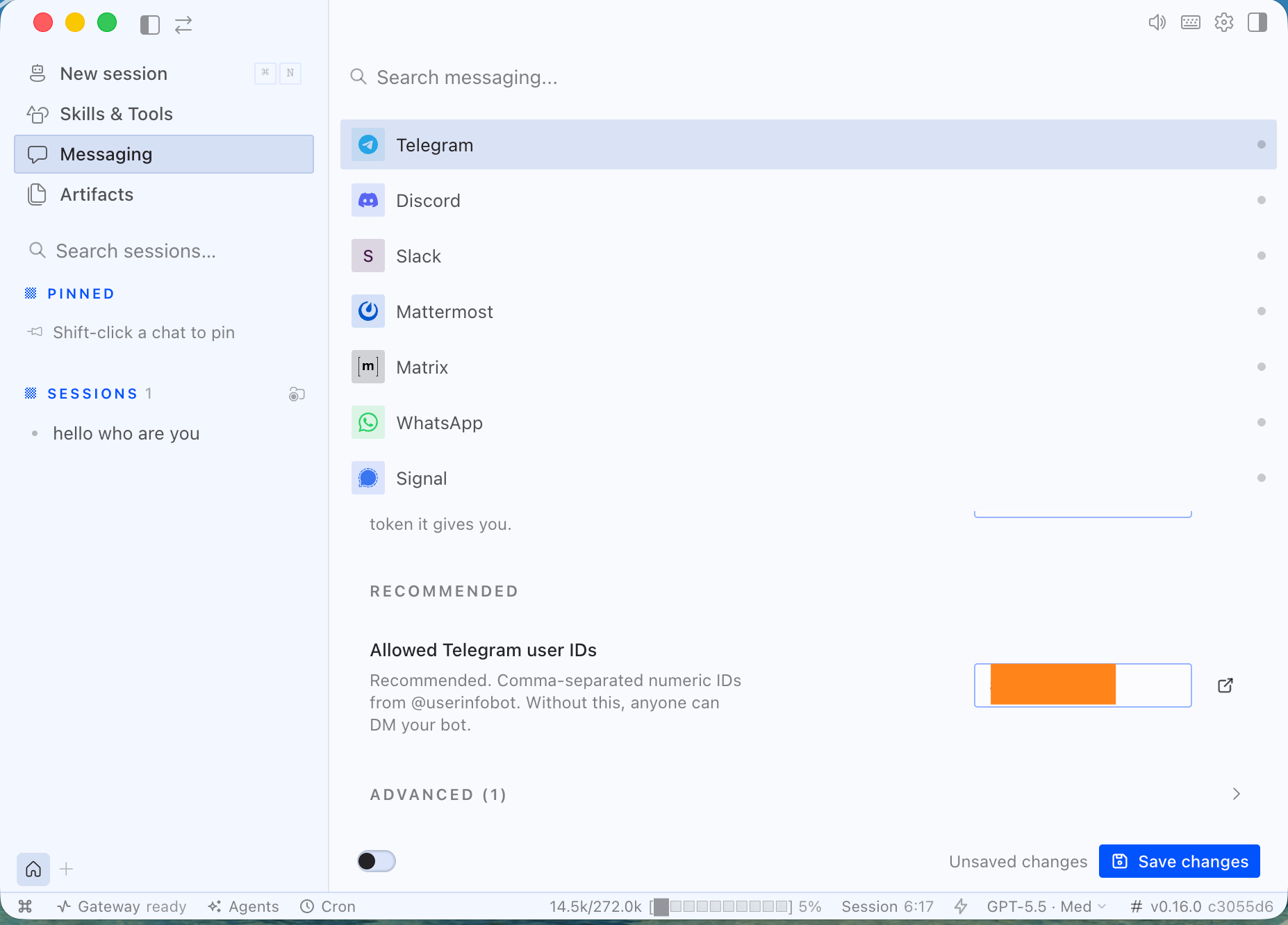
You should now see blue “Connected” and “Credentials set” badges at the top of the Telegram settings page.
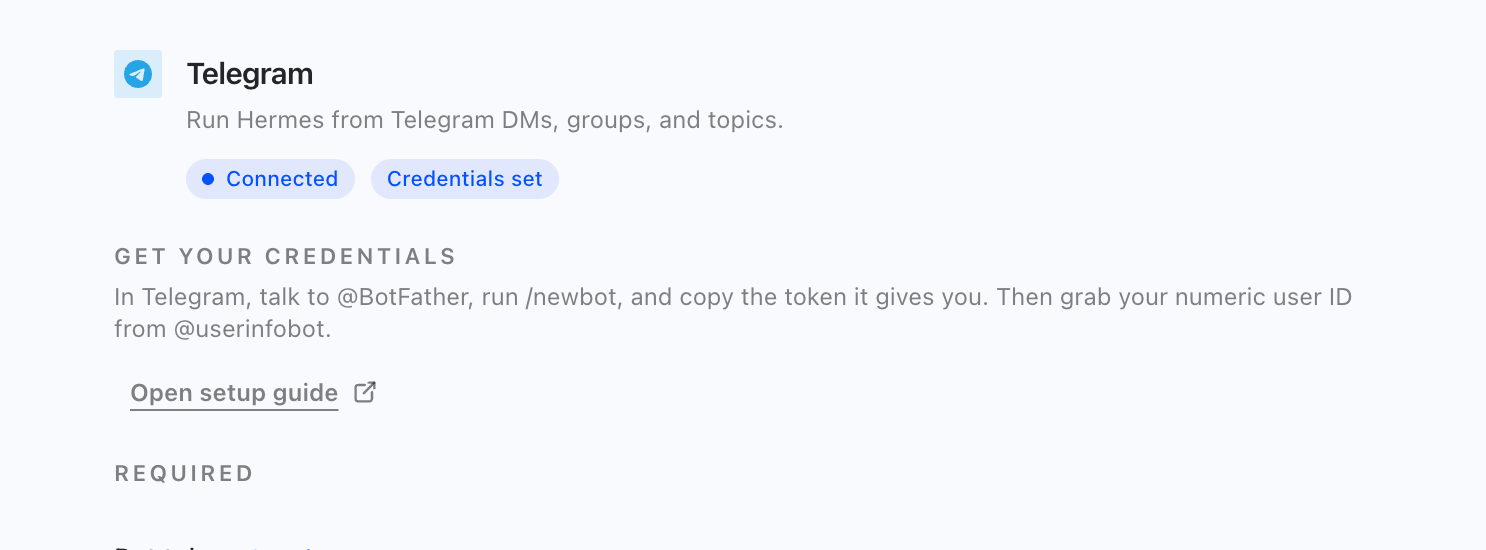
Step 5: Test Your Agent in Telegram
Now that everything is connected, open your newly created bot in Telegram and send a /start or hi message.
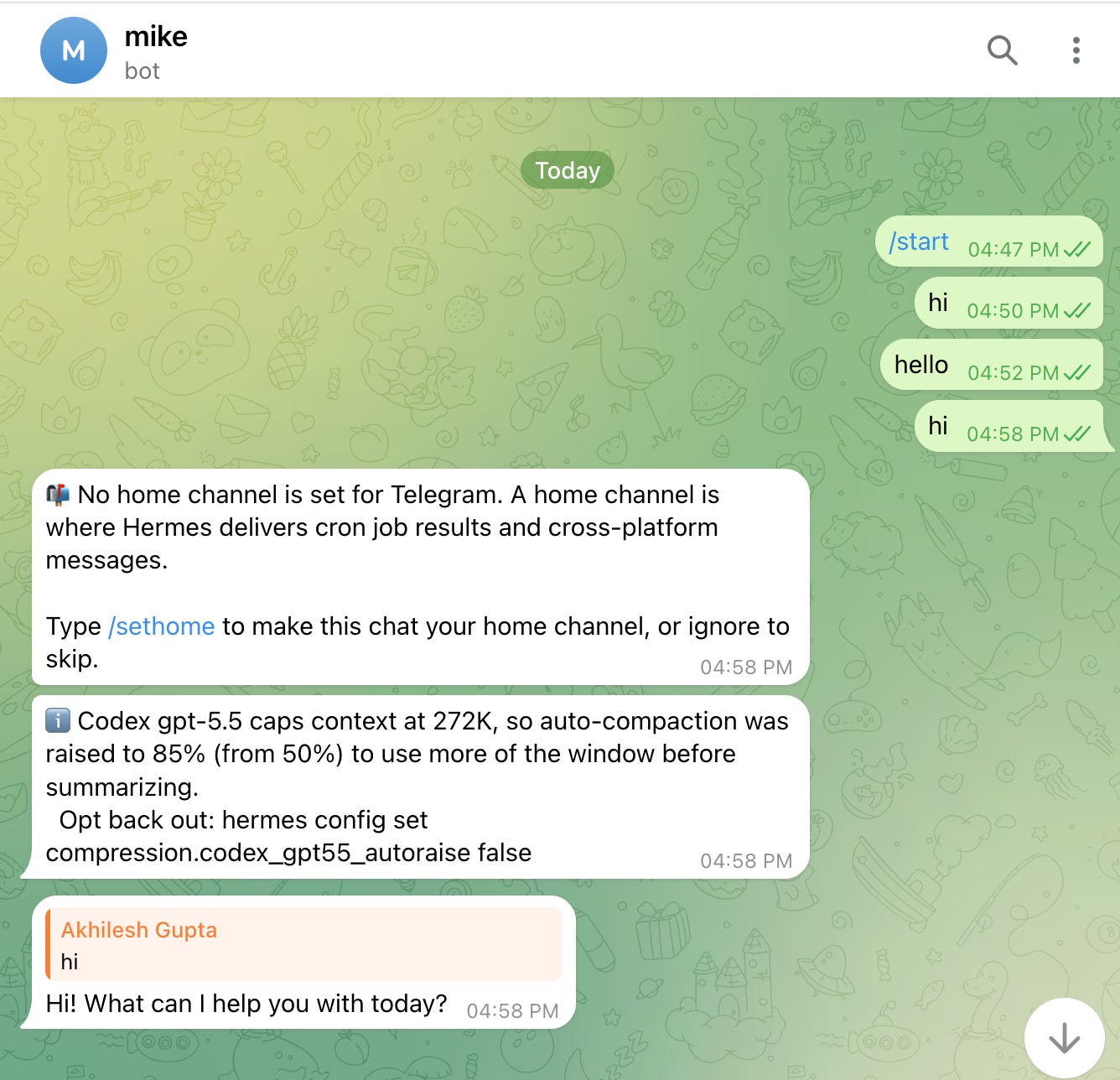
The agent will respond! It will also ask you to type /sethome if you want this chat to be the primary channel where it delivers automated cron job results.
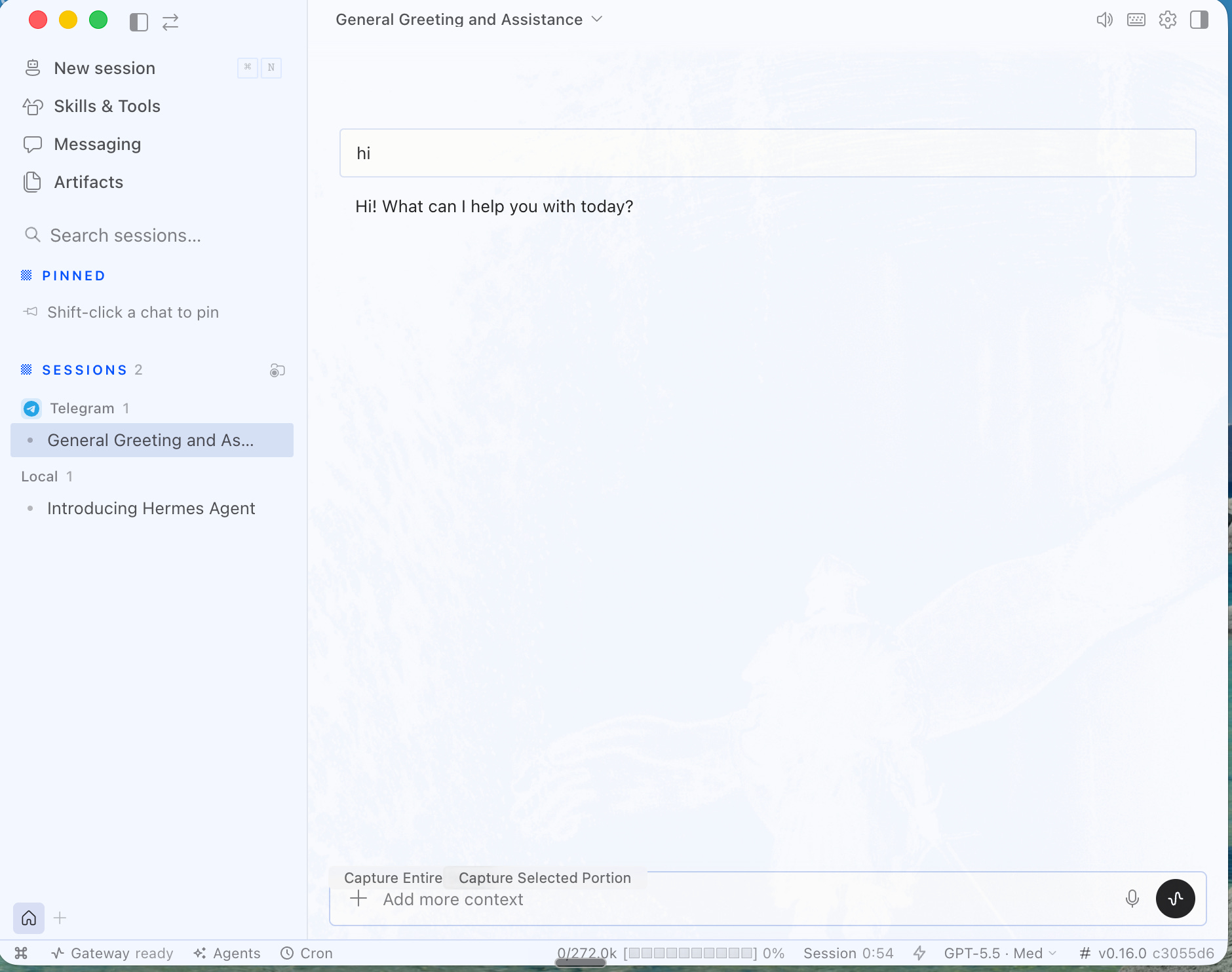
Back in Hermes Desktop, you will see this Telegram conversation appear in your Sessions list.
Bonus: Skills, Voice, and Profiles
Once the basics are set up, you can explore Hermes’ advanced features:
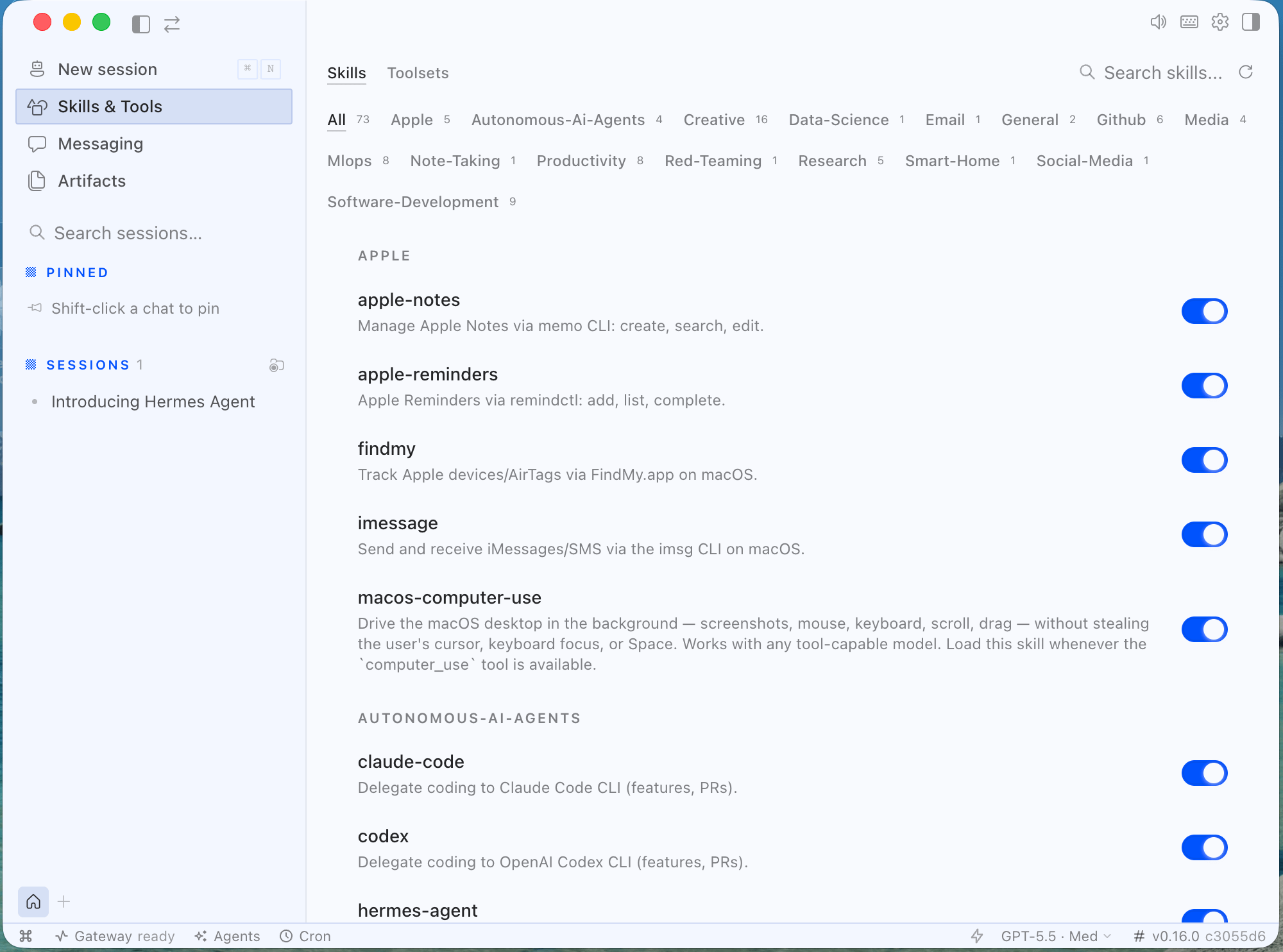
Skills & Tools: Navigate to the Skills tab to enable over 70 pre-built capabilities, from Apple Notes integration to GitHub repository management.
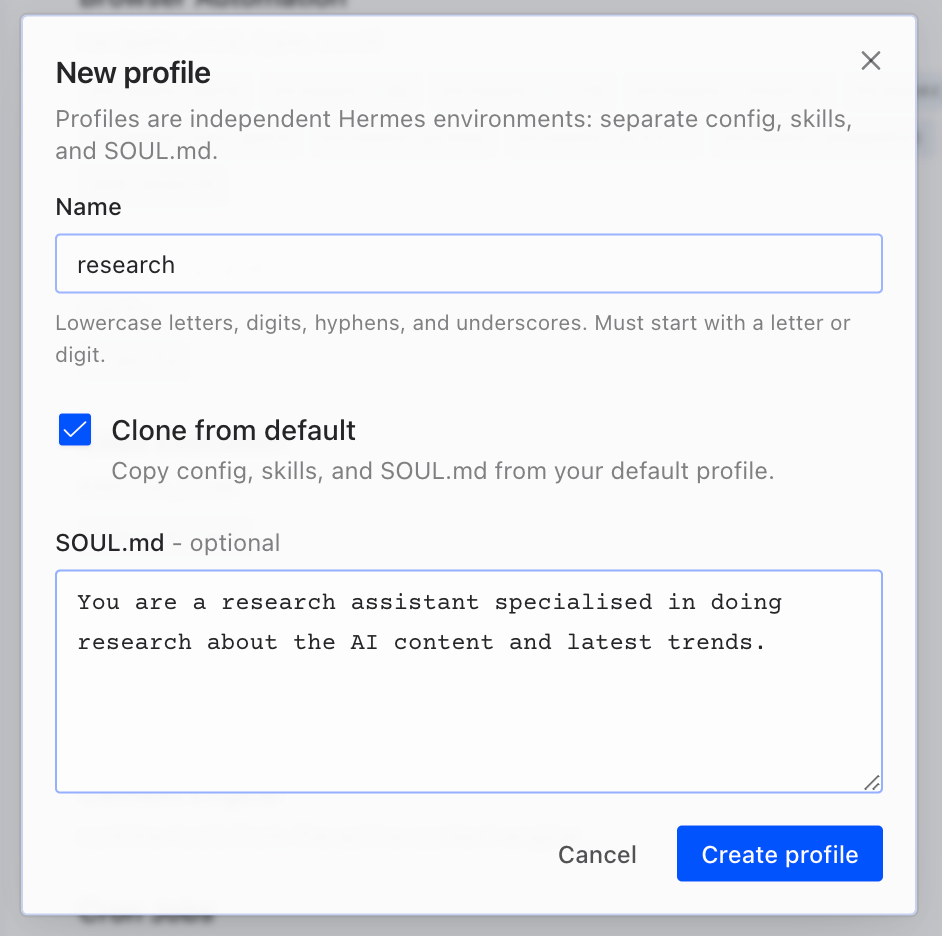
Multiple Profiles: If you want different agents for different tasks (e.g., a research agent vs. a coding agent), click the + button at the bottom left to create isolated profiles with their own specific instructions (SOUL.md).
Next Steps: Moving to the Cloud
Running Hermes on your desktop is the perfect way to get started. But once you have your workflows dialed in, you will likely want your agent running 24/7 without keeping your laptop open.
Because Hermes saves its work and memory to disk, migrating is easy. You can deploy it on a $5/month VPS using Railway . Just zip up your ~/.hermes/guides/ folder and drop it into your remote server, and your agent will pick up right where it left off.
If you want to see exactly how I use Hermes to run TheToolNerd, check out my full review: I Tested Hermes Agent for a Week — Here’s Why I Switched from OpenClaw.