


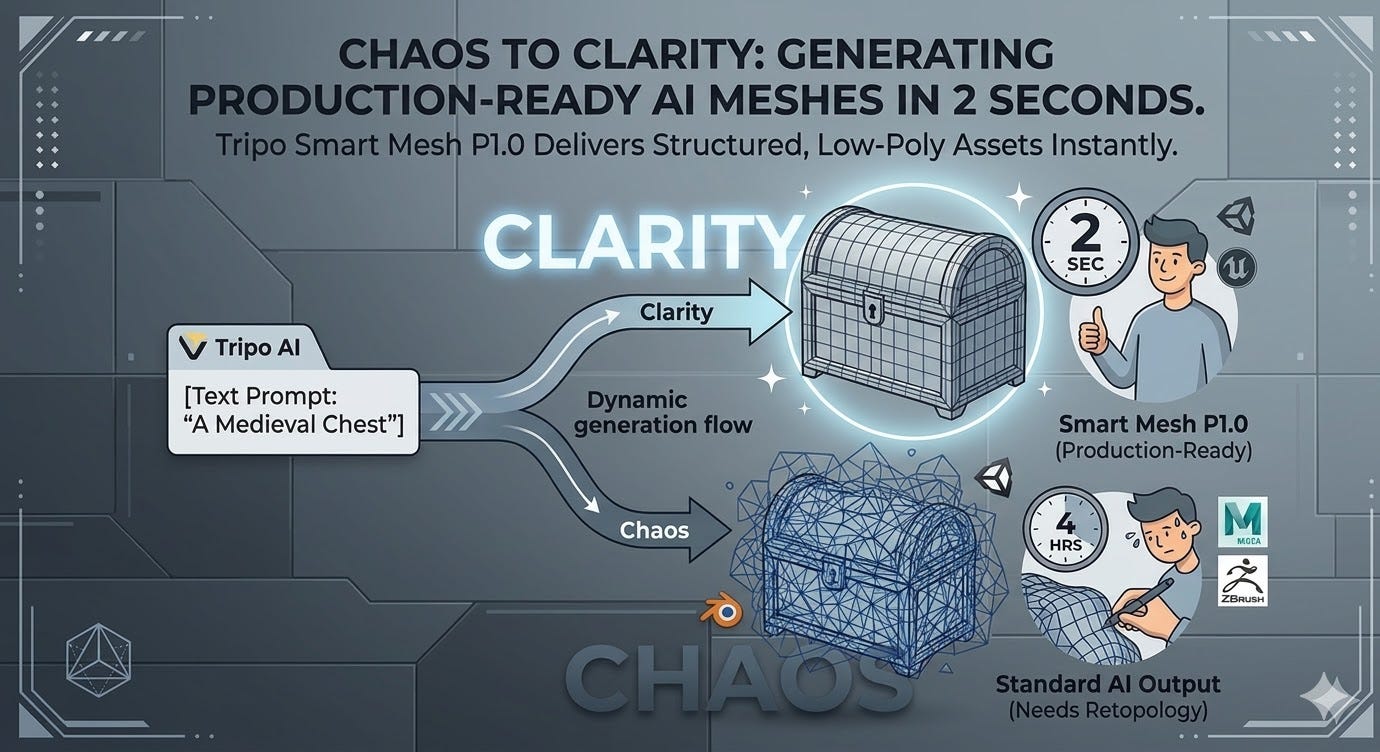
In 2026, top-tier 3D Generative AI tools like Tripo AI made it possible to go from a text prompt or a reference image to a fully textured, visually impressive 3D models in seconds. Suddenly, game developers, indie creators, animators, and product designers who had never opened Blender could generate 3D assets on demand. But for anyone who has tried to actually use one of these models in a game engine or animation pipeline, the same problem keeps surfacing.
“The model looks good on screen. But the moment you open it in Blender, Unity, or Unreal Engine, the mesh underneath is a disaster: chaotic geometry, uneven polygon distribution and broken edge flow. Before you can use it for anything real, you’re looking at hours of manual retopology.”
Retopology, the process of rebuilding a 3D model’s underlying mesh structure so it’s clean, organised, and optimised for real-time use, has been the hidden bottleneck of AI-generated 3D assets. The visuals were good. The underlying mesh structure of clean low-poly geometry didn’t keep up.
For every AI-generated asset that looked good, there was a 3D artist somewhere spending two to four hours manually retopologizing it before it could enter a real pipeline inside Blender or Unreal Engine.
Tripo Smart Mesh P1.0 is built specifically to close this gap. It generates clean, structured low-poly topology as part of the generation itself, so the model that comes out is already production-ready, no manual cleanup required in 2 seconds.
If you are looking to learn about the Best AI 3D Models & Step-by-step guides then checkout the previous blogs we have written


Why Mesh Topology Has Always Been the Bottleneck
To understand why Tripo Smart Mesh is a significant upgrade, it helps to understand what the old workflow actually looked like for developers and creators working with AI-generated 3D assets:
The standard pipeline before Smart Mesh was:
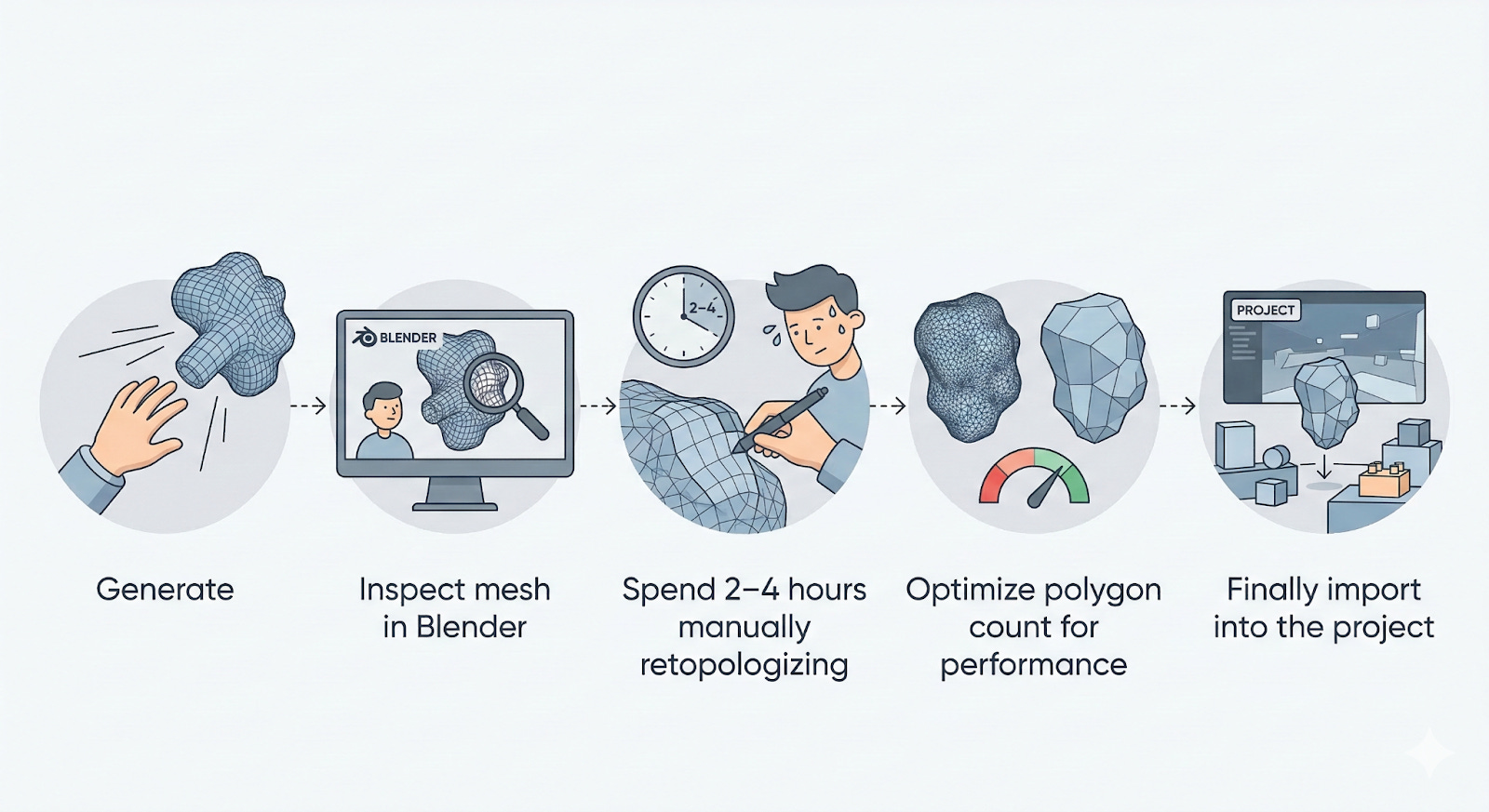
Generate → Inspect mesh in Blender → Spend 2–4 hours manually retopologizing → Optimize polygon count for performance → Finally import into the project.
The AI handled the visual generation, but handed off 80% of the actual production work.
The core issue was that standard AI 3D generators prioritise visual output. The resulting meshes are dense and chaotic.
A 3D artist looking at the wireframe would immediately recognize it as something that needs to be rebuilt from scratch before it can be rigged, animated, or used in Games.
What Tripo Smart Mesh P1.0 Actually Does
Smart Mesh moves topology work from post-processing to the generation stage.
Instead of a visually accurate but chaotic mesh requiring cleanup, Smart Mesh immediately outputs a clean, organised, low-poly, engine-ready mesh with structured edge flow, optimised polygon distribution, and suitability for rigging/animation.
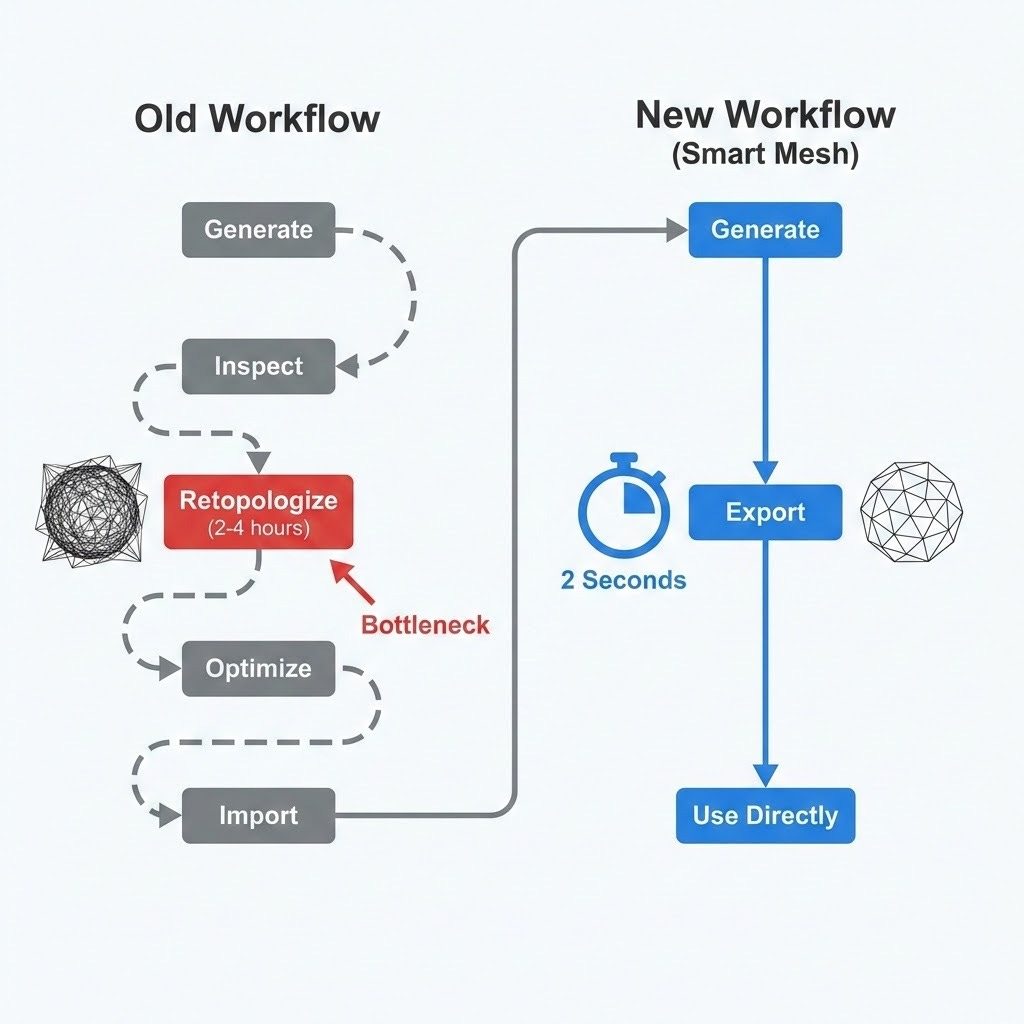
The workflow is simplified:
Generate with Smart Mesh → Export → Use directly.
This eliminates hours of per-asset cleanup for game development and XR teams, supporting scalable asset pipelines. Generating in only 2 seconds also enables rapid iteration across large libraries.
Step-by-Step: How to Use Smart Mesh in Tripo Studio
Here is the complete workflow for generating a clean, game-ready 3D asset using Smart Mesh in Tripo Studio.
Step 1: Open Tripo Studio and Set Up Your Generation
Head to Tripo Studio and log in or create a free account. You will land on the generation workspace.
You have two input options:
Text prompt: Describe your asset directly — for example, “a wooden medieval chest” or “a sci-fi crate with metal paneling”
Image reference: Use the Image to 3D Model feature to upload a concept image or reference photo and convert it into a 3D asset. This is especially useful when you already have visual direction for your asset.

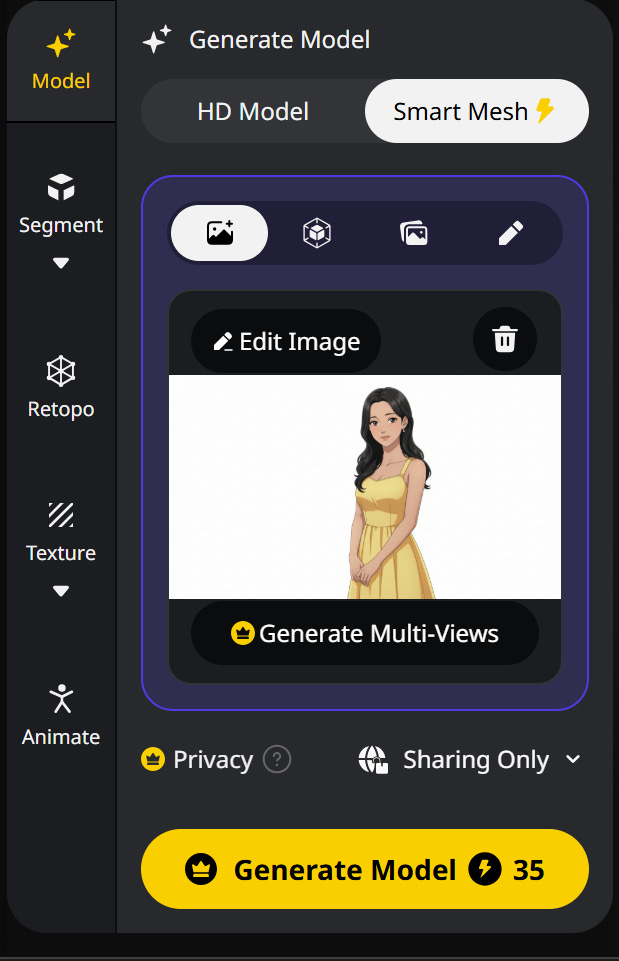
Step 2: Select the Smart Mesh Model and upload an Image
Before generating, select Smart Mesh (P1.0) as your generation model. This is the critical step that changes the output type from a standard AI mesh to a clean, structured low-poly topology.
This model selection instructs Tripo to prioritise mesh structure and real-time usability in the output rather than generating maximum visual density at the expense of mesh quality. I noticed that using high-contrast, evenly lit reference images yielded the absolute best low-poly structure. It gives the AI a much clearer outline to work with, which translates to a cleaner mesh.For this review, I chose this animated woman’s image to generate the 3D model along with the smart mesh.

Step 3: Generate the Asset (approximately 2 seconds)
Click Generate. Smart Mesh produces the structured mesh of triangles. In the hands-on testing, the speed was incredibly impressive as it consistently delivered the mesh in just 2 seconds, which completely changes the pace of rapid iteration. The preview in the canvas will show the model you can switch to wireframe view to inspect the topology directly.
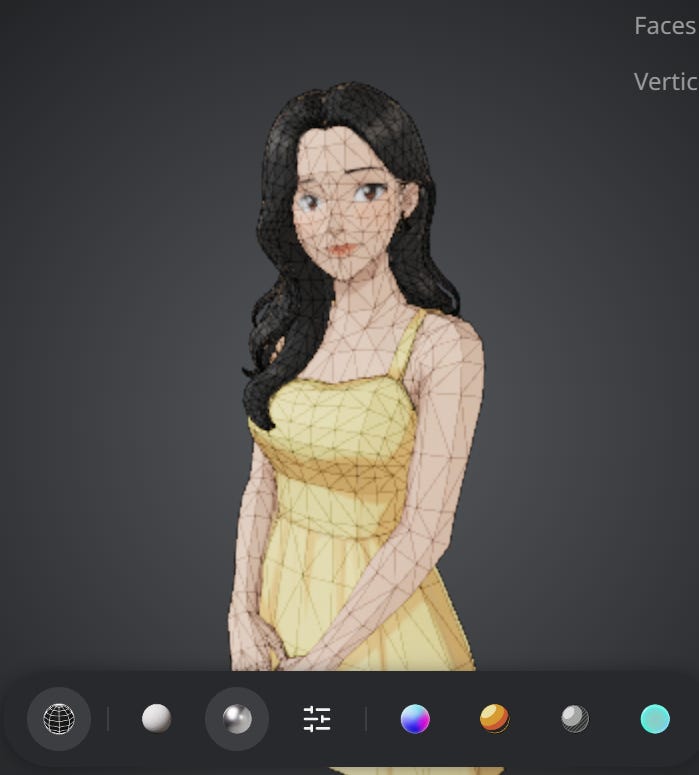
The difference from a standard AI mesh is immediately visible in the wireframe: organised edge loops, even polygon distribution, clean silhouettes. The mesh looks like something a human 3D artist would build - not an AI output that needs to be repaired.
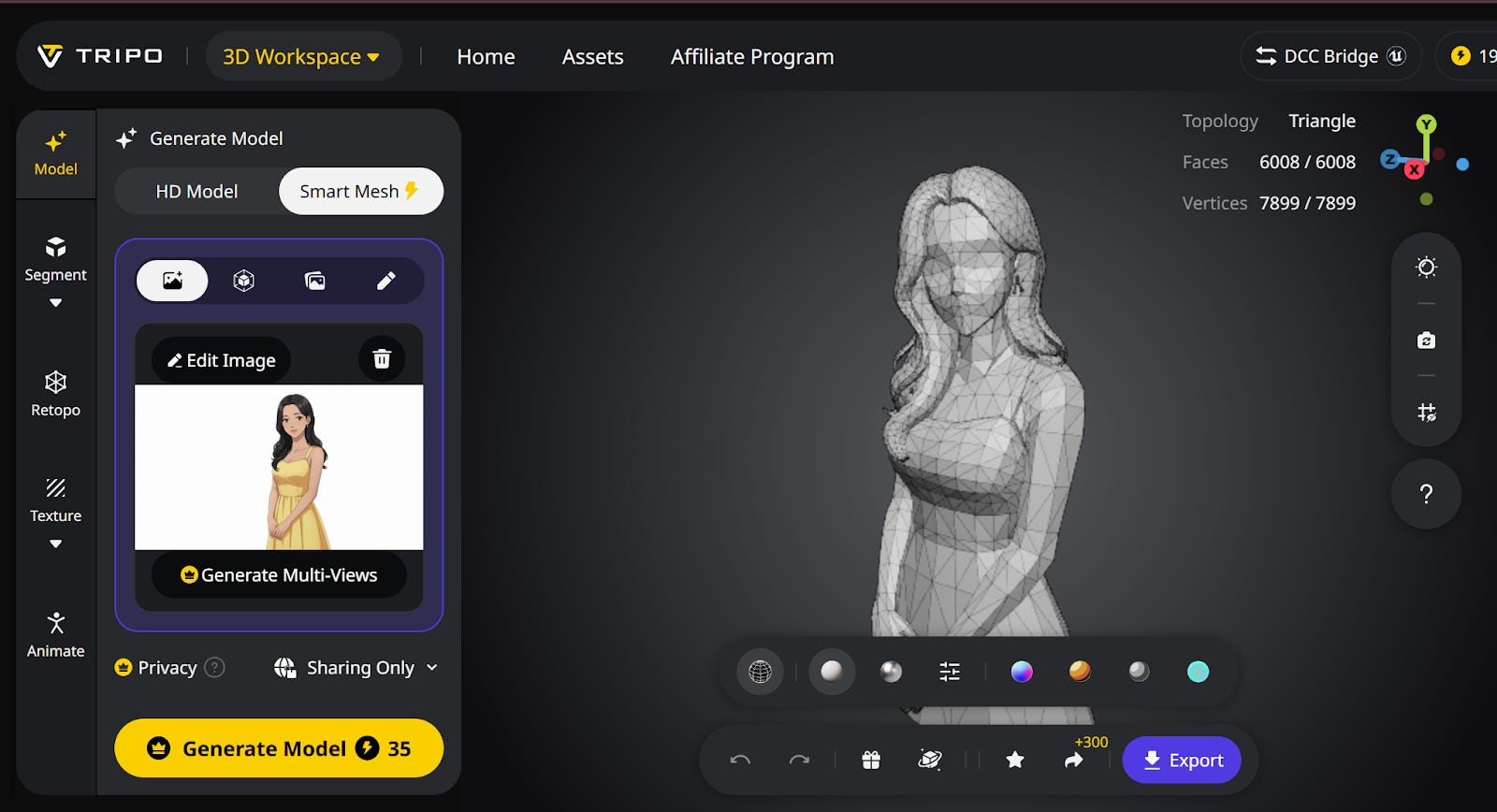
This is the output from the Smart Mesh model.
For comparison, I have also generated a 3D model of the same woman without the mesh. This would consume significant time for 3D artists when they import this into 3D software due to the lack of a wireframe mesh.
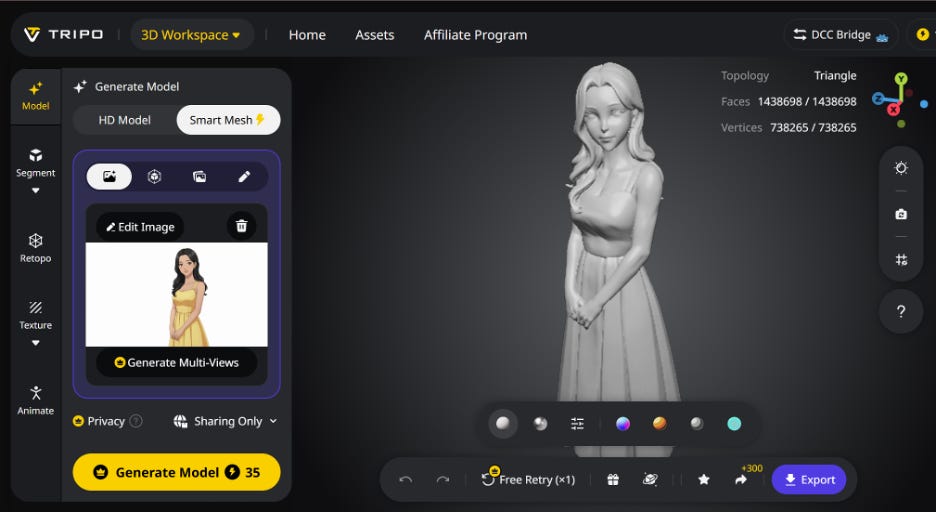
Step 4: Review the Mesh Quality
Tripo Studio lets you inspect the model in solid and wireframe mode before exporting. For Smart Mesh outputs, the polygon distribution is already optimised for real-time performance, lightweight enough for game engines and interactive applications, while maintaining accurate shape quality.
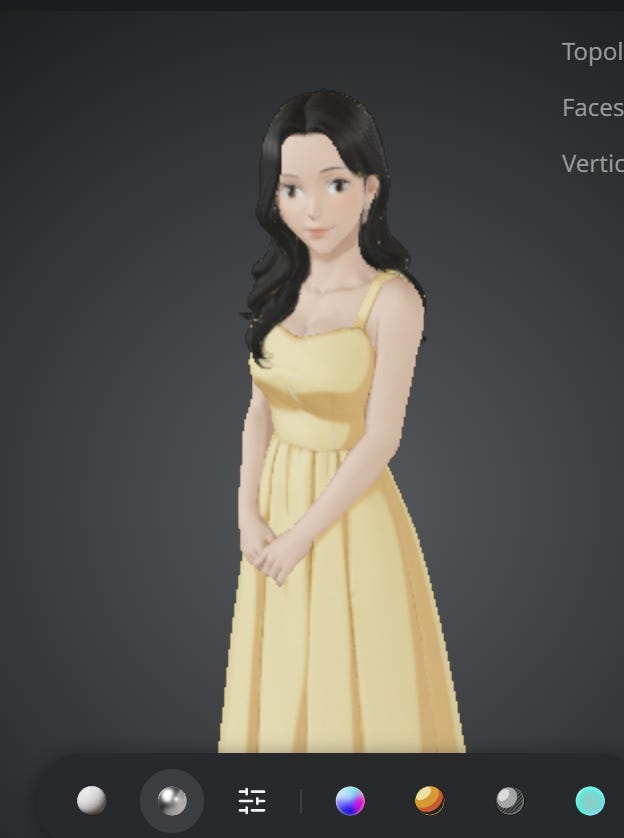
When inspecting the wireframes side-by-side, the difference is night and day. The Smart Mesh instantly provides an even polygon distribution with clean edge loops, whereas the standard AI mesh often results in chaotic, dense geometry that is unusable out of the box. Because the topology is so well-structured from the start, I found that it handles edge flow around joints and facial features beautifully, which is absolutely essential if you plan to rig the model later. There is no need to rebuild the mesh before handing it off to an animator or importing it into an engine. You can see the clear difference between the two models generated from the same image below.
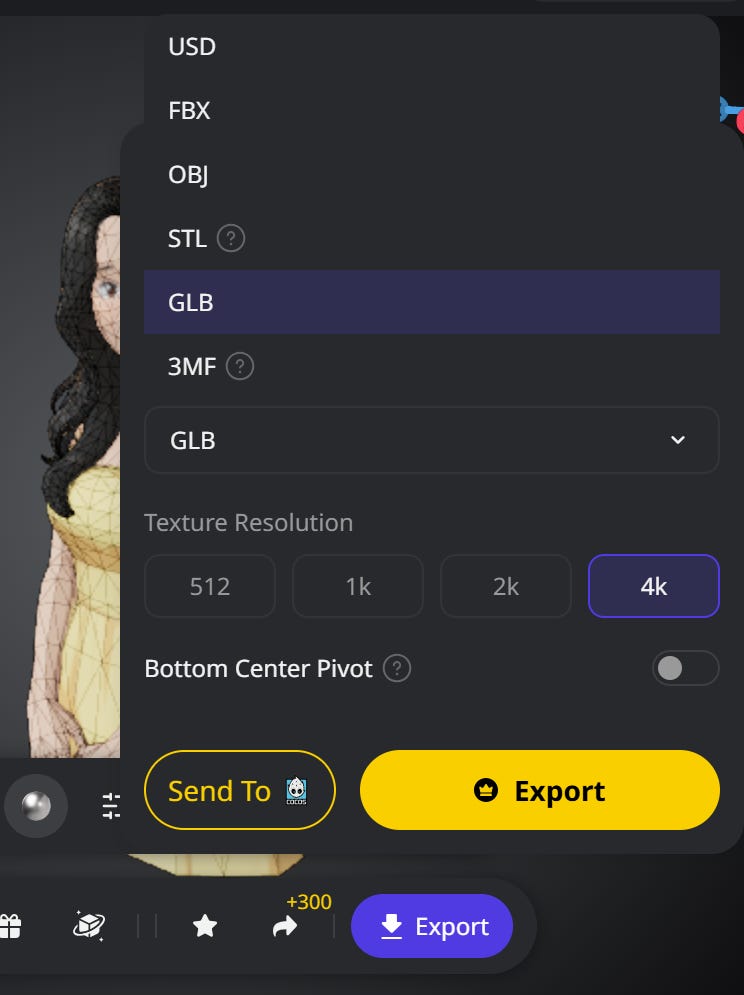
Step 5: Export in Your Preferred Format
Once you are satisfied with the mesh, export in the format that suits your pipeline. Tripo Studio supports:
GLB / glTF: Ideal for web 3D, XR applications, and lightweight pipelines
FBX: For Blender, Unity, Unreal Engine, and any pipeline that requires skeletal animation compatibility
OBJ: For general 3D software import
Because the Smart Mesh output already has clean topology, the exported model can be imported directly into your engine or software without the retopology step that previously slowed production down.
Smart Mesh vs. H3.1 HD Model, Which One Do You Need?
Tripo offers two distinct generation models, each designed for a different point in the pipeline. Understanding which to use depends entirely on what you are building.
Smart Mesh (P1.0): Clean low-poly topology, optimised for real-time pipelines, game engines, XR, and web 3D. Use this when the mesh needs to perform.
H3.1 HD Model: High-density geometry with maximum visual detail. Designed for hero assets, marketing visuals, cinematic renders, and close-up shots where polygon count is not a constraint.
For most game development and interactive application workflows, Smart Mesh is the right starting point. If you need a showcase asset for a storefront render or a cinematic cutscene, H3.1 is the better choice.
Who Should Use Smart Mesh

Game developers building prop and environment asset libraries at scale
Indie developers who need to move fast without dedicated 3D artists on the team
XR and web 3D creators where performance constraints and clean geometry are critical
Production teams running rapid iteration cycles generate, test, replace, and iterate without bottlenecks
Final Verdict
The problem with AI-generated 3D assets was never visual quality. It was that the outputs were too structurally messy to use in a real pipeline without extensive manual work. Tripo Smart Mesh P1.0 directly addresses this, generating clean, organised, production-ready topology as part of the generation process itself.
For developers and creators working at scale, this is more than a minor quality-of-life improvement. It removes what has historically been the most time-consuming step between AI generation and actual production use. The 2-second generation speed makes it practical to build out large asset libraries without the bottleneck that previously made AI-generated 3D impractical for serious pipelines.
You can try Smart Mesh now directly in Tripo Studio. For full technical details on the feature, visit the Smart Mesh P1.0 feature page.
Check out their official video :
Disclosure: This post is an advertorial.