

Personal agents have become a crowded new AI category.
Instinct connects to your apps and devices, then handles tasks such as follow-ups and bookings.
Muse from Meta works across the web and connected apps.
Grok Bot gives persistent agents their own cloud computers.
Lindy (Lindy.ai) acts more like an AI teammate for email, meetings, schedules, and business workflows.
Claude Code, Codex, and OpenCode are also moving beyond coding sessions into broader computer work.
The pattern is clear:
Connect your context and tools so an agent can complete work.
Most of these products are closed platforms.
Hermes Agent and OpenClaw take the open-source route. Both are MIT-licensed, so you can inspect the code, run the software on infrastructure you control, swap model providers, and shape the agent around your own memory, skills, and permissions.
An agent is powerful when it has its own computer. A computer that stays awake, with persistent storage, a terminal, scheduled jobs, credentials, messaging channels, and sometimes a browser.
You can assemble that stack on a virtual private server (VPS) from AWS, Hetzner, Hostinger, Railway, or another cloud provider. Then you inherit Docker setup, networking, process restarts, upgrades, and another machine to maintain.
Even when you are comfortable in a terminal, the setup can easily eat an hour. For someone learning as they go, half a day can disappear before the agent does useful work.
That is the gap Agent37 is trying to close. You choose an agent, choose a plan, and launch an always-on instance.
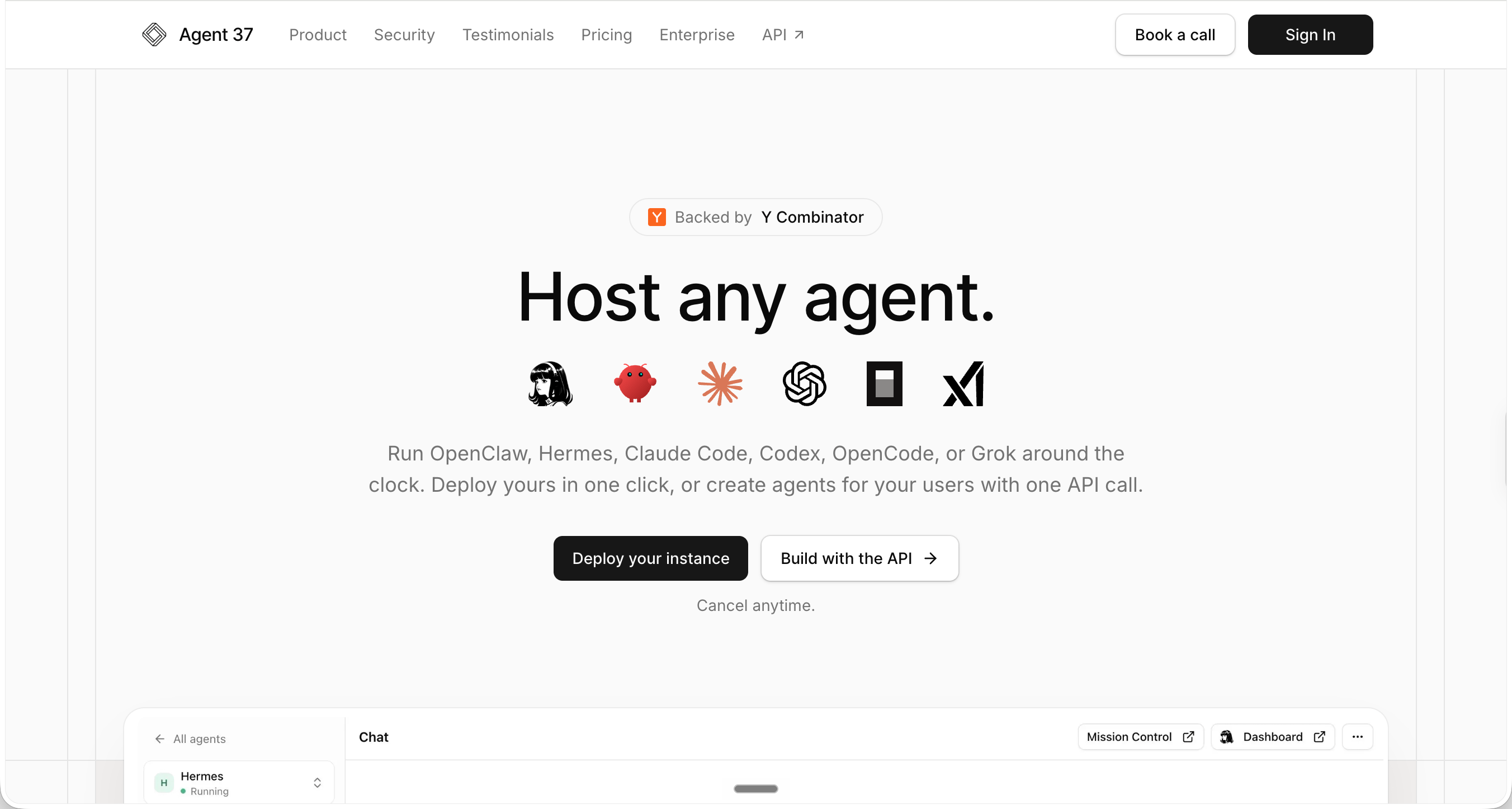
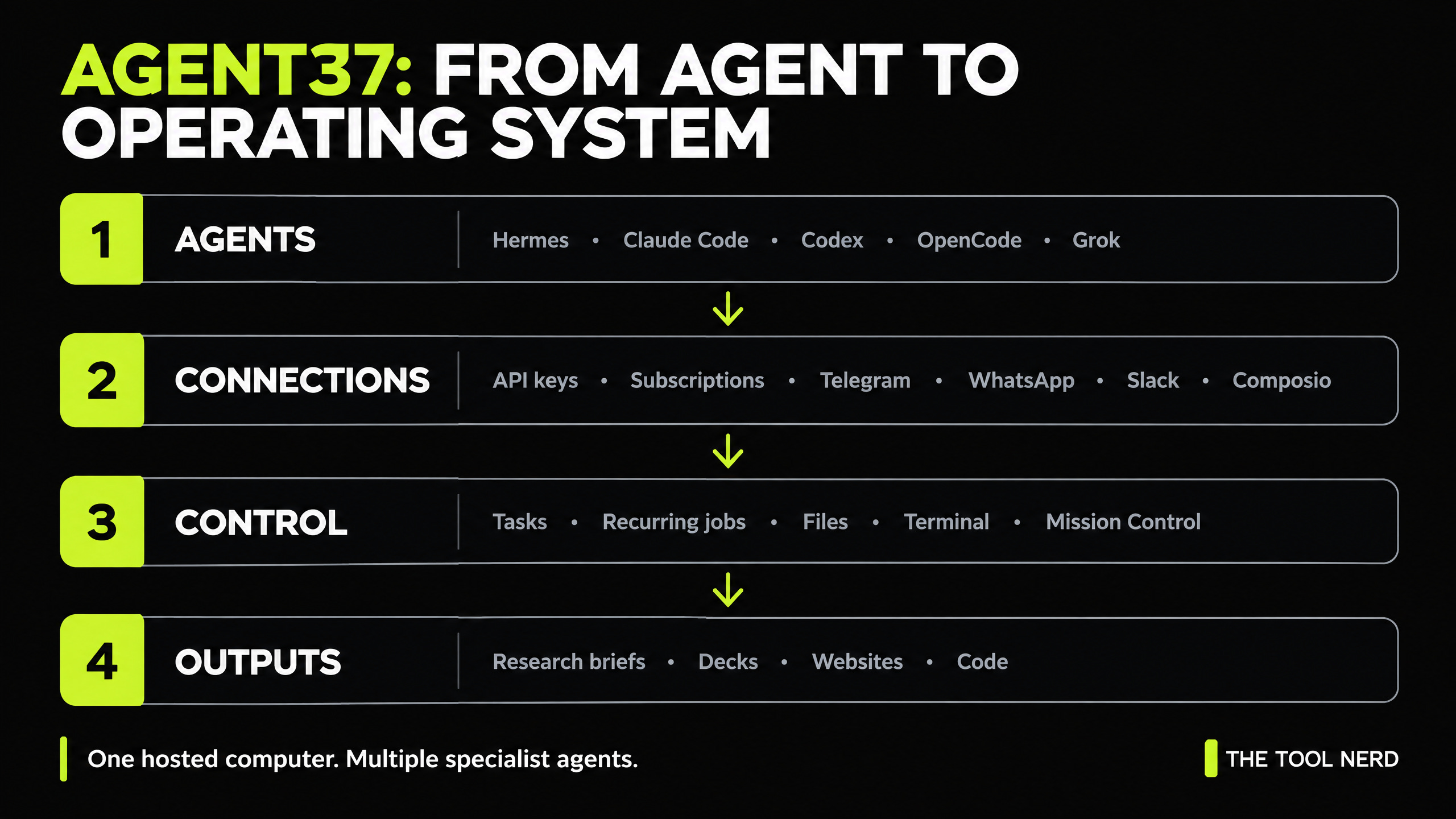
Agent37 currently supports Hermes, OpenClaw, Claude Code, Codex, OpenCode, and Grok. Each instance gets persistent files, a terminal, task management, scheduled jobs, communication channels, integrations, and website publishing.
I deployed Hermes, configured it from the remote dashboard, connected Telegram and Zoho Mail, added model access, inspected skills and MCP servers, delegated research to Codex, generated a PowerPoint deck, published a TypeSafe.ai report, and used Mission Control to build a Jobs 2030 guide.
Agent37 is the easiest way I have found to test a persistent personal agent without the complexity of setting everything up manually. You can launch an Agent37 instance here.
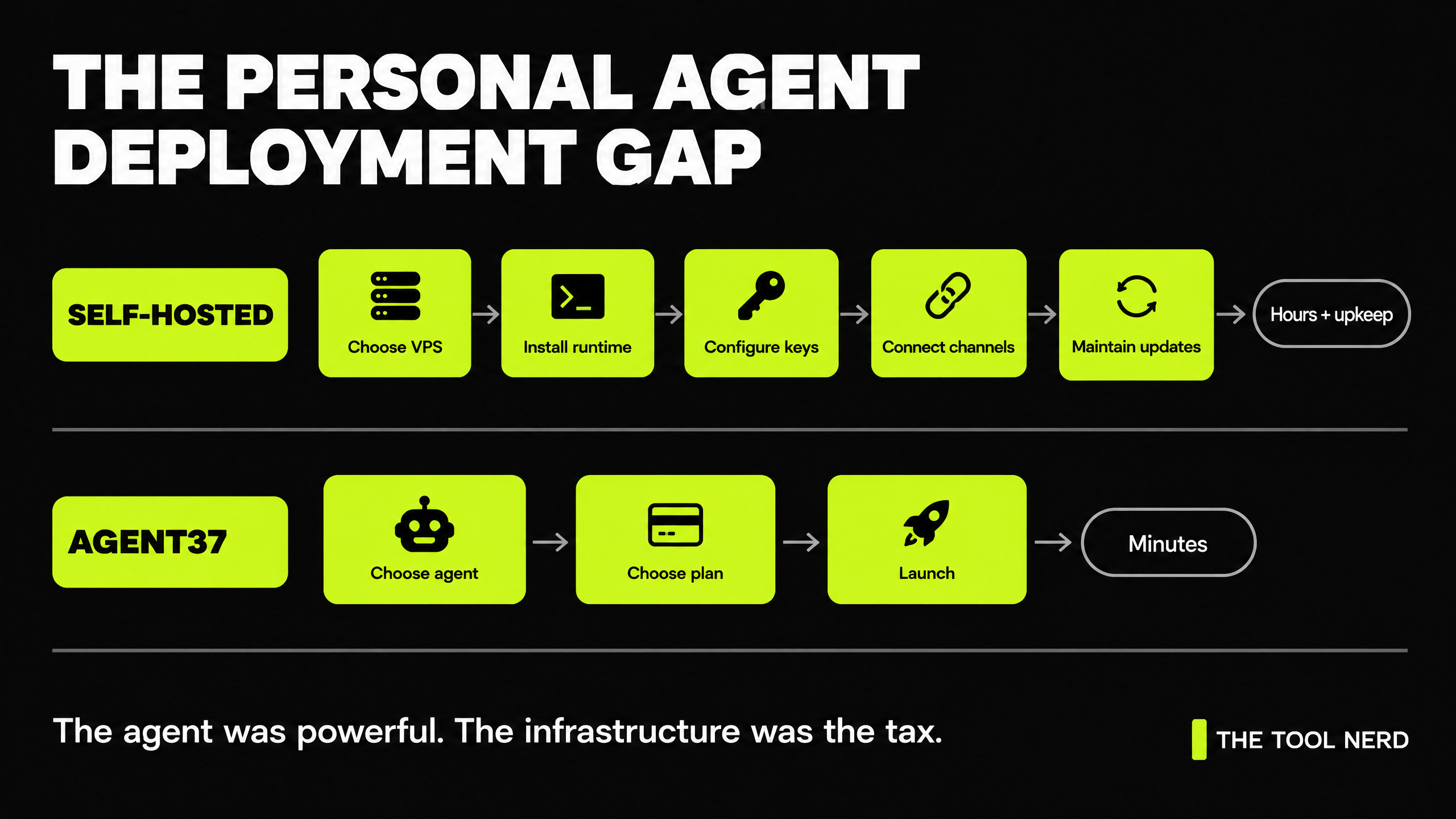
It removes infrastructure friction. You still need to write good tasks, secure connected accounts, check model output, and understand what each agent does well.
Check out my previous articles and subscribe to stay updated with latest trends and tools.


How to Set Up Agent37: Step-by-Step Personal AI Agent Deployment
Step 1: Create an Agent37 Account and Launch Your AI Agent
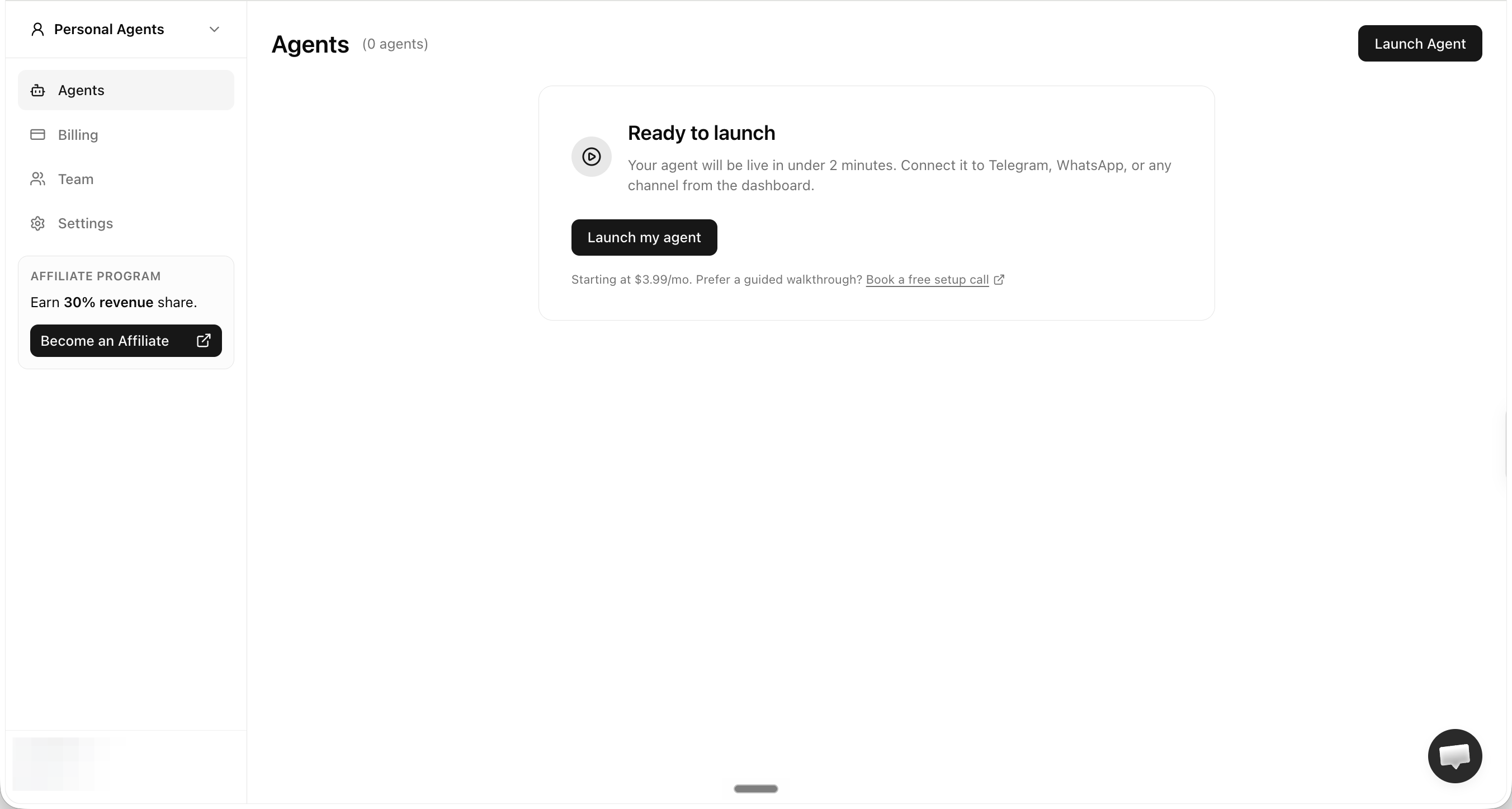
After signing in, I landed on a clean Agents screen. I clicked Launch my agent.
Step 2: Choose Your AI Agent Stack: Hermes, OpenClaw, and More
Agent37 gave me two broad choices: OpenClaw on its own, or a combined instance containing Hermes, Claude Code, Codex, OpenCode, and Grok. I selected the combined option because I wanted to test agent switching and delegation inside one environment.
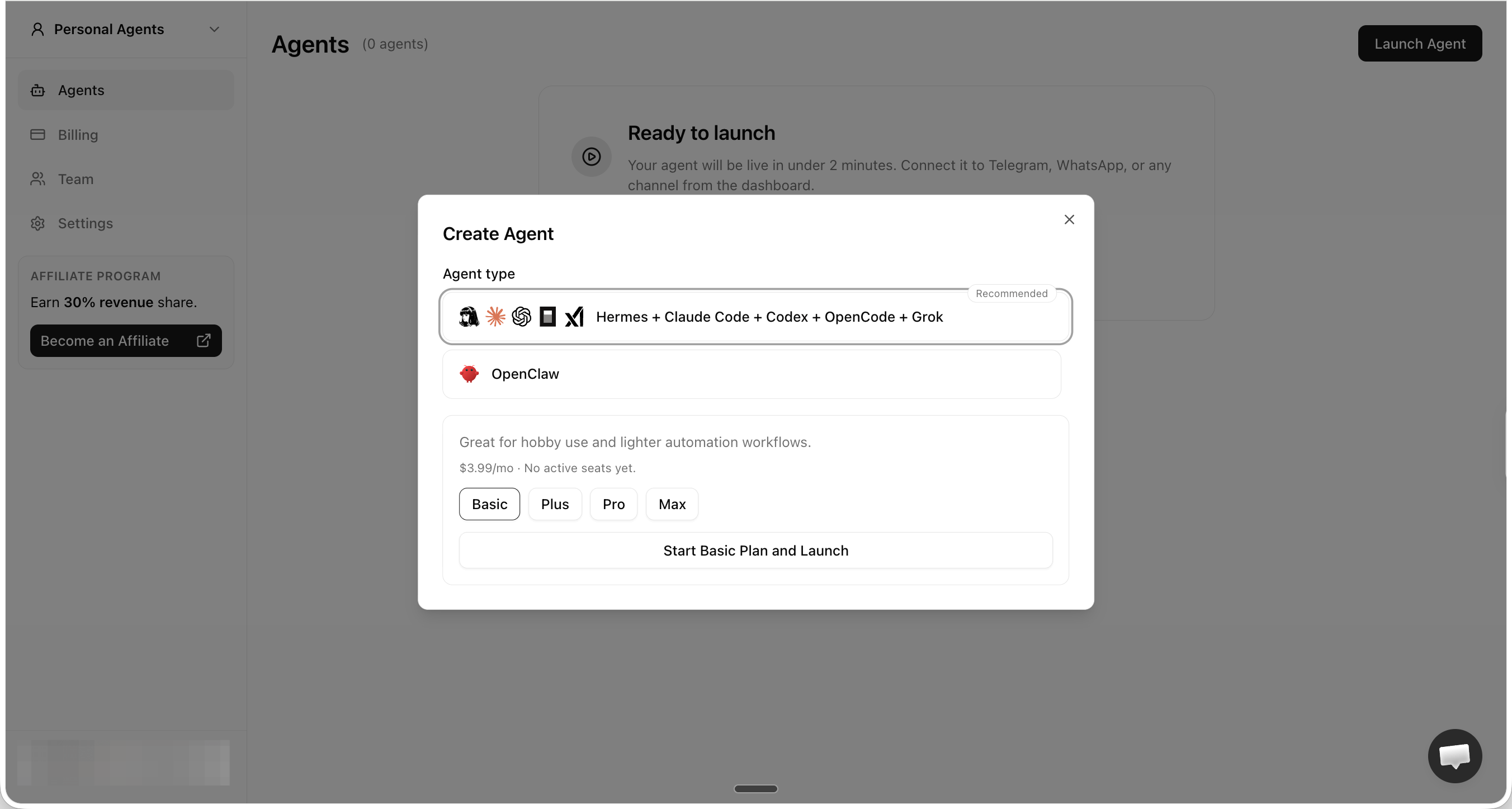
Step 3: Choose an Agent37 Plan and Pricing Tier
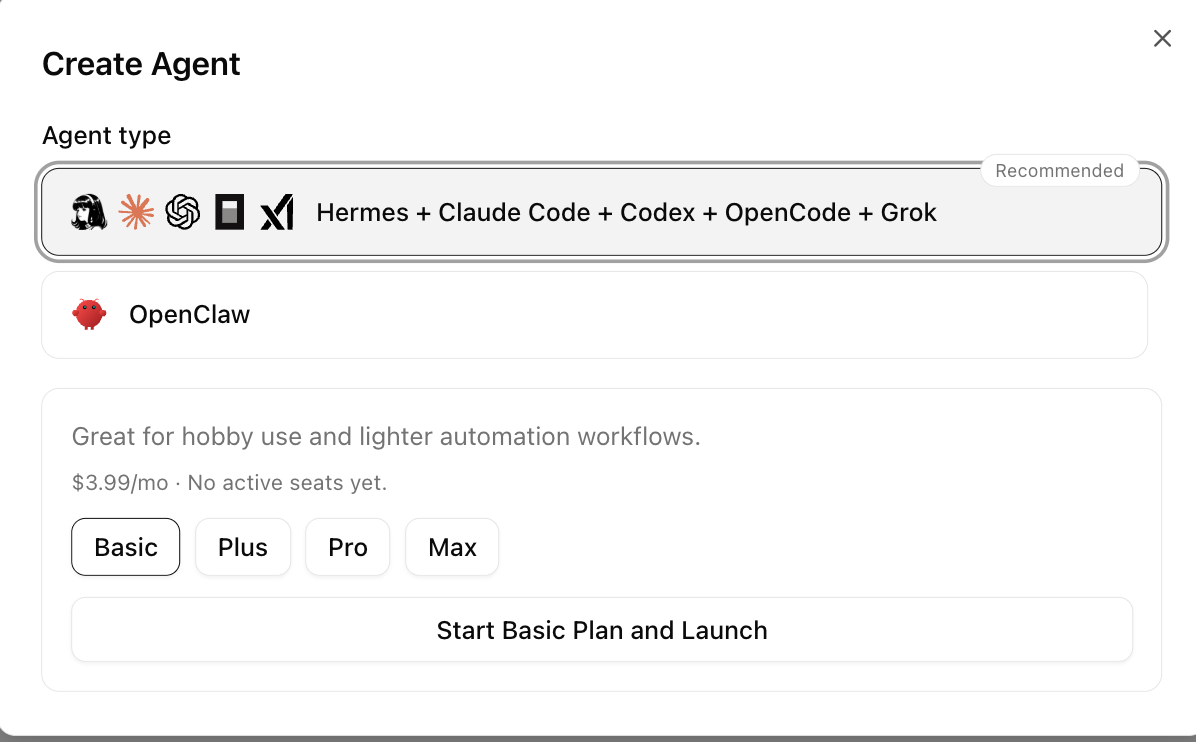
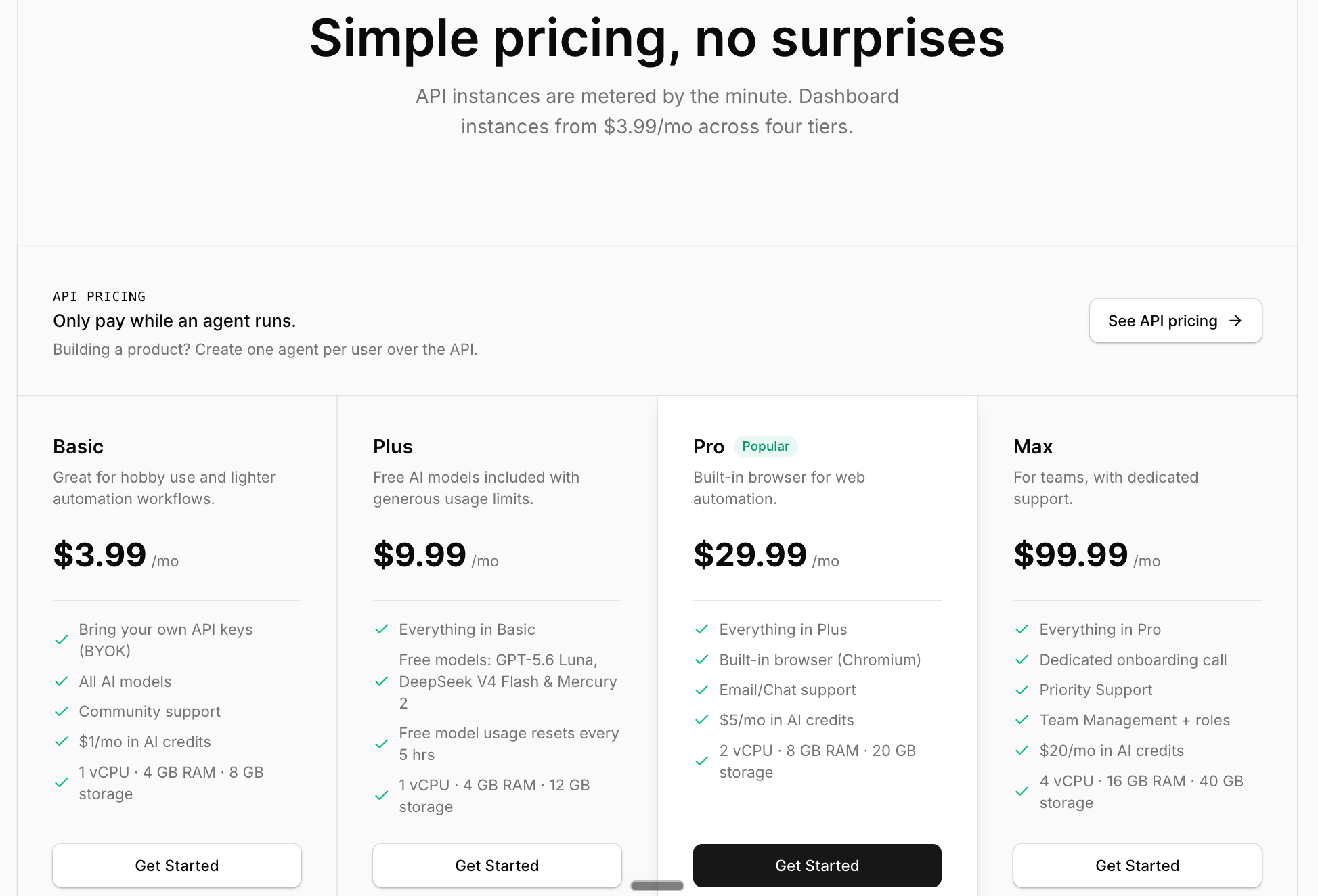
The plans currently start at $3.99 per month.
Basic costs $3.99 per month and includes 1 vCPU, 4 GB RAM, and 8 GB of storage. It works for light use when you bring your own model keys or subscriptions.
Plus costs $9.99 per month and keeps the same CPU and RAM while increasing storage to 12 GB. It also adds bundled model access, which makes it the practical tier for regular testing.
Pro costs $29.99 per month and includes 2 vCPUs, 8 GB RAM, 20 GB of storage, and the hosted Chromium browser. Choose it when browser automation becomes part of the workflow.
Max costs $99.99 per month and includes 4 vCPUs, 16 GB RAM, 40 GB of storage, team roles, onboarding, and priority support.
I stayed with Basic for this test. The higher plans add more resources, and Pro adds the built-in Chromium browser.
Step 4: Wait for Your Persistent AI Agent to Start
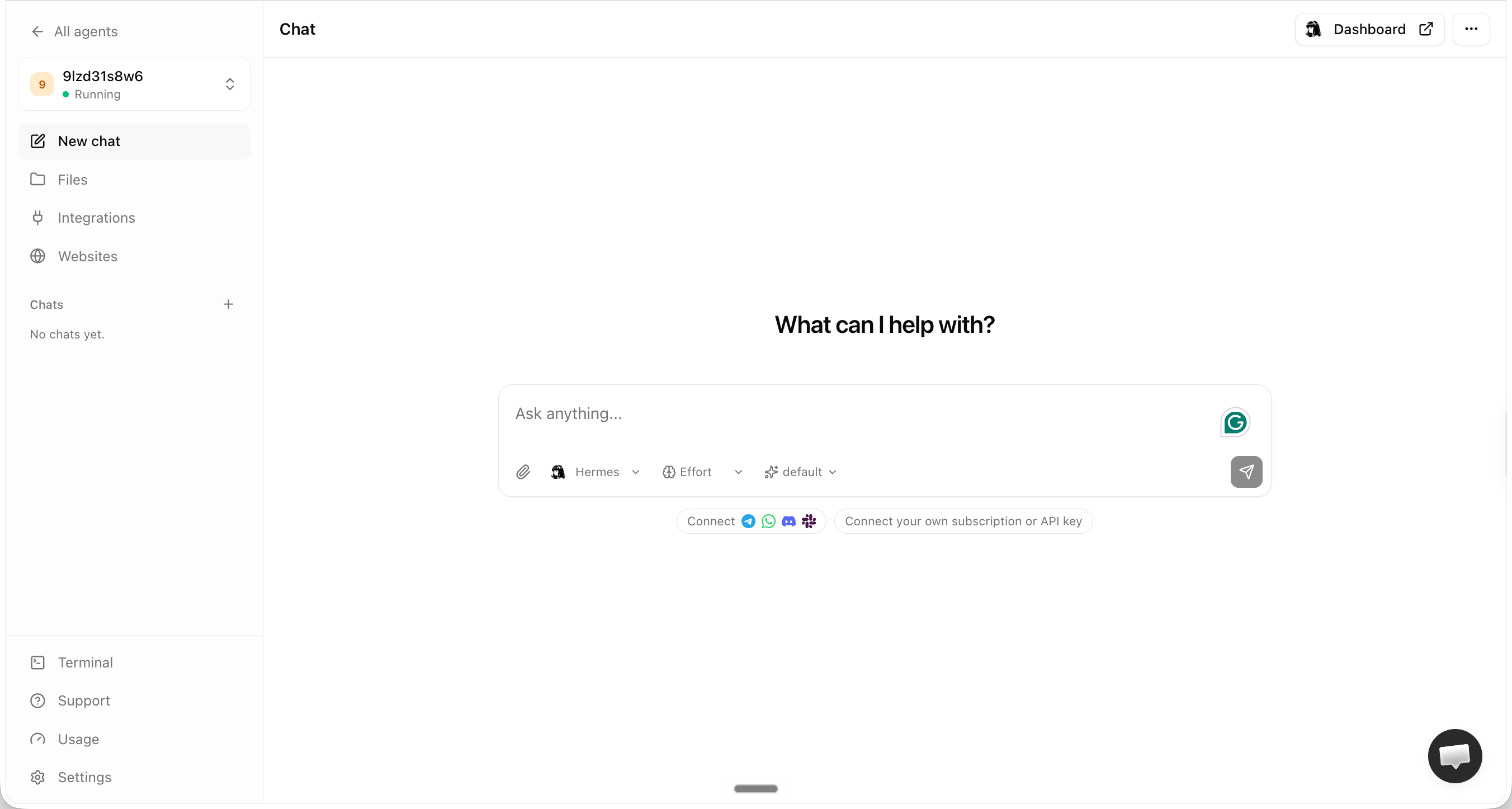
The platform provisions the instance. Name your agent instance and open the chat workspace. I named mine Toolnerd.

It opens with a chat interface shown below
Step 5: Agent37 Integrations and Multi-Agent Workflows
Agent37 makes it easy to connect apps, access files, publish websites, and switch between specialist agents
A personal agent becomes useful when it can reach your tools. It also becomes risky at the same point. Connect one account first, test a narrow task, and expand only after you understand the permissions.
Connect Gmail, Zoho Mail, and Other Apps with Composio
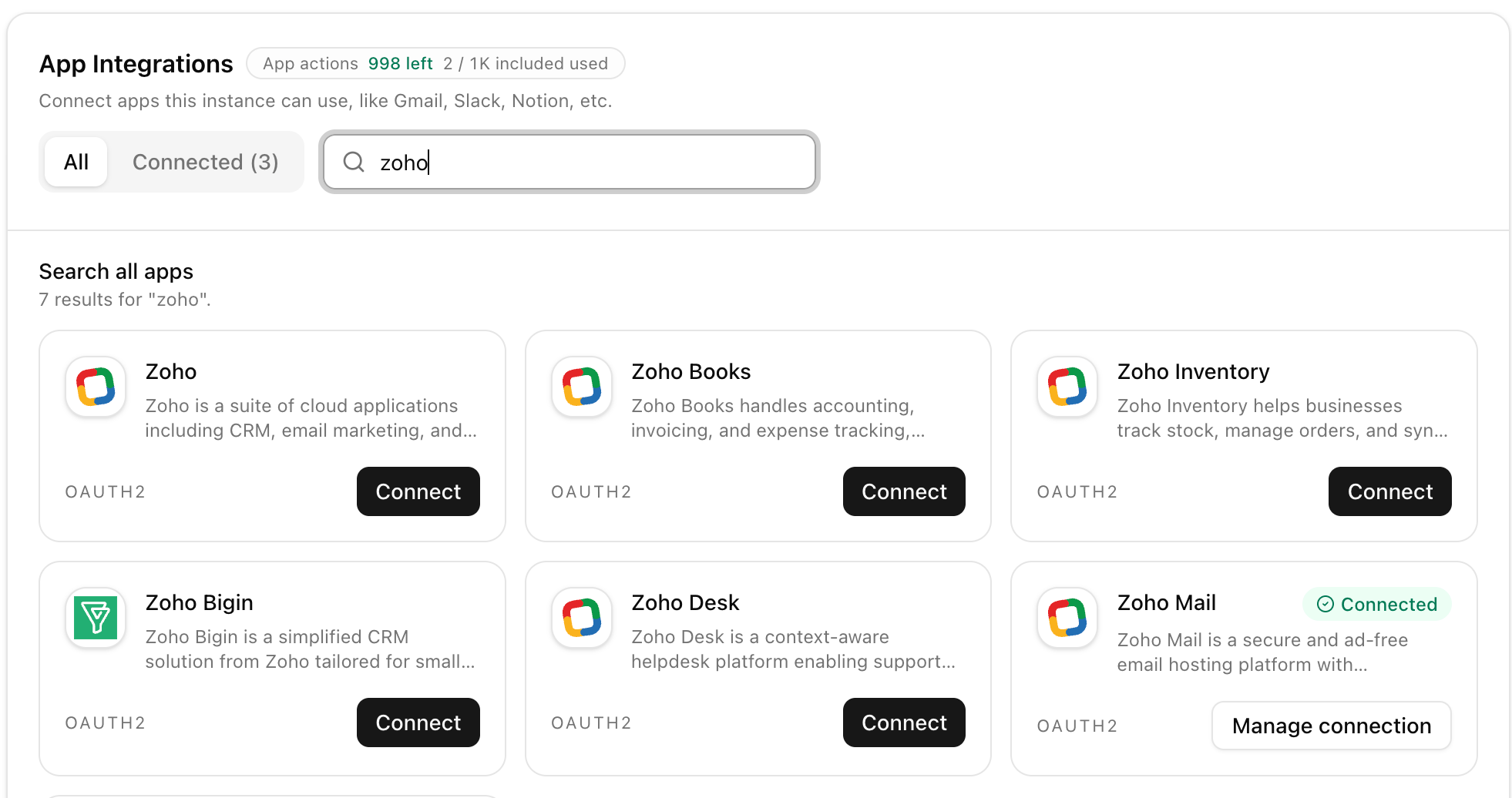
The Integrations page connects Agent37 to external services through Composio. The visible catalog includes Gmail, Google Calendar, Google Docs, Google Drive, Notion, Airtable, and many more. Agent37 advertises access to more than 1,000 integrations.
Zoho was not in the featured list, but it appeared when I searched for it.
Use ChatGPT, Claude, and Grok Subscriptions with Agent37
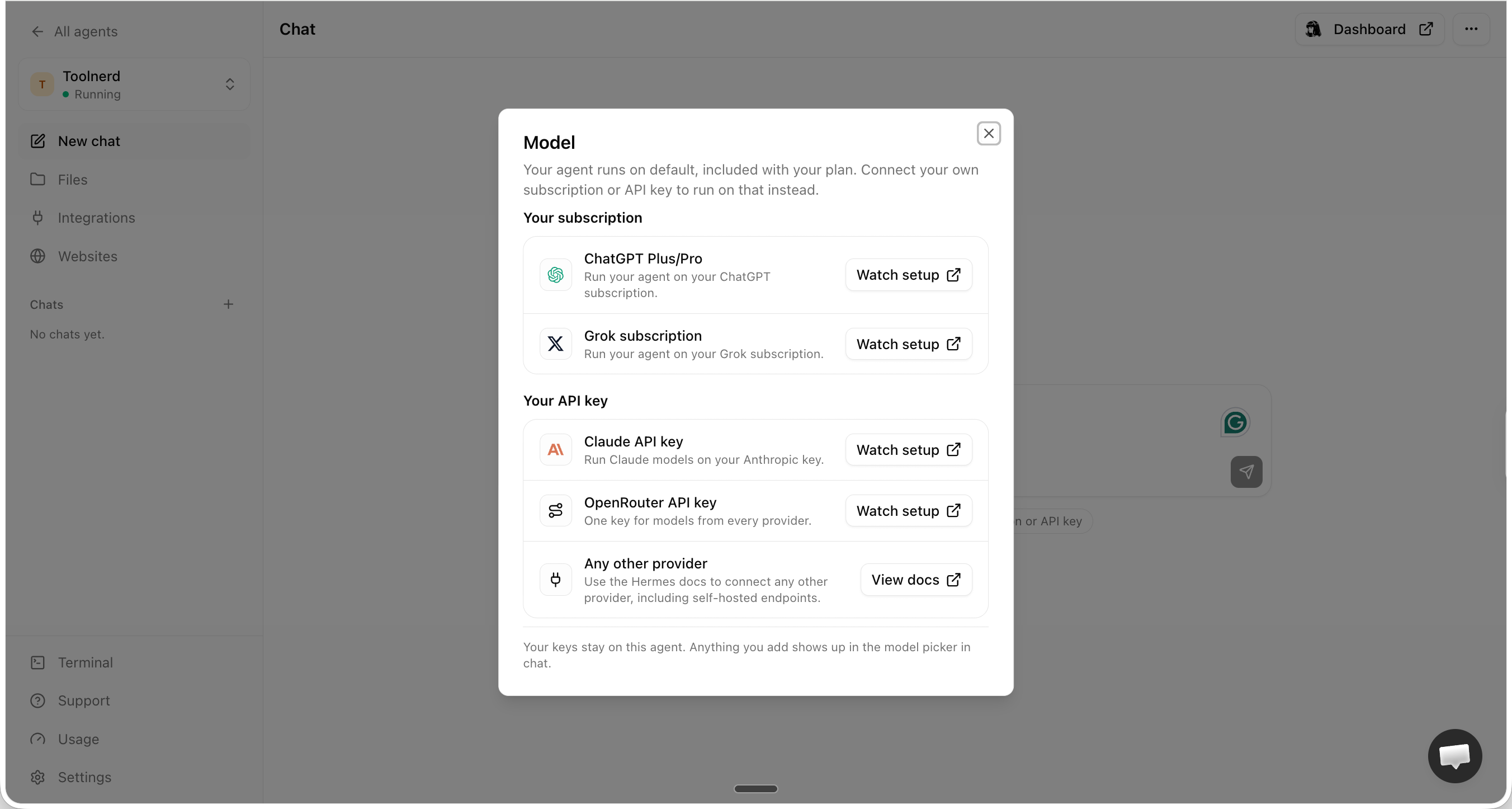
Agent37 also has a provider screen for the other agents in the instance. It supports ChatGPT and Grok subscriptions, a Claude API key, OpenRouter, and other providers.
This let me use an existing ChatGPT or Claude setup with Codex or Claude Code on the hosted machine. Agent37 did not force me into its bundled models.
Switch Between Hermes, Codex, Claude Code, OpenCode, and Grok
The agent picker lets you move among Hermes, Claude Code, Codex, OpenCode, and Grok. Each agent retains its own strengths.
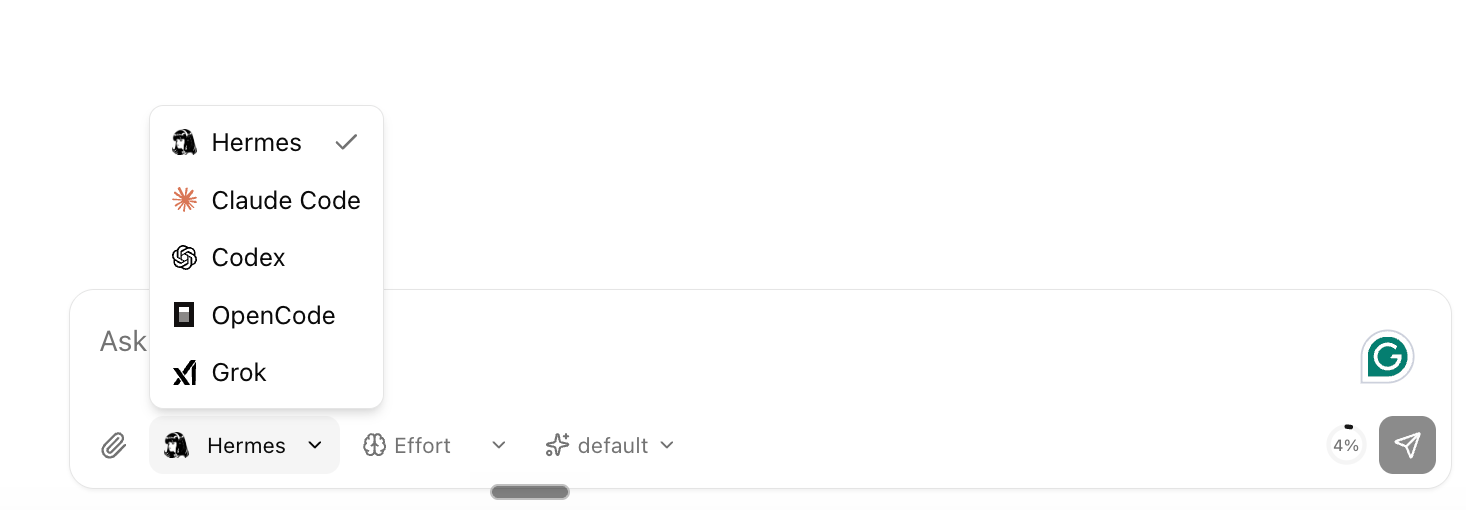
Instead of manually copying context into a second chat, I can ask Hermes to hand a bounded task to Codex and bring the result back into the same workspace. That keeps Hermes in the operator role while a specialist handles the implementation.
Step 6: Configure the Hermes Dashboard
Now we also need to know how to access the Hermes Dashboard
Once the instance is running, open its menu and select Hermes Dashboard.

The Hermes dashboard is the configuration centre for the agent running on your Agent37 computer. You can manage sessions, files, models, logs, cron jobs, skills, plugins, MCP servers, messaging channels, webhooks, pairing, profiles, configuration, and secrets without opening an SSH session.
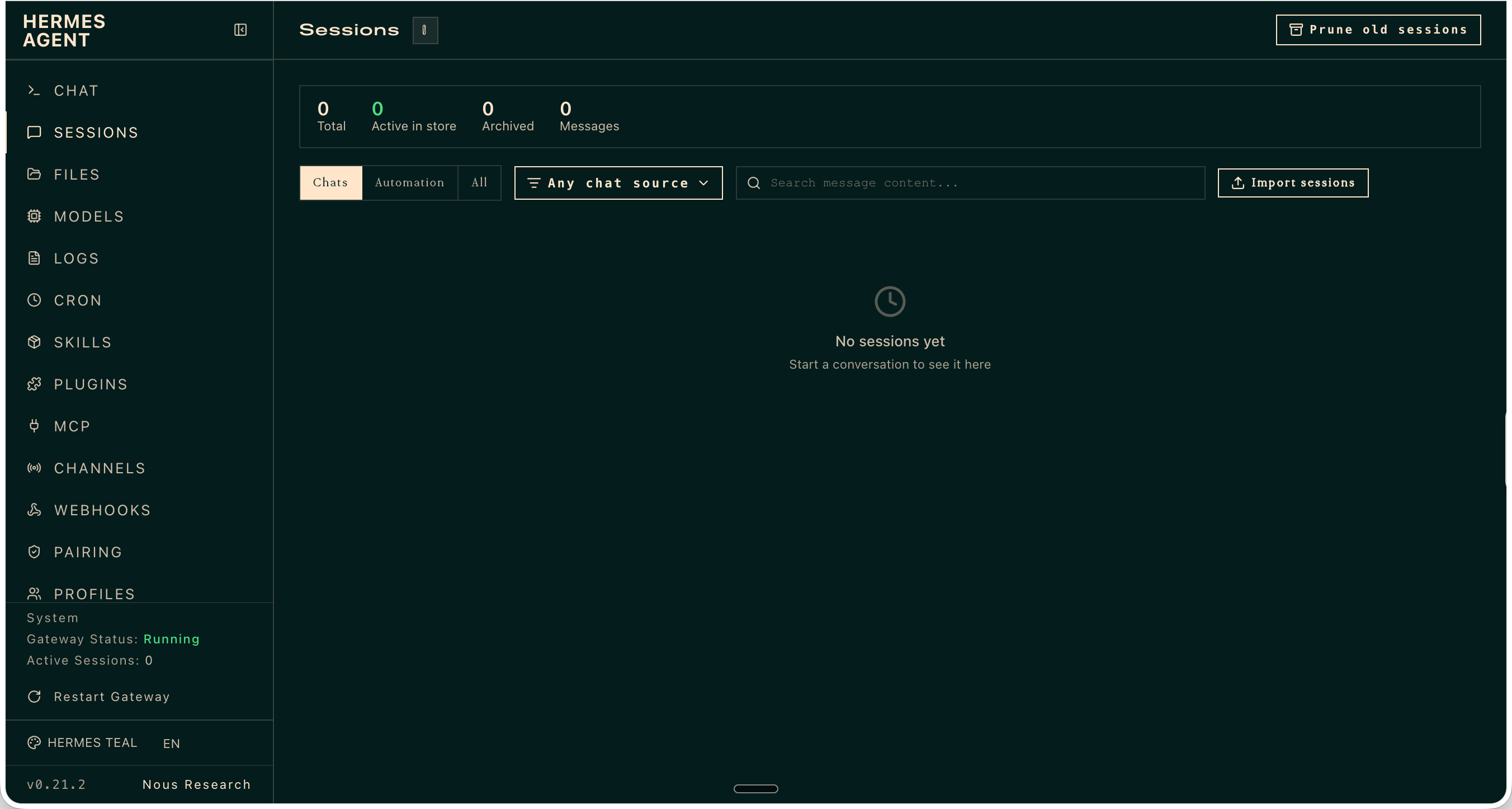
This screen is the missing bridge between launching Hermes and using it. Agent37 handles the computer. The Hermes dashboard controls how the agent behaves on that computer.
Connect Model Providers and Subscriptions to Hermes
Open Keys to connect the model access Hermes will use.
The OAuth tab supports provider logins such as Nous Portal, a ChatGPT or Codex subscription, Qwen, MiniMax, xAI Grok, and GitHub Copilot. Other tabs handle provider keys, tool credentials, gateway settings, and custom keys.
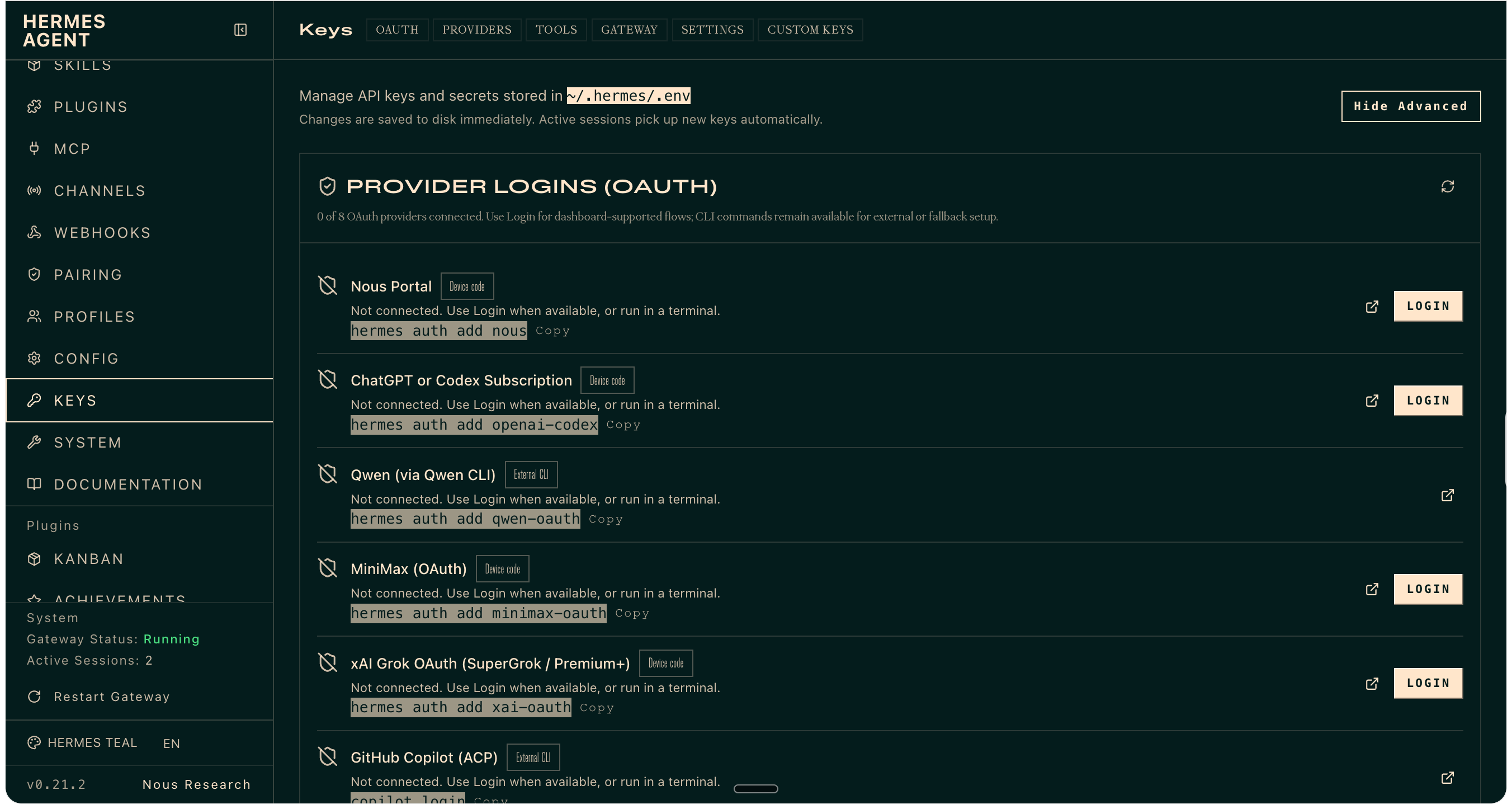
Use OAuth when Hermes supports your existing subscription. Use the Providers or Custom Keys section when you have a normal API key. The dashboard masks these values. Treat the Agent37 container and every connected model or tool provider as part of the trust boundary.
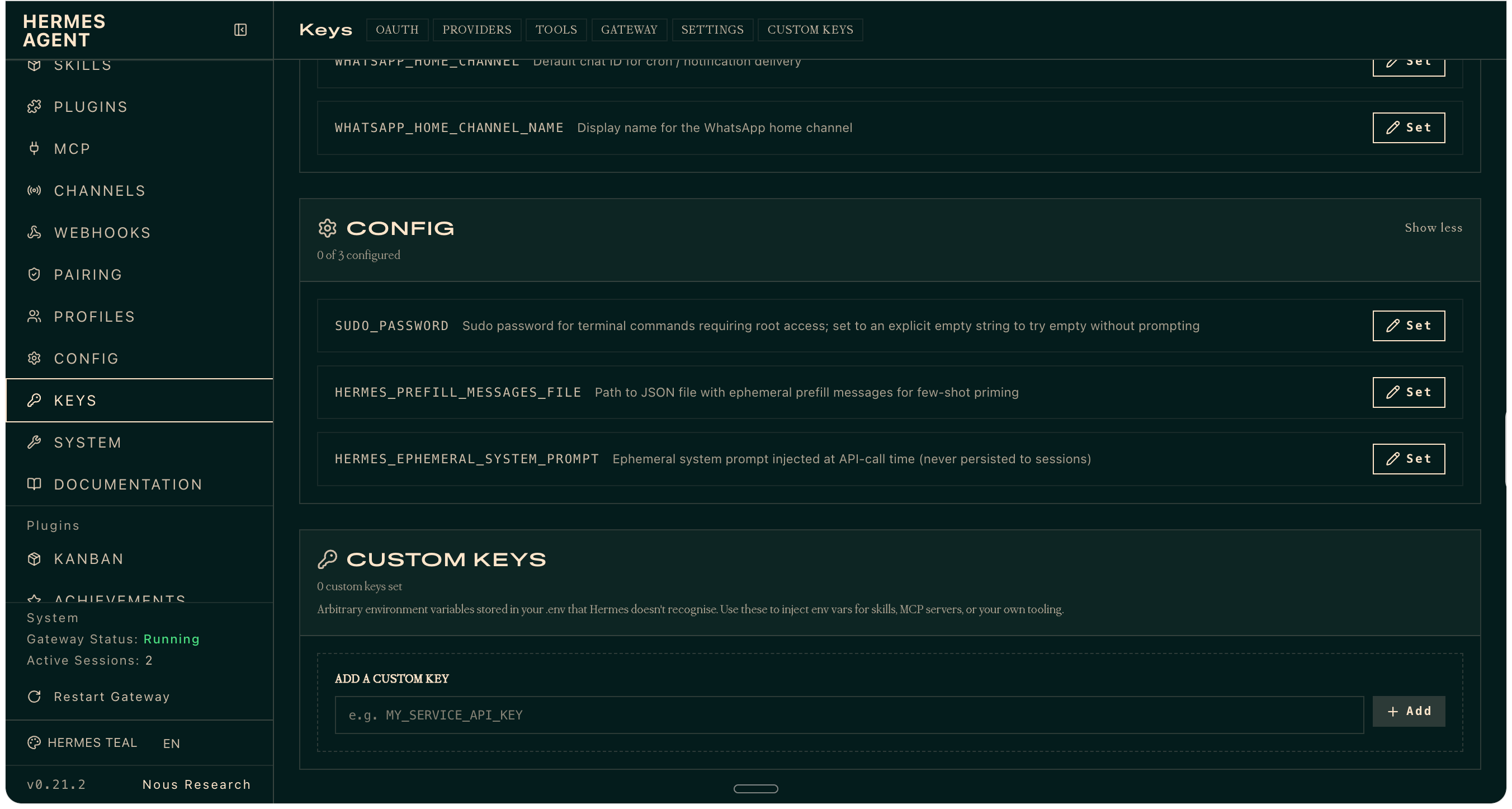
Custom Keys are useful when a skill, MCP server, or private service expects an environment variable that Hermes does not recognise automatically. Give each key the narrowest permissions possible. Never paste a live key into chat or a screenshot.
Add Reusable Hermes Skills
Open Skills to see what the agent can already do. My instance showed 54 enabled skills across research, software development, media, email, productivity, and other categories. You can browse the hub, teach Hermes a skill, or create a new one from the dashboard.
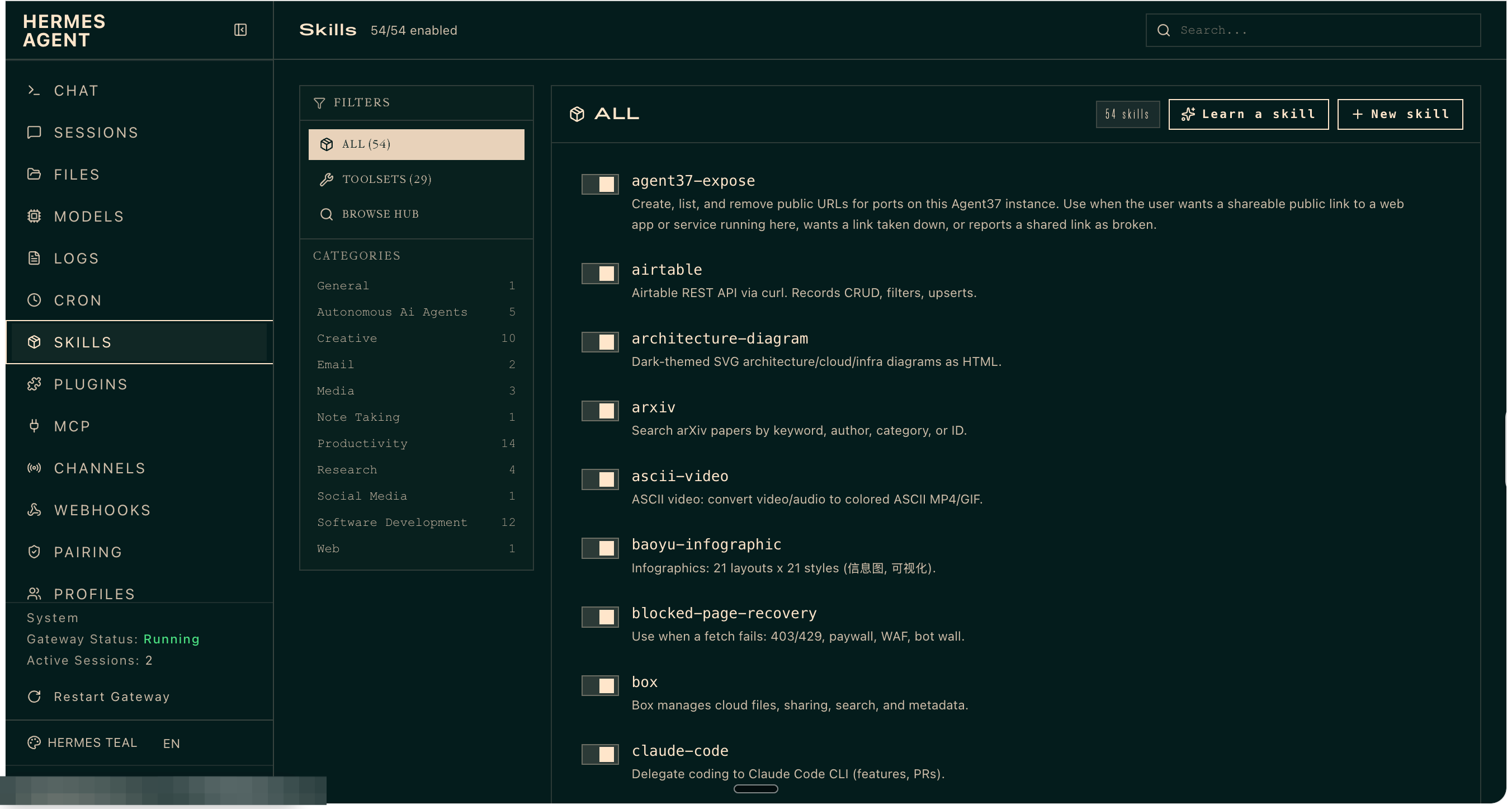
Skills contain reusable instructions and workflows. They are where you teach Hermes how you want a recurring task performed instead of explaining it again in every chat.
Install MCP Servers and Plugins Safely
The MCP page manages Model Context Protocol servers. My instance already had Agent37’s Composio server connected and showed a catalog of 65 additional servers with one-click install actions.
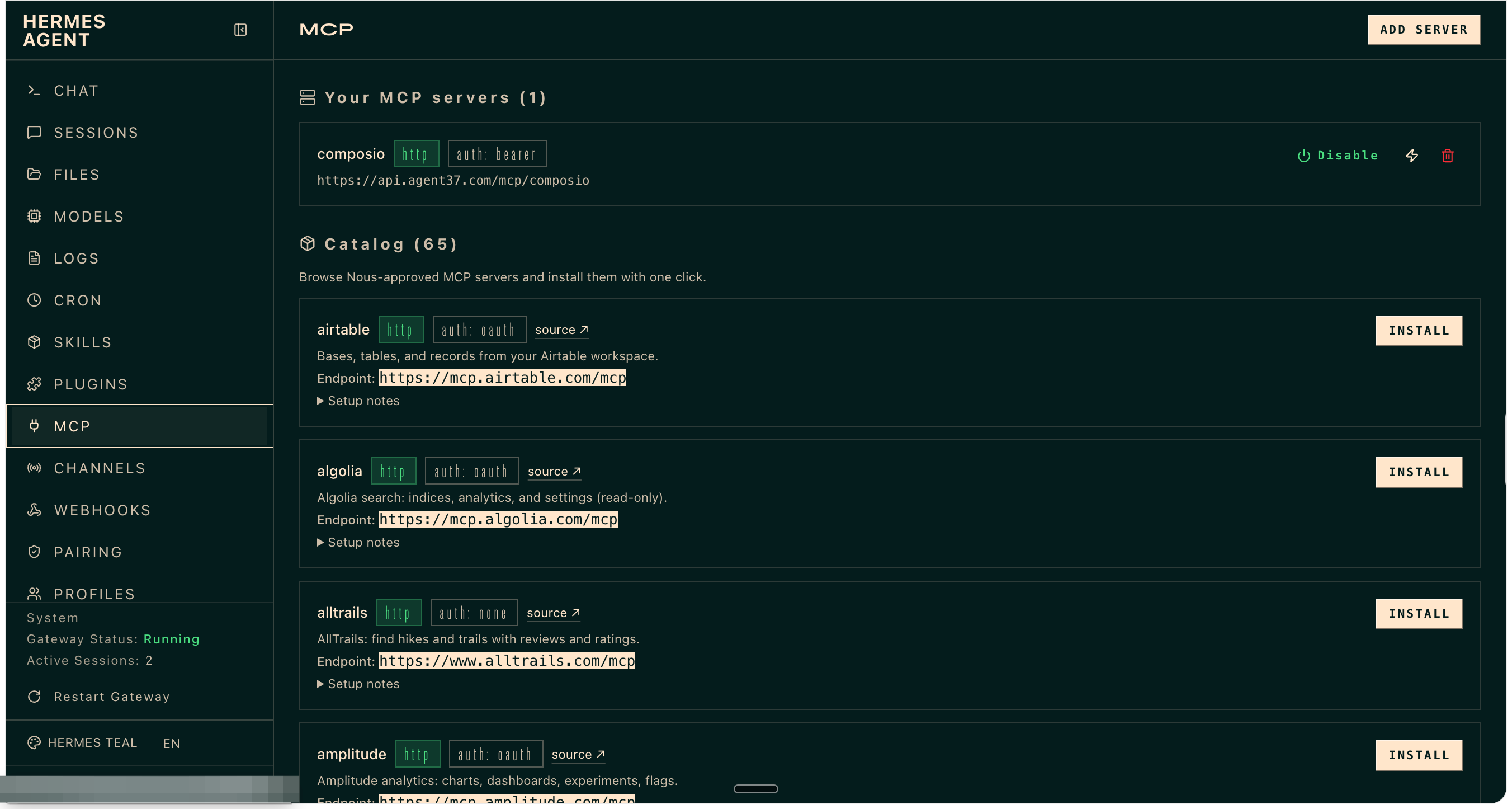
Use Add Server when you have a custom MCP endpoint. Use the catalog when a supported server already exists. Check the requested permissions before installing anything, particularly servers that can write to email, storage, source control, or business systems.
Plugins are different from skills and MCP servers. Skills teach the agent a procedure. MCP servers expose external tools. Plugins extend Hermes itself and can add interface or runtime behaviour. The Plugins tab is available in the same dashboard, but I would install only plugins whose source and permissions I trust.
Schedule Recurring AI Tasks with Cron
The Cron page schedules work on the hosted computer. You can create a job from scratch or start with a blueprint for a morning briefing, important-mail monitor, weekly review, workday reminder, news digest, or another common routine.
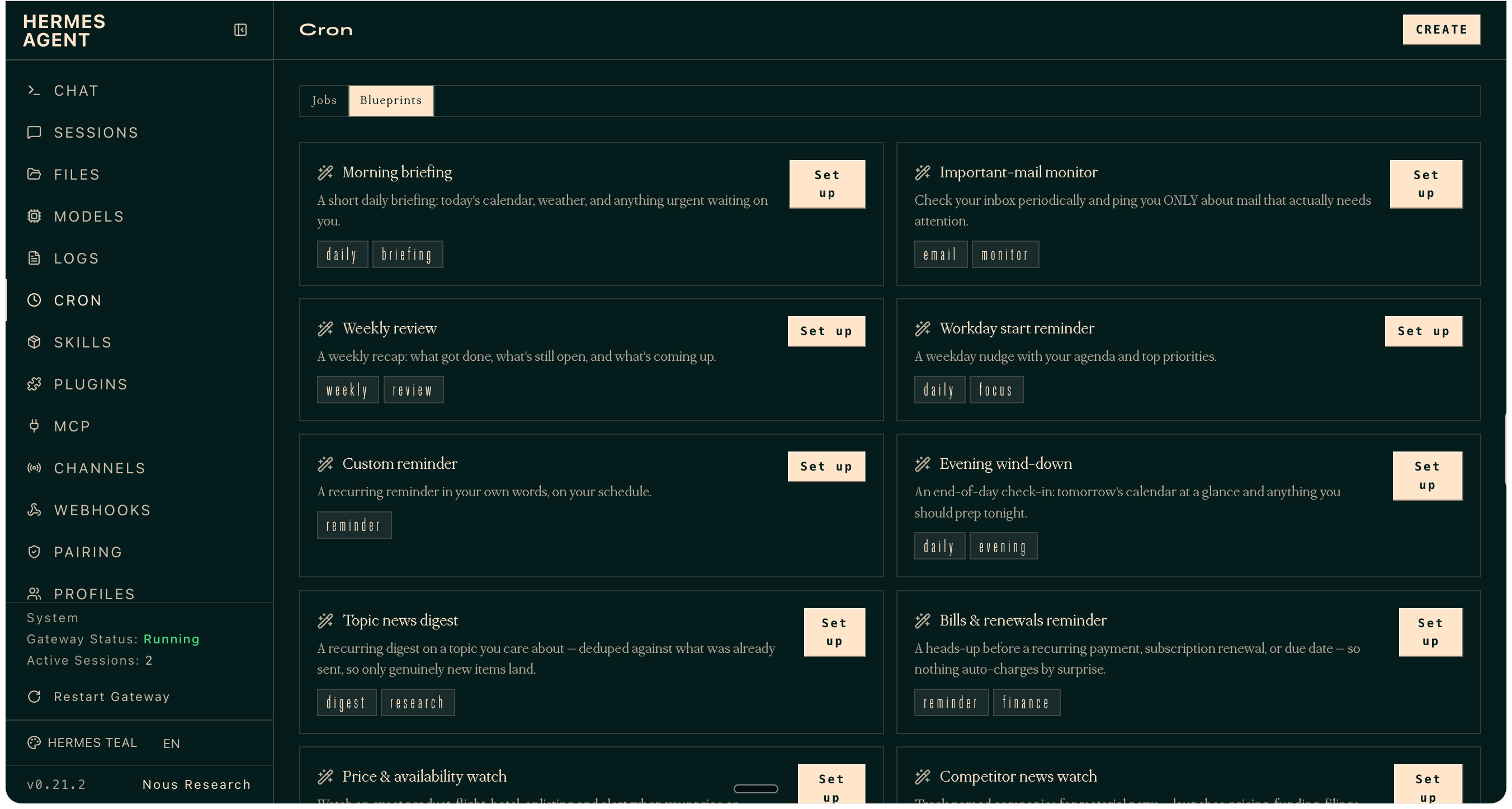
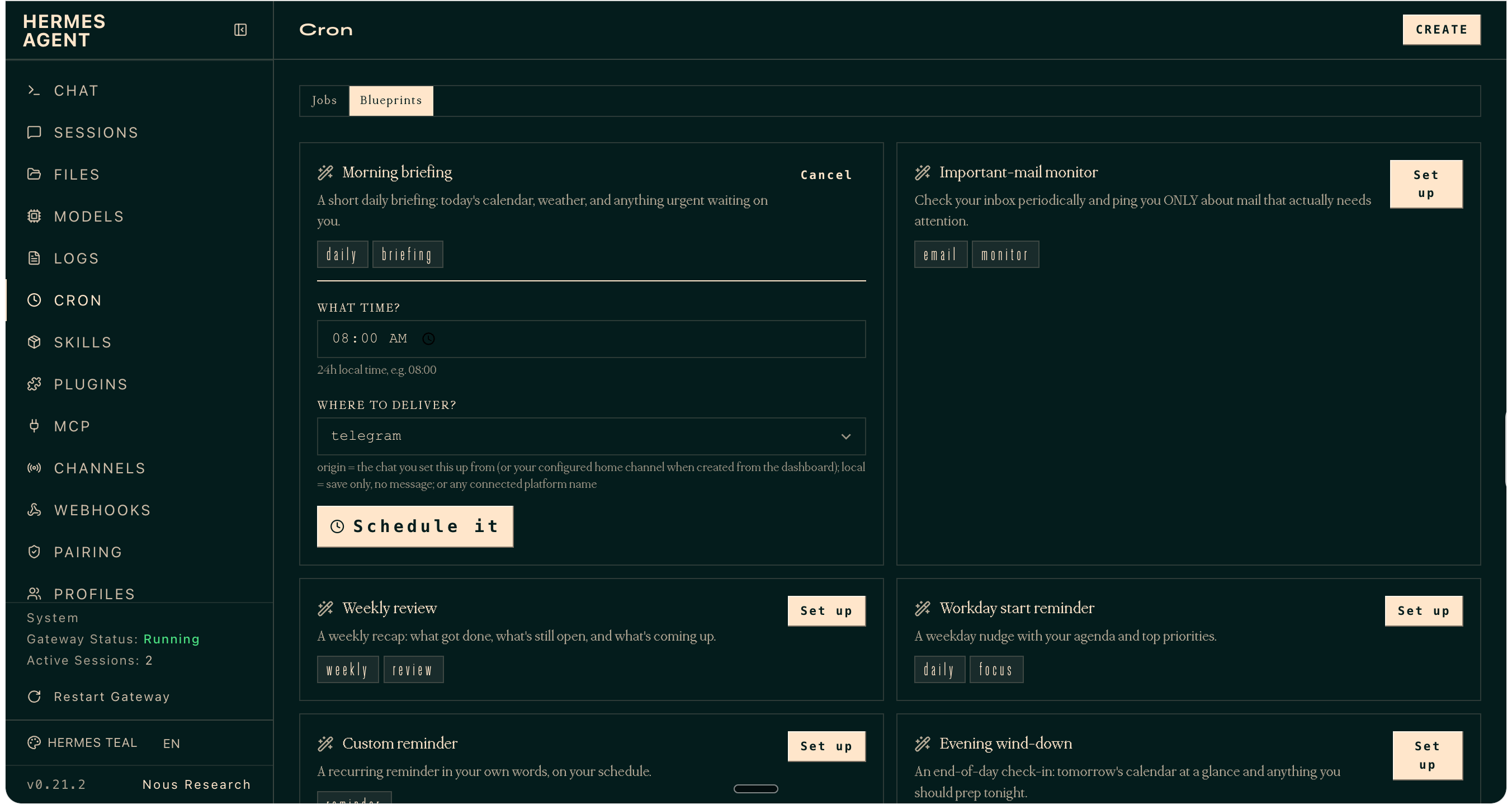
Select a blueprint, choose the time, and choose where Hermes should deliver the result. I configured the Morning briefing blueprint for 08:00 and selected Telegram as the destination.
After scheduling it, switch to the Jobs tab to confirm that the recurring task is active.
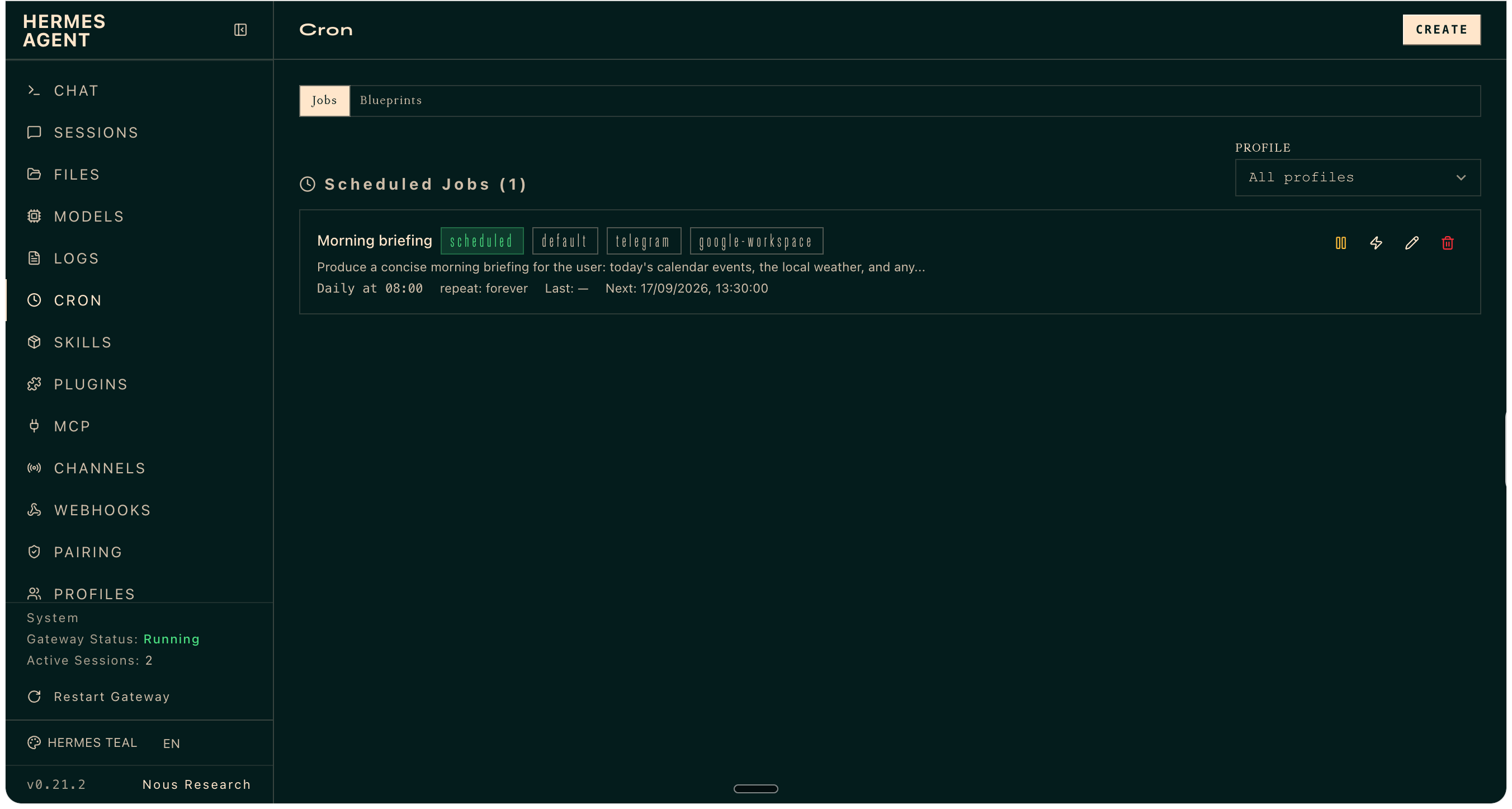
A morning briefing scheduled for 8:00 AM is useless on a sleeping laptop. On Agent37, the instance stays available, keeps its files, and runs the job where the rest of the workflow lives.
Step 7 : Connect Hermes to Telegram
Go to Channels, find Telegram, and choose one of two setup paths.
Quick Setup creates the connection through a QR flow and automatically detects your Telegram user ID. Manual Setup lets you connect a bot you created with Telegram’s BotFather by entering its token and deciding who may use it.
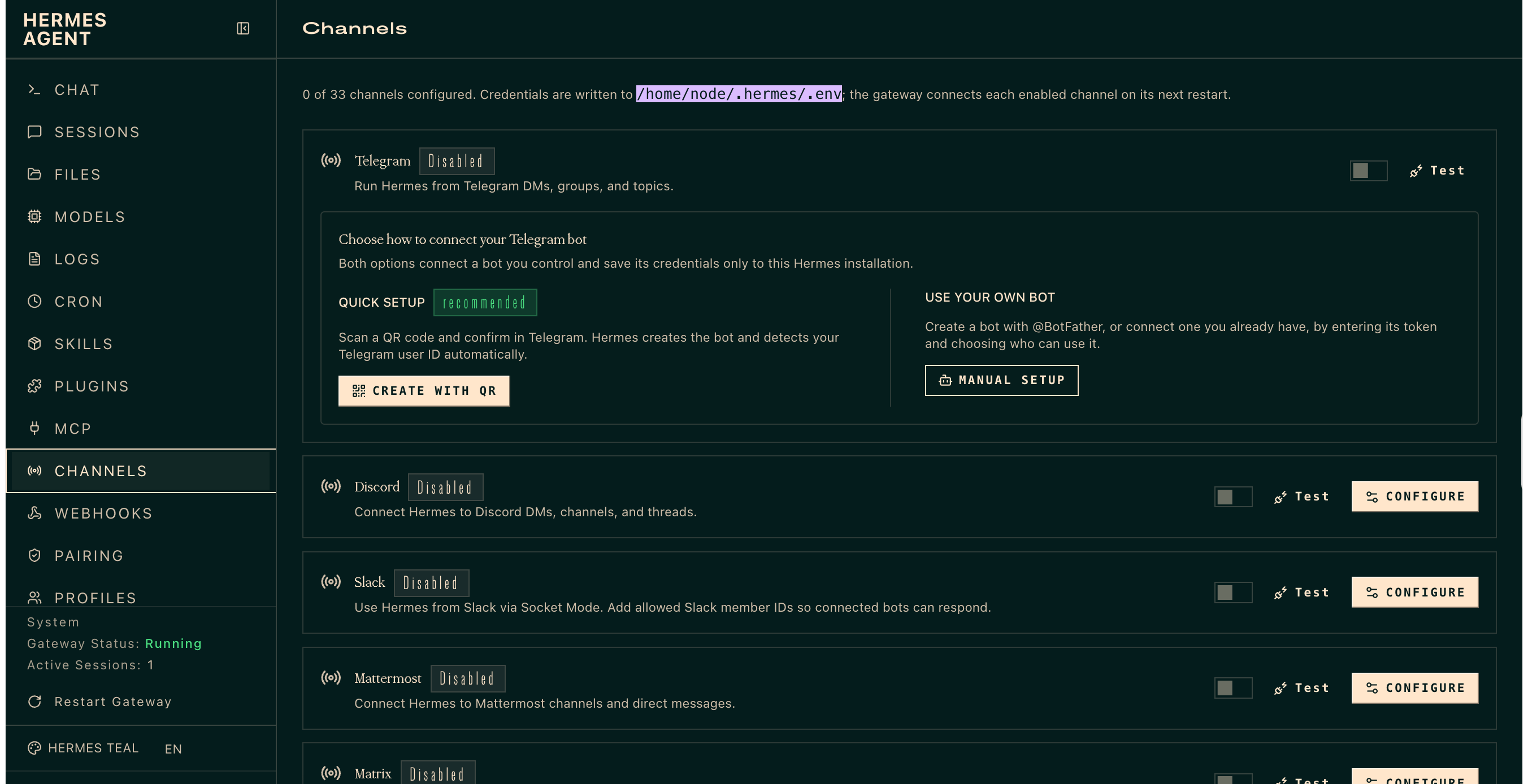
For Quick Setup, click Create with QR, open Telegram, and confirm the connection. Hermes then detects the owner and lets you add allowed users. Review that list, click Save and Restart, and wait for the Hermes gateway to reconnect.
I have intentionally left the QR and user-ID screenshots out of this guide. Pairing codes, bot tokens, API keys, and account identifiers should never appear in a public tutorial.
Send a message to the bot to confirm that Hermes replies. You can also run /sethome in that chat so Hermes knows where to deliver cron results and cross-platform notifications.
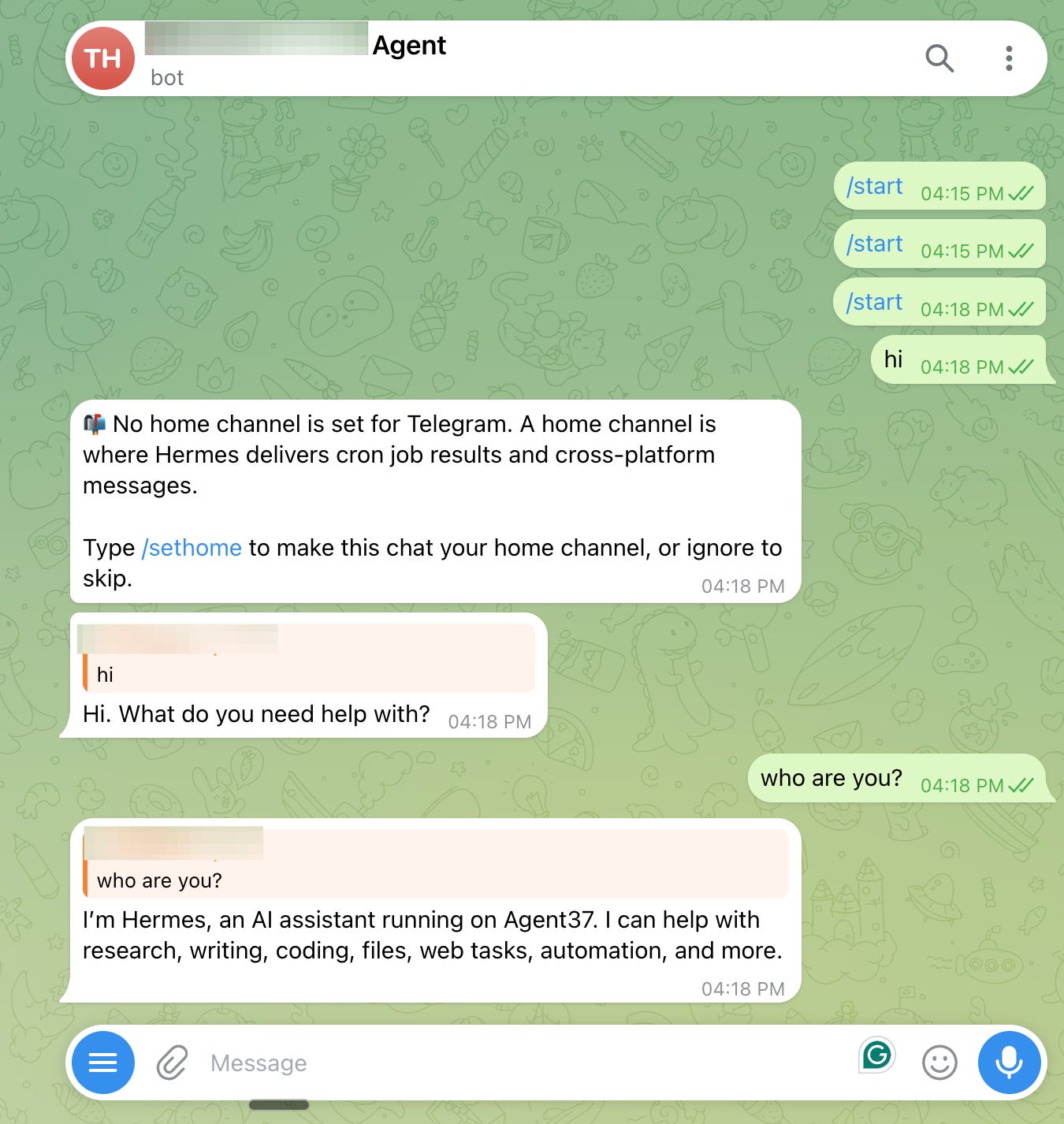
Now let’s do a live test to understand its potential and how it works.
Testing Agent37 with Hermes & Codex
Test 1: Research TypeSafe.ai and Publish the Results
I wanted a task that would test research, synthesis, file creation, and publishing.
TypeSafe.ai had launched Jev, a model built for fast, typed software decisions rather than free-form text. Its training method, Reinforcement Learning for Calibrated Decisions (RLCD), aims to return structured choices, scores, and probabilities that normal code can consume.
The company says Jev can be 20 to 200 times faster and 40 to 400 times cheaper than comparable frontier models for suitable decision-shaped workflows. Those are TypeSafe’s launch claims.

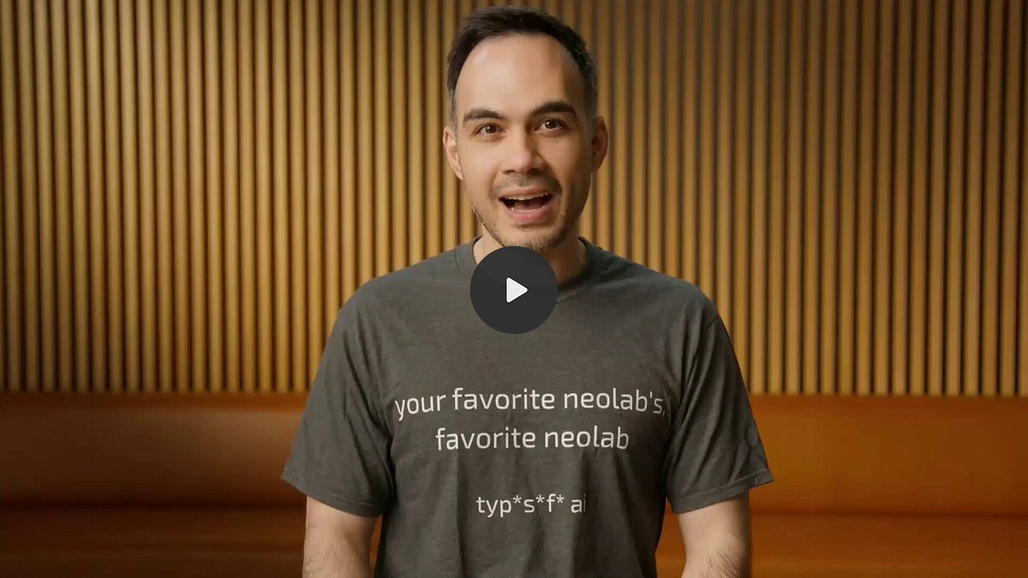
I wanted to check whether an agent could research and present the announcement.
My prompt asked the agent to research TypeSafe.ai, create an HTML report, give it a brand’s official design, and share a live URL. I deliberately avoided prescribing every research and design step.
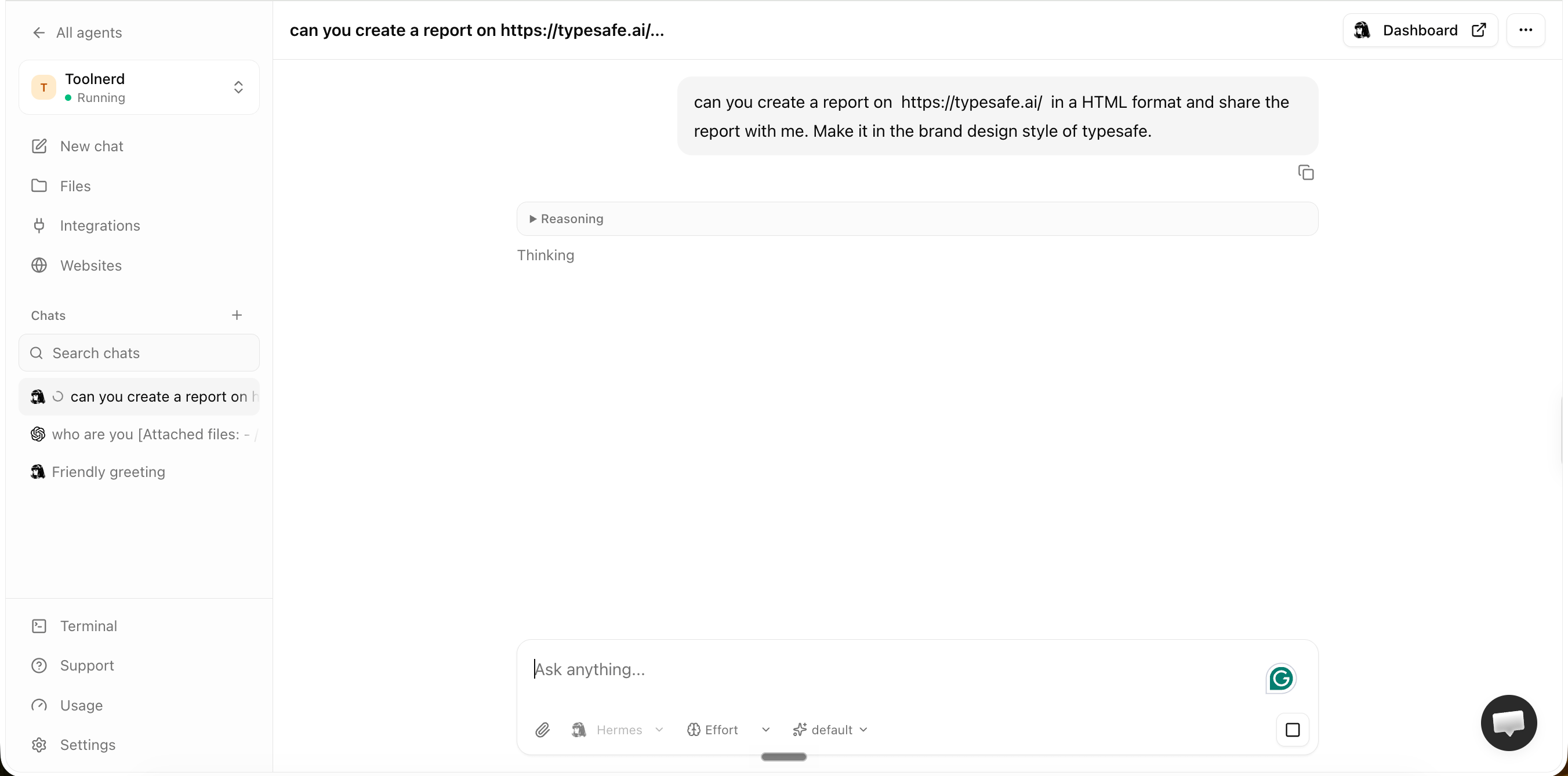
The agent researched the topic, wrote the report, created the page, started a web server, and returned a public link.
Publish an AI-Generated Research Website
The result was a proper editorial page titled Intelligence beyond chat. It explained TypeSafe’s decision-focused model, structured outputs, pricing claims, confidence scores, team, positioning, and open questions.
The Websites section listed the report as a managed artifact with Copy and Open actions.
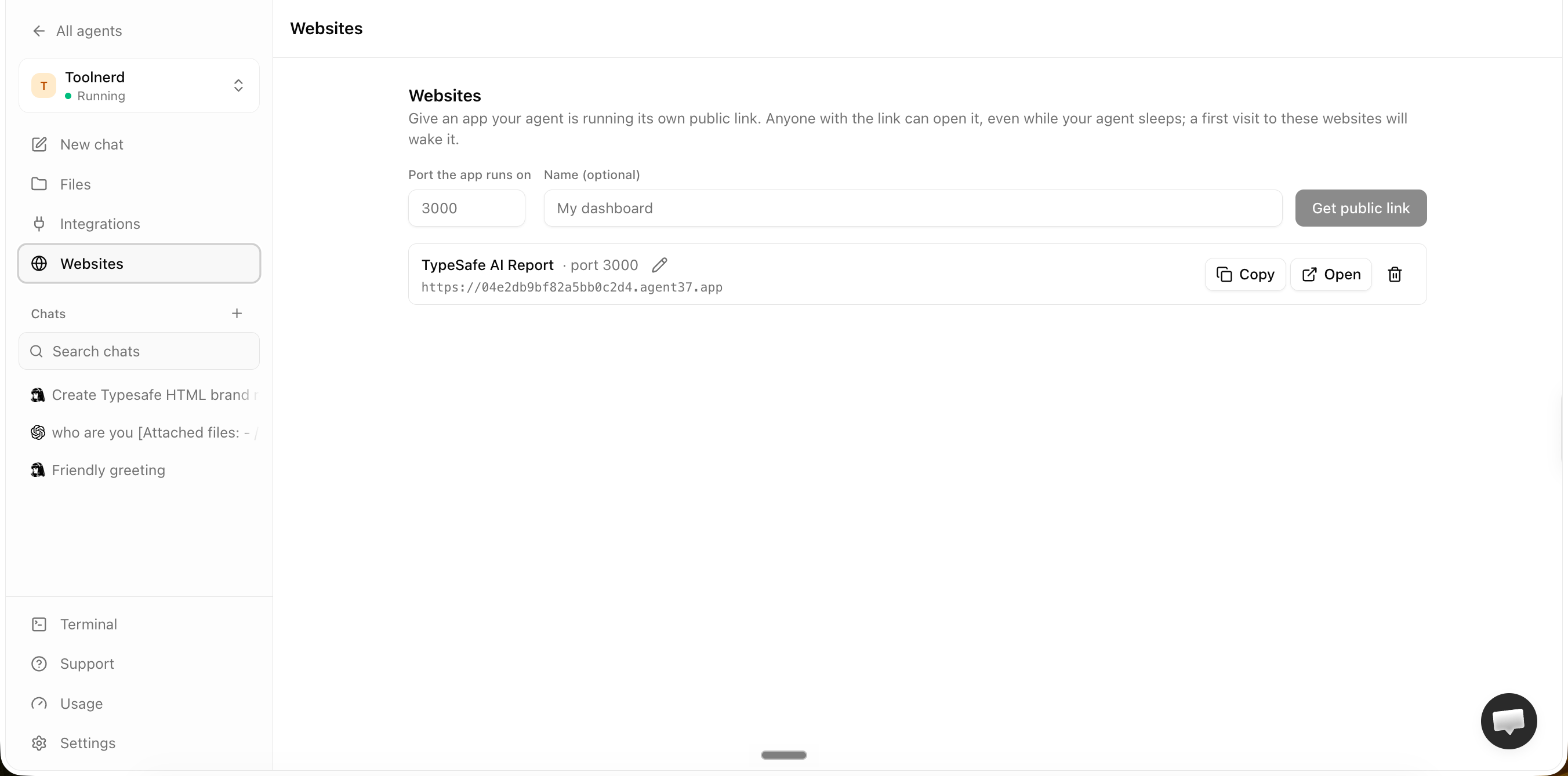
Test 2: Delegate AI Research and Presentations to Codex via Hermes
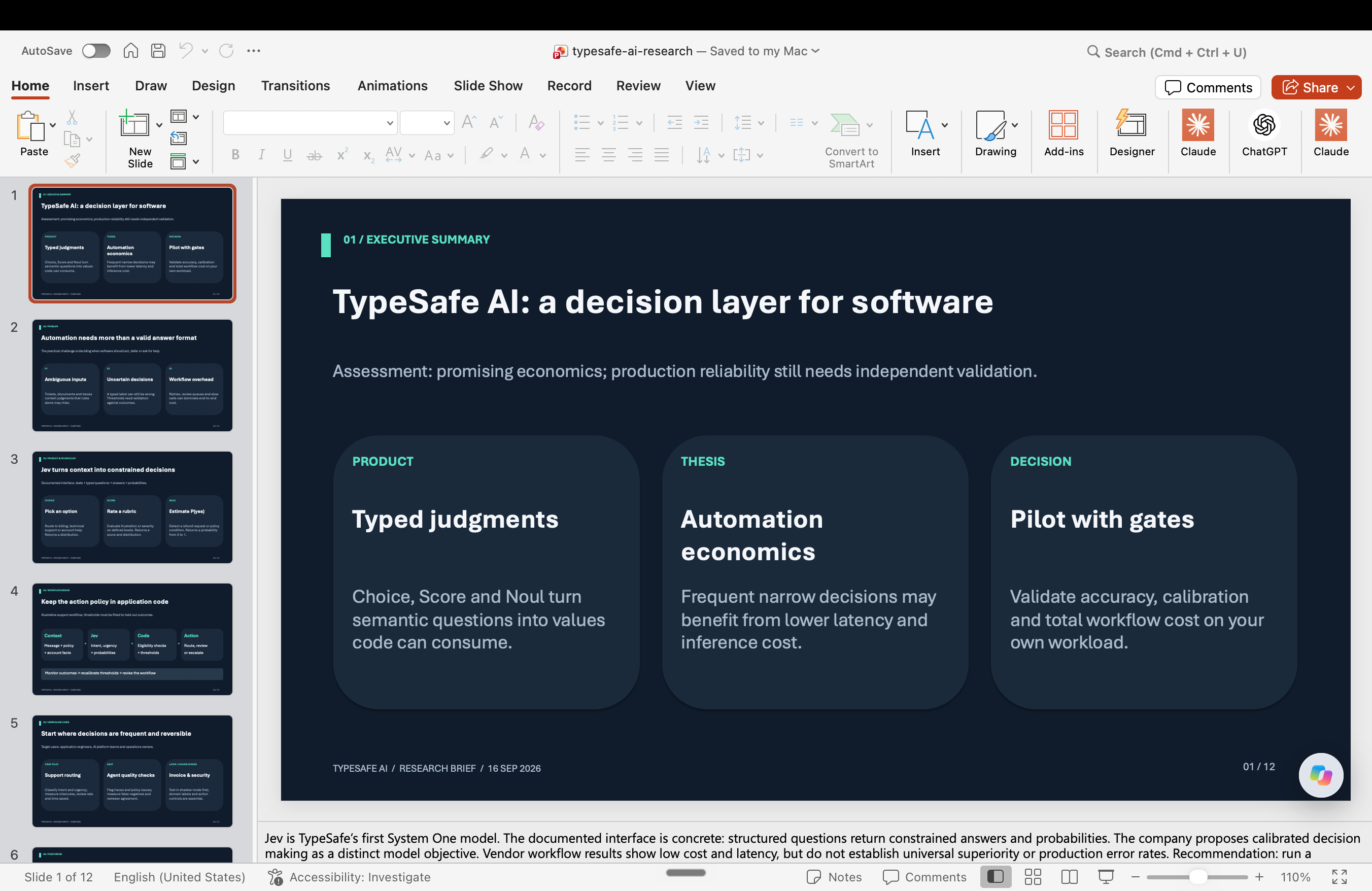
In the same environment, I asked Hermes to have Codex research TypeSafe.ai and create a polished PowerPoint deck.
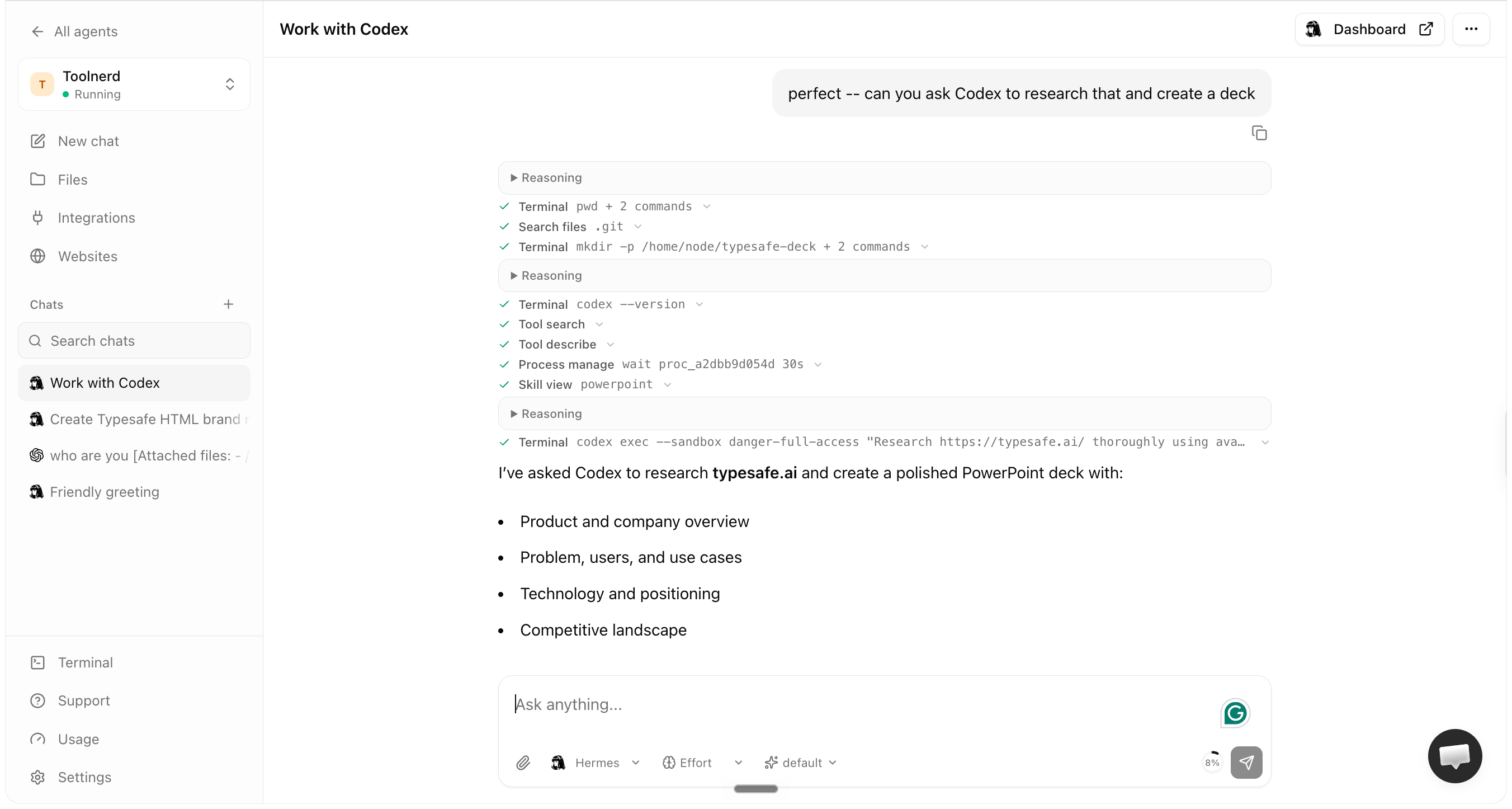
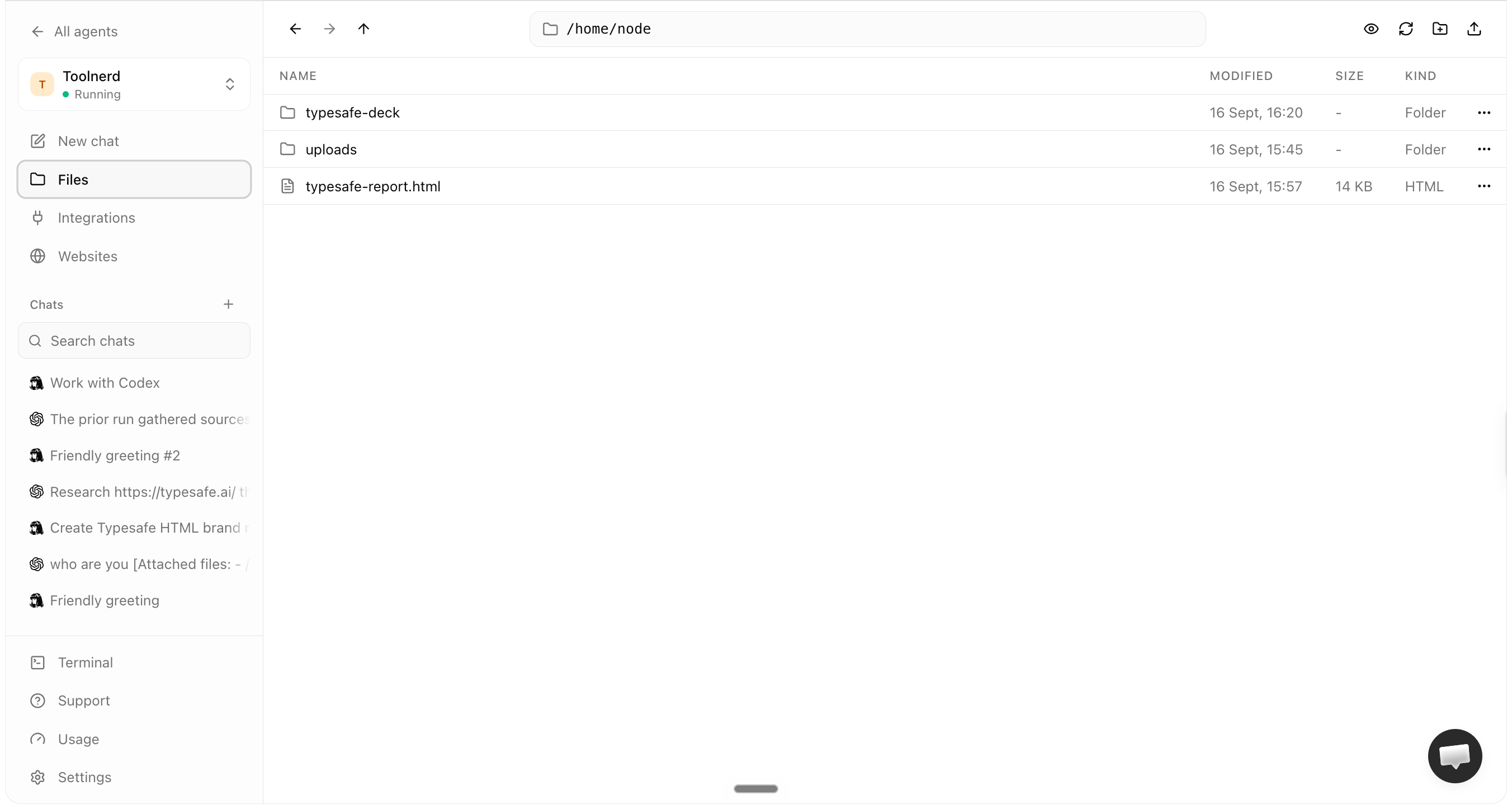
Codex created the research brief and deck files in the hosted workspace.
The PowerPoint opened as a complete deck.
In a way, this cross-agent pattern is more useful than a model picker. Hermes kept the main task and passed a clear piece of work to Codex.
I must say that this isn’t smooth yet but is still better than copy-pasting the context in different chats.
Use Mission Control to Manage AI Agent Tasks
Mission Control is a powerful feature of Agent37 .

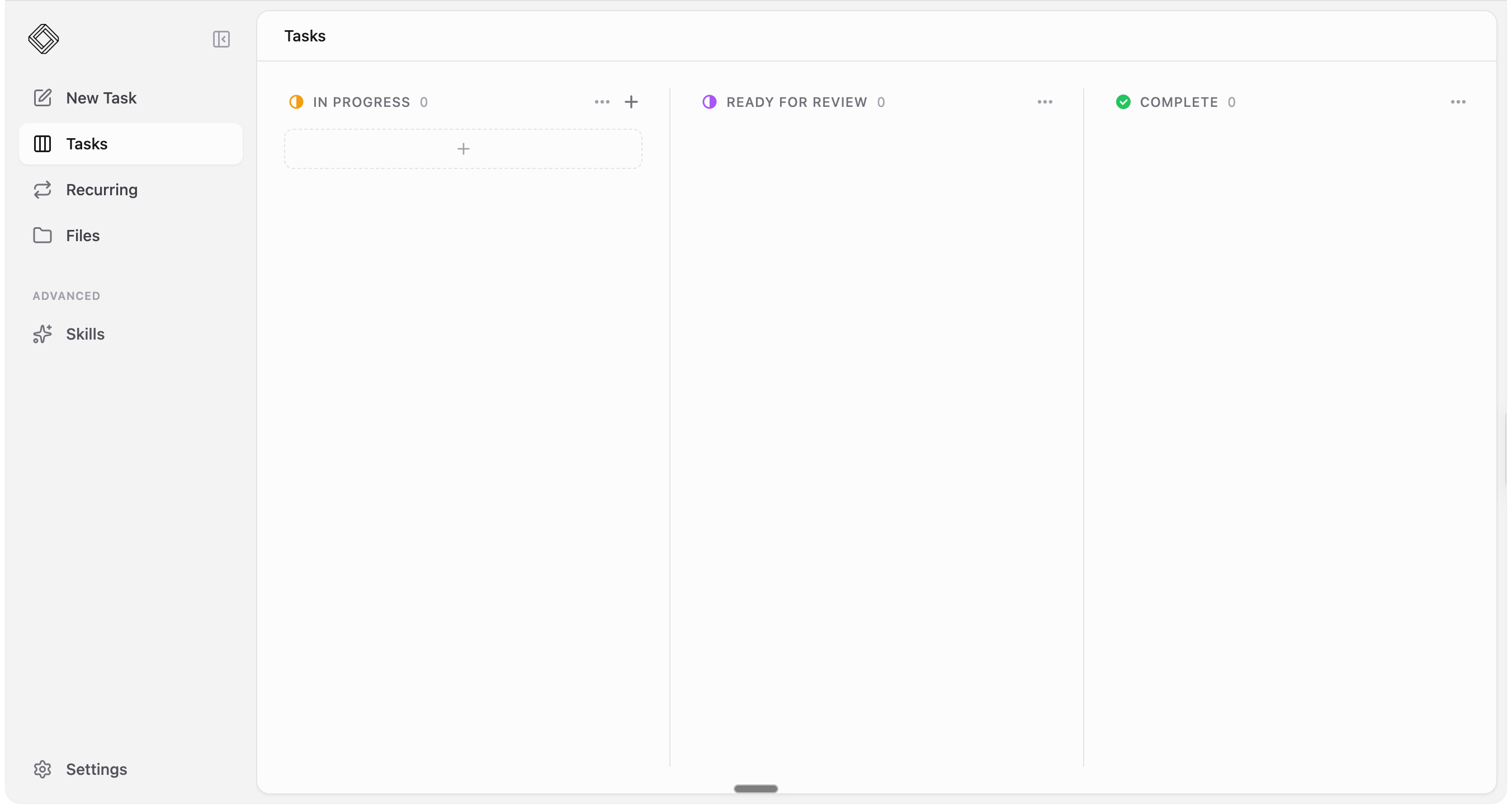
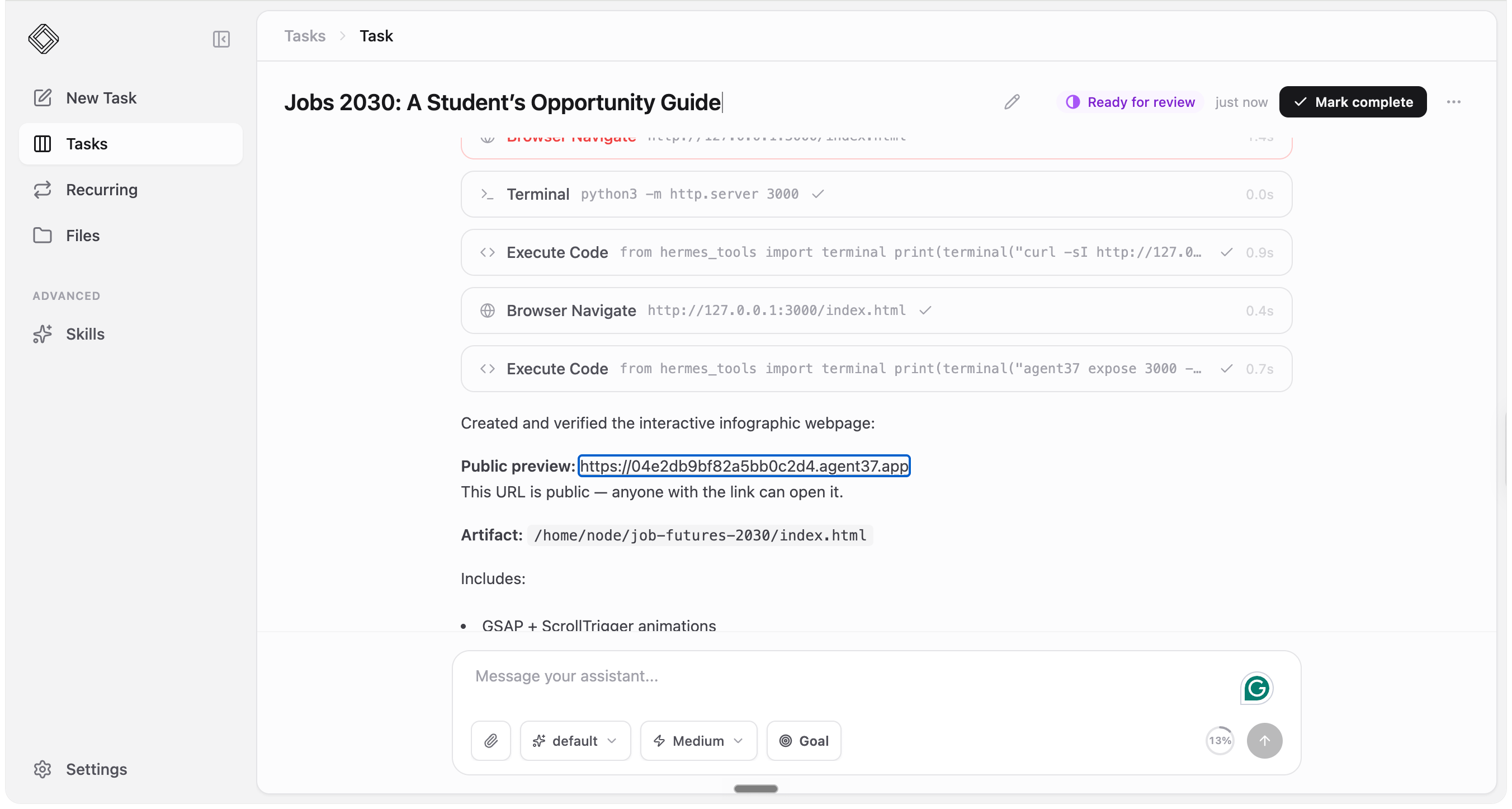
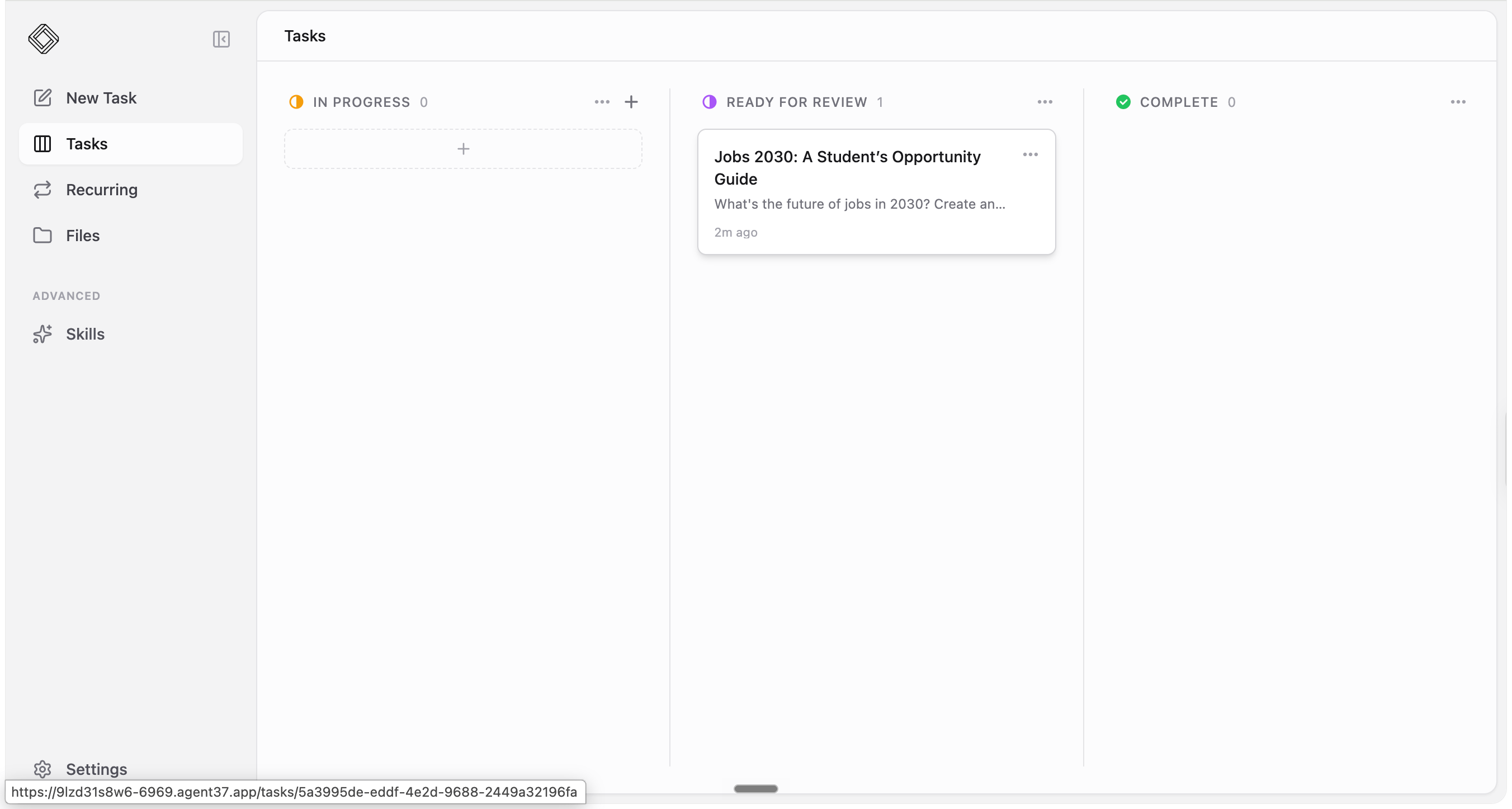
It has a task board with three states: In Progress, Ready for Review, and Complete. There are also sections for new tasks, recurring tasks, files, and skills.
The task board is the place to see the brief, the current status, and the output.
Task 3: Build a Jobs 2030 Guide
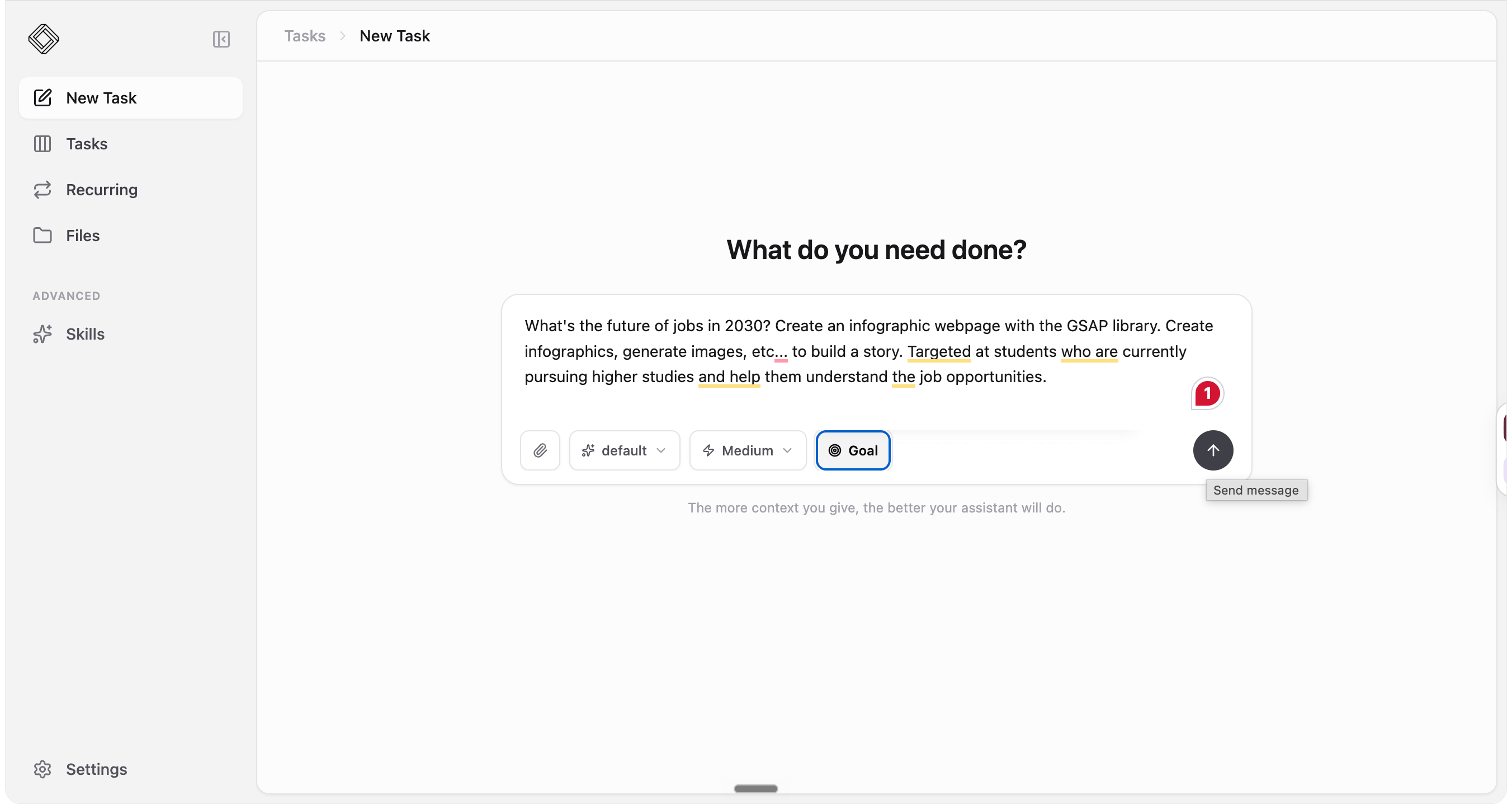
I asked Mission Control to build an interactive web page about job opportunities in 2030. The brief requested data about the economic impact of generative AI, growth and decline, a story, skills people can learn, and the strongest opportunity areas.
The task ran inside Mission Control and posted its work into the task record. When it finished, it supplied a public preview and moved to Ready for review instead of quietly claiming completion inside a chat message.
The board reflected the same status. I could review the result and mark it complete when I was satisfied.
The generated site opened with the line Work gets rewritten and continued through labor-market numbers, demand areas, skills, and a career-building framework.
Final Thoughts: Is Agent37 Worth It?
Agent37 made it easy to get yourself a personal agent with a computer that stayed online and put most of the controls in a browser.
I did not have to install Docker, expose ports, or configure process restarts. The research notes, HTML report, deck, and source files stayed in the same workspace.
You can check out Agent37 here.
Disclosure: I may earn a commission if you sign up for Agent37 through my link, at no extra cost to you.