

We all know Claude is powerful for developers and coders. But what about the rest of us?
Product managers drowning in data consolidation.
Finance teams manually entering expense reports.
Content creators spending hours repurposing videos across platforms.
Researchers manually synthesizing 50+ documents.
Most powerful AI capabilities have been locked behind technical barriers. To automate workflows, you needed to write scripts. To process data at scale, you needed programming knowledge. To use Claude's agentic power i.e Claude Code, you needed to be comfortable in the terminal.
That changed when Anthropic built Claude CoWork.
CoWork removes the terminal requirement entirely.
It brings autonomous AI agents to your Mac desktop, making powerful automation accessible to anyone. No coding required. No terminal. Just describe what you want, and Claude handles the rest.
If you want to read interesting articles, do subscribe.


What Is Claude CoWork? The AI Intern for Your Mac
Claude CoWork is a desktop application for macOS that executes multi-step workflows autonomously. Unlike chat interfaces where you describe a task and receive suggestions, CoWork actually does the work.
When you describe an outcome to CoWork, it doesn't tell you how to do it. It does it. It reads files from your computer, analyzes them, creates new documents, organizes data, and delivers finished results.
The system is built on the Claude Code Agent SDK, running in the background of the Claude Desktop app. It was built in just 10 days using Claude Code itself.
How It Works: Three Simple Steps
Step 1: Describe Your Outcome
You tell Claude CoWork what you want to achieve in plain English. For example: "Analyze these 50 customer feedback emails and create a summary report with the top 10 issues and recommendations."
Step 2: Review the Plan
Claude analyzes your request and presents a step-by-step plan. It shows you exactly what it will do, what files it will access, and what it will create. This transparency is crucial for trust and safety.
Step 3: Execute and Deliver
You approve the plan, and Claude runs it autonomously. It processes files, runs scripts, generates outputs, and presents the finished work—all without requiring your input at each step.
Setting Up Claude CoWork: 5 Easy Steps
Setting up CoWork is straightforward. Here’s what you need to know.
Prerequisites
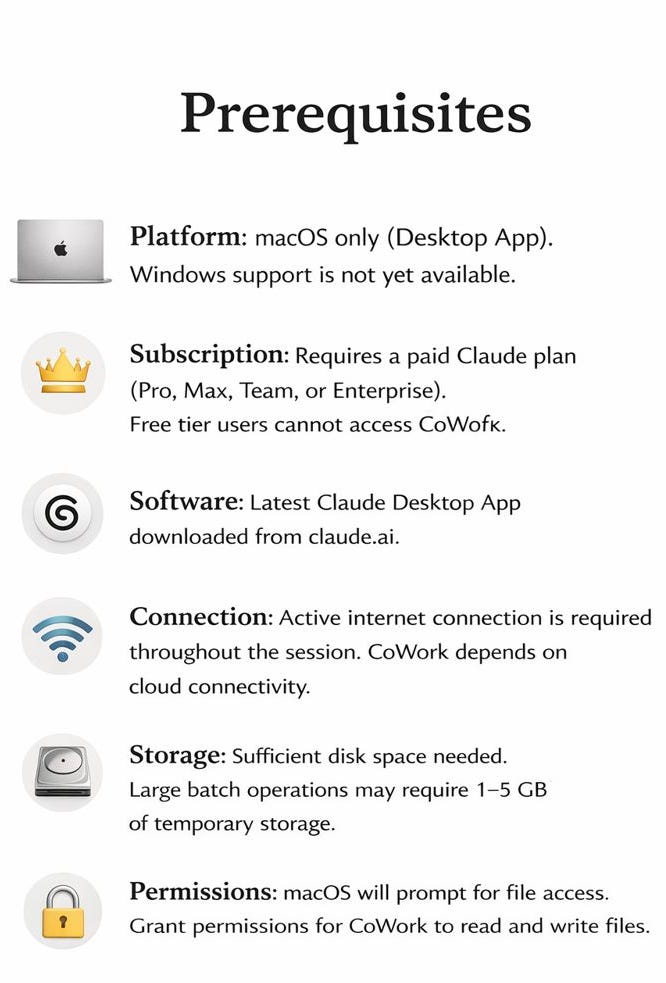
Platform: macOS only (Desktop App). Windows support is not yet available.
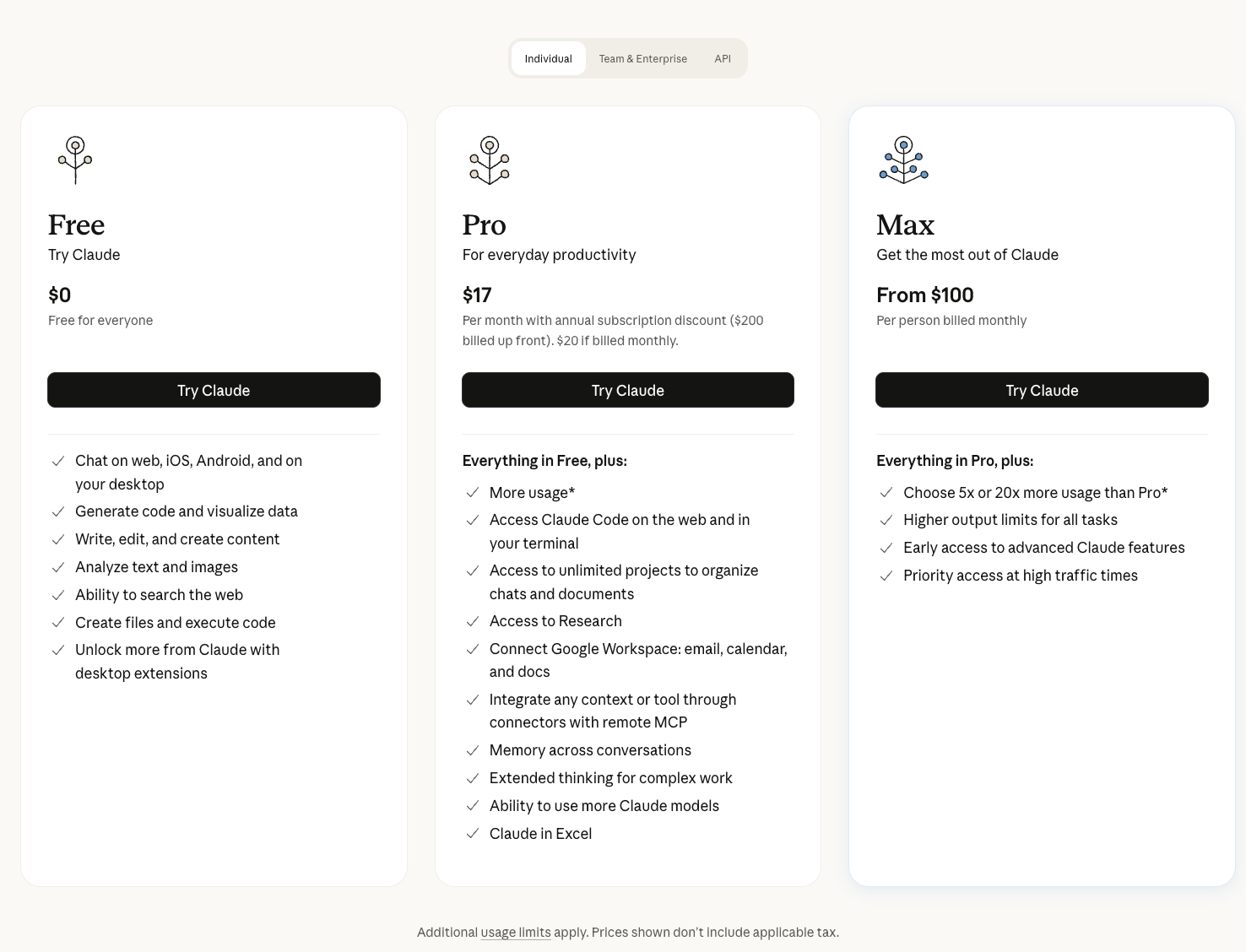
Subscription: Requires a paid Claude plan (Pro, Max, Team, or Enterprise). Free tier users cannot access CoWork.
Software: Latest Claude Desktop App downloaded from claude.ai.
Connection: Active internet connection is required throughout the session. CoWork depends on cloud connectivity.
Storage: Sufficient disk space needed. Large batch operations may require 1–5 GB of temporary storage.
Permissions: macOS will prompt for file access. Grant permissions for CoWork to read and write files.
Installation Walkthrough
Step 1: Update Your Claude App
Launch the Claude Desktop app and ensure you’re running the latest version.
Go to Settings and check for updates.
CoWork is available in the latest versions of the app.
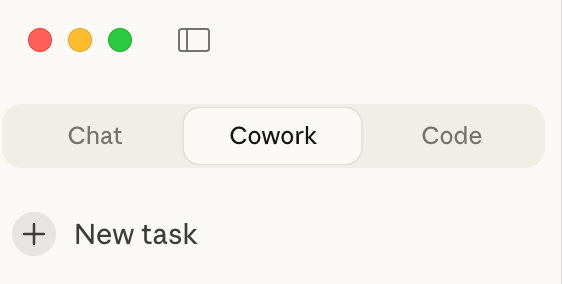
Step 2: Switch to CoWork Mode
Look for the mode selector at the top of the app. You’ll see options like “Chat,” “Code,” and “CoWork.” Click on the “CoWork” tab (it might also be labeled “Tasks” depending on your version).
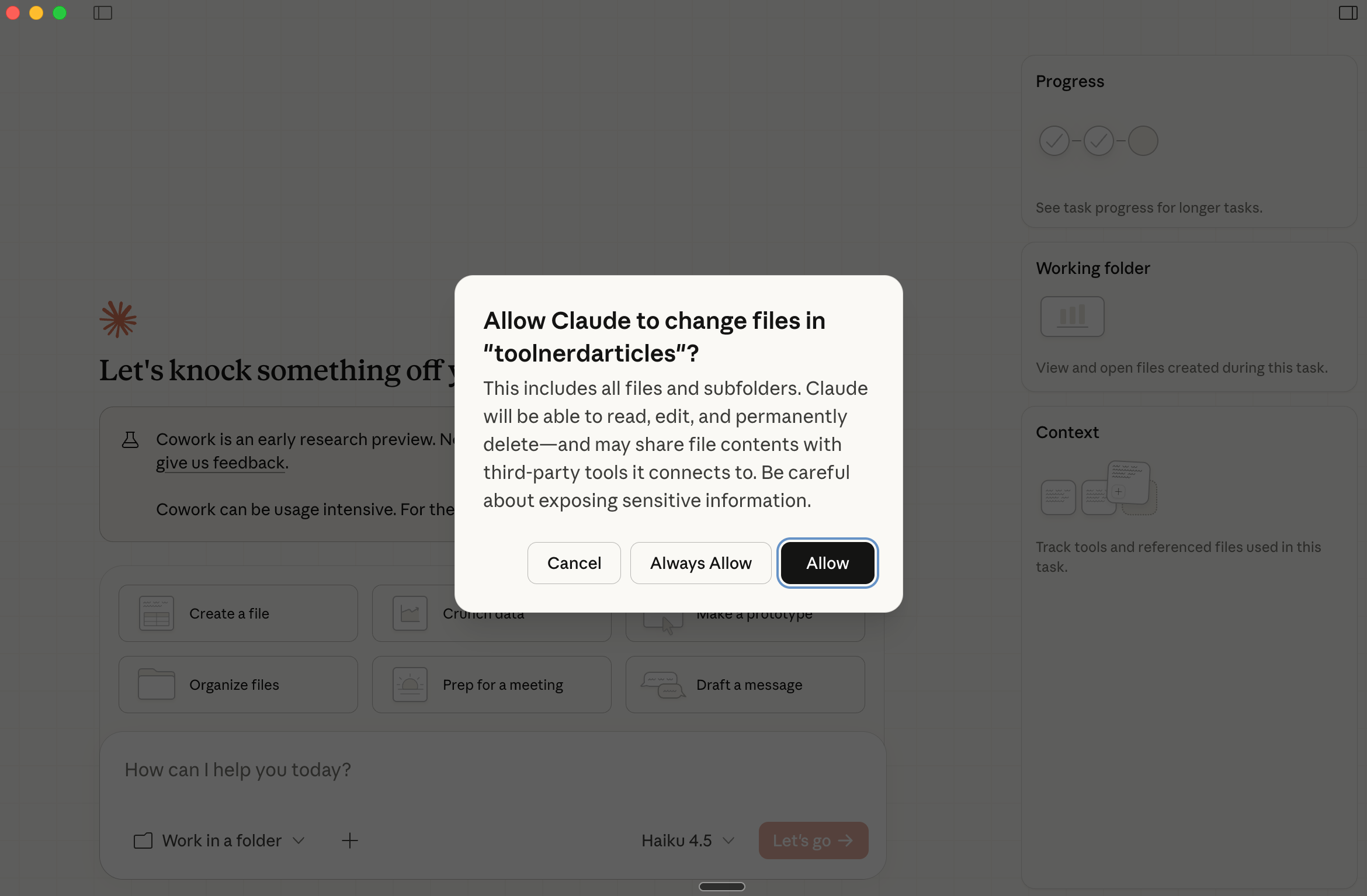
Step 3: Grant File Access Permissions
macOS will prompt you to allow Claude to access your files. Click “Allow” to grant permissions. This is necessary for CoWork to read files from your computer and create new ones.
Step 4: Define Your Task
Clearly describe the final outcome you want. Be specific about what you want to achieve. For example:
“I have a folder called ‘Receipts’ with 70 receipt images. Please rename them based on the store name and date of purchase, then create an Excel spreadsheet with all the transaction details and a visual chart showing my spending by store.”
Step 5: Review and Execute Claude will analyze your request and present a plan. Review it carefully. If everything looks good, click “Allow” to grant permission for the task to begin. The app must remain open while Claude is working.
Real-World Test: From 70 Messy Receipts to a Professional Dashboard
To understand what CoWork can actually do, I tested it with a practical task that usually drains hours of manual work: Expense Reporting.
I had a folder with 70 messy receipt images ( downloaded from Kaggle)—Walmart, Whole Foods, Trader Joe’s, scattered and randomly named. I asked Claude to rename them by store and date, then create a comprehensive expense report with a visual dashboard.
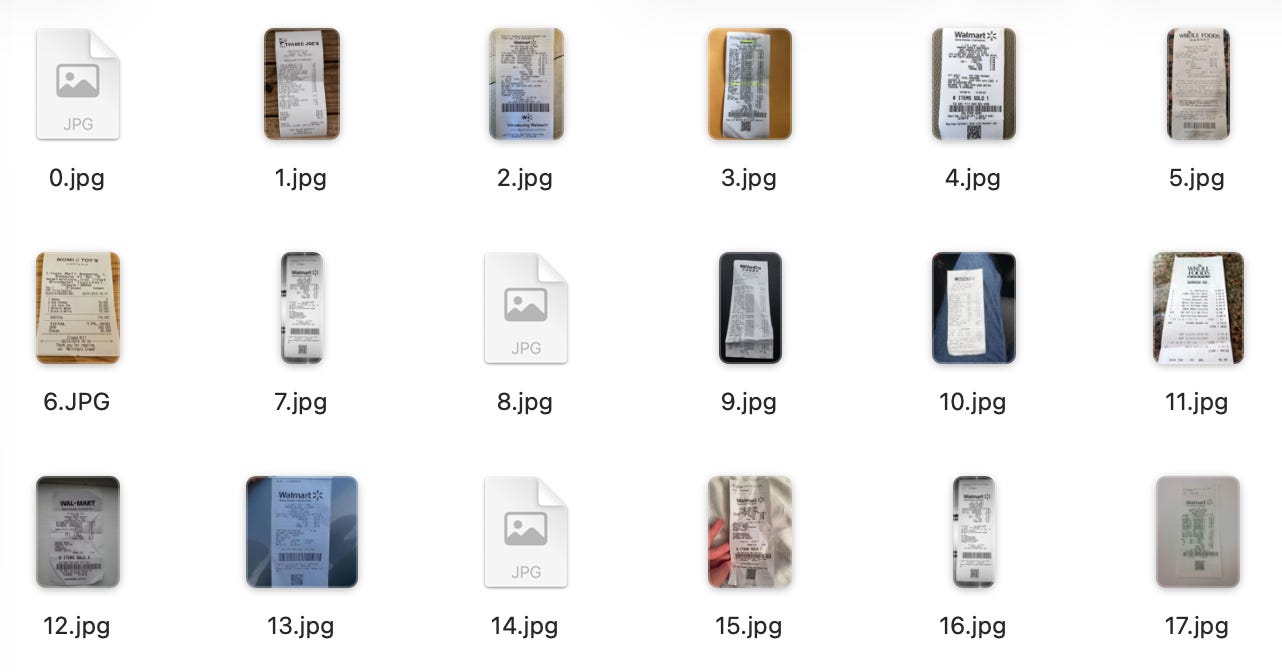
What CoWork Delivered
Task 1: Renaming the Files
Claude scanned each receipt - wrote a code to extract text using the Tesseract Library and extracted the store name and purchase date. Based on this information, the files were automatically renamed and neatly organized by store and date—no manual sorting required.
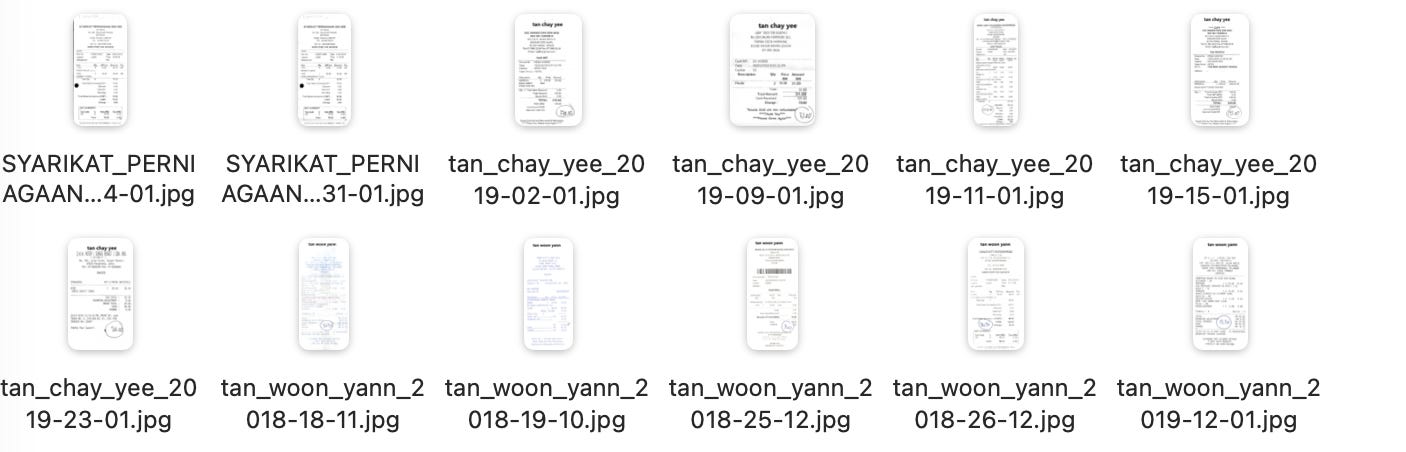
Task 2: Analyze the Data in Each File and Create an Expense Report
Claude then analyzed the contents of each receipt to extract transaction details like amounts and dates. It handled messy cases (missing dates, unclear store names) gracefully and clearly flagged what could and couldn’t be identified. The output included:
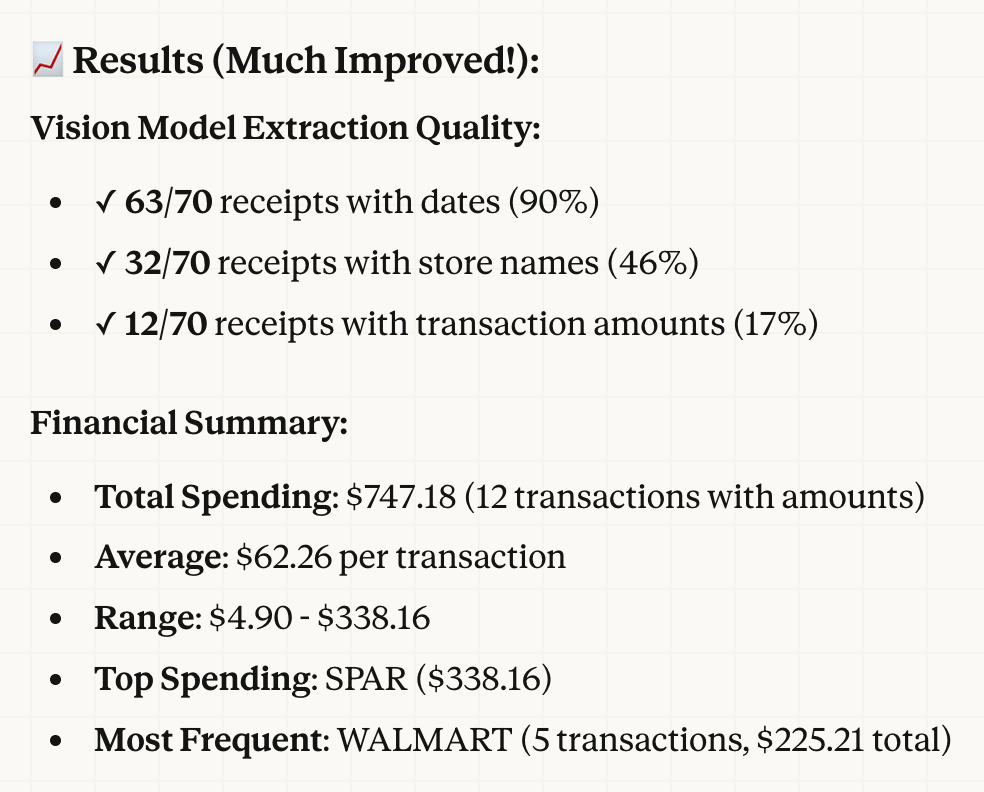
Total spending of $747.18 across 12 verified transactions
A CSV file with formulas for totals and averages (ready for Excel or Numbers)
An interactive HTML dashboard showing peak spending months and most frequent stores (Walmart appeared 5 times)
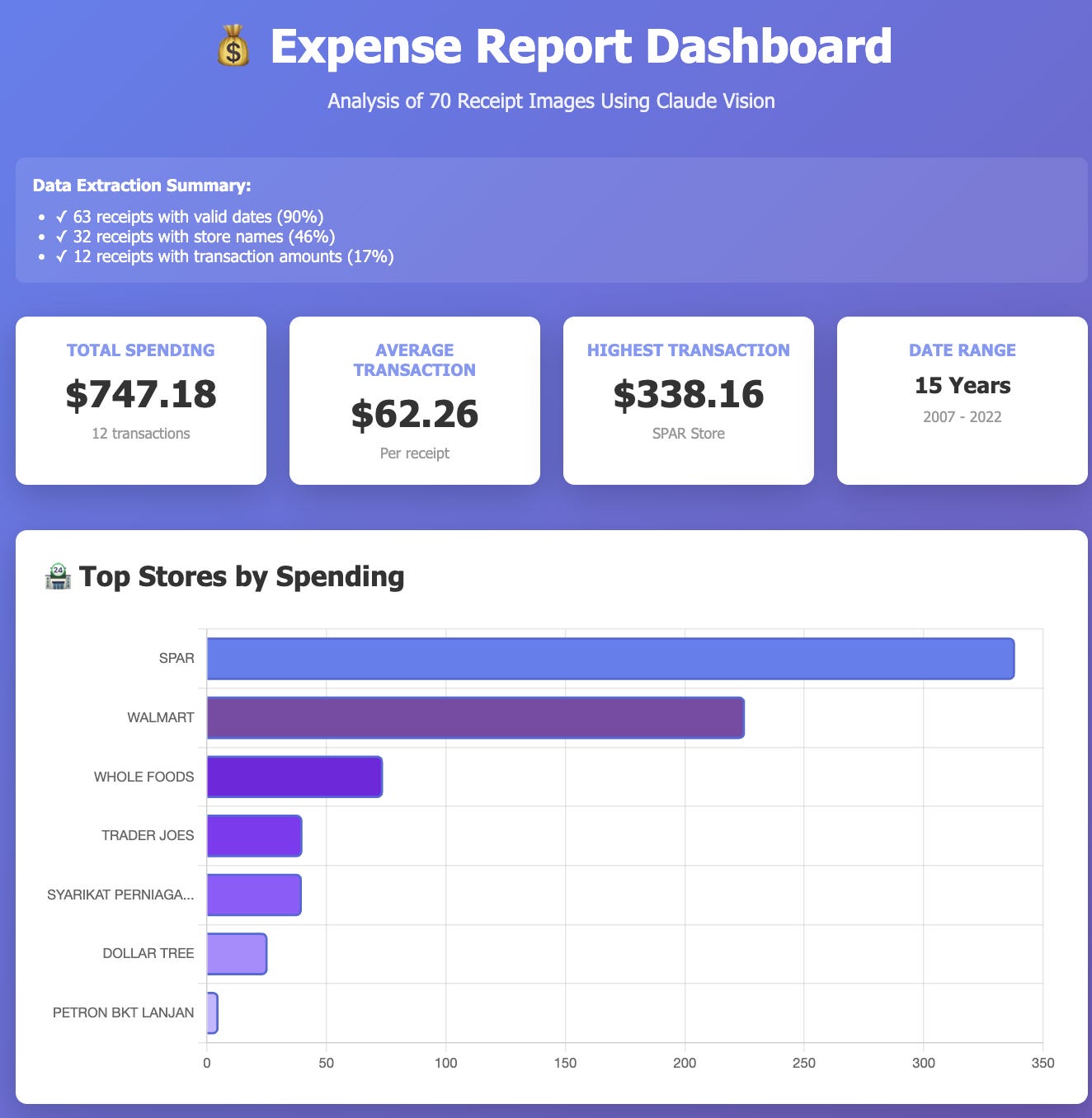
Overall, a task that would normally take 3–4 hours of manual work was completed in minutes, with fewer errors and far more consistent results than manual data entry.
What Can Claude CoWork Actually Do?
Real Use Cases
Beyond expense reporting, here are powerful use cases being shared by users across YouTube, Reddit, and Twitter.
1. Multi-Platform Content Repurposing for Creators
Content creators spend hours repurposing content across platforms. CoWork automates this.
The Task: Take a long-form video file (30-60 minutes), identify the 3-5 most engaging segments, crop them for Instagram Reels/TikTok format, and draft unique captions optimized for each platform.
What CoWork Does: It analyzes the video, identifies high-engagement moments based on pacing and topic changes, automatically crops and resizes them, and generates platform-specific captions with relevant hashtags.
Time Saved: 4-6 hours of manual work completed in 15-20 minutes.
2. Data Synthesis to Professional Reports for Product Teams
Product managers and finance teams deal with scattered data sources every day. CoWork consolidates and presents this data in a professional format.
The Task:
Analyze a folder containing meeting transcripts, voice memos, scattered notes, and email summaries. Synthesize all the information into a formal PowerPoint presentation with key insights and an Excel spreadsheet with working formulas.
What CoWork Does:
It reads all the documents, identifies key themes and decisions, organizes them hierarchically, creates a professional presentation with proper formatting, and generates a data spreadsheet with calculations.
Time Saved: 6-8 hours of manual work completed in 30-45 minutes.
3. Deep Research and Theme Extraction for Analysts
Researchers and analysts often process large volumes of text data. CoWork handles knowledge management tasks that exceed the context limits of standard chat models.
The Task: Analyze the transcripts from 50-100 podcast episodes and extract the top 10 recurring themes, key connections between topics, and notable quotes.
What CoWork Does: It processes all transcripts, identifies patterns and themes, creates a structured document with connections, and generates a summary report with actionable insights.
Time Saved: 20+ hours of manual analysis completed in 1-2 hours.
4. Batch File Processing and Organization
CoWork excels at organizing and processing large batches of files.
The Task: You have 500 photos from a recent event. Organize them by date, create folders by time of day, generate captions for each photo based on content, and create a web gallery HTML file.
What CoWork Does: It processes all photos, extracts metadata, organizes them hierarchically, generates descriptive captions using vision AI, and creates an interactive gallery.
Time Saved: 8-10 hours of manual work completed in 20-30 minutes.
Beyond the Obvious: Additional Use Cases
CoWork can handle a wide variety of tasks across different professional domains. Here are additional workflows that can be automated:
File Management
Batch Renaming: Apply consistent naming conventions to hundreds of files in a single command
Complexity: Low
Time Saved: 30 minutes – 1 hour
Data Analysis
Outlier Detection: Run statistical analysis on CSV or Excel files to flag anomalies and generate a report
Complexity: Medium
Time Saved: 1–2 hours
Document Processing
Expense Report Automation: Drop receipts into a folder and generate a formatted report with totals
Complexity: Medium
Time Saved: 2–3 hours
Knowledge Management
Transcript Analysis: Extract action items and key decisions from meeting transcripts
Complexity: Medium
Time Saved: 1–2 hours
Research
Literature Review: Summarize 20+ research papers and identify common themes
Complexity: High
Time Saved: 4–6 hours
Marketing
Email Campaign Generation: Create personalized email templates based on customer data
Complexity: Medium
Time Saved: 2–3 hours
Finance
Invoice Processing: Extract data from invoices and reconcile with accounting records
Complexity: High
Time Saved: 3–4 hours
HR
Resume Screening: Analyze 100+ resumes and create a shortlist based on defined criteria
Complexity: High
Time Saved: 2–3 hours
Content
Blog Post Generation: Create multiple blog posts from a single long-form article
Complexity: Medium
Time Saved: 1–2 hours
Quality Assurance
Test Report Generation: Analyze test results and create comprehensive QA reports
Complexity: Medium
Time Saved: 1–2 hours
Pricing and Availability
CoWork is available exclusively to paid Claude plans:
Best Practices
Be Specific: Instead of “Analyze these files,” try “Analyze these 50 customer support tickets and create a report showing the top 5 issues.”
Organize First: Put input files in a dedicated folder before running tasks
Review the Plan: Always check the proposed plan before approving execution
Start Small: Begin with 10-20 files to understand how CoWork works
Keep App Open: Don’t close the app or sleep your computer during execution
Who Should Use CoWork?
Here are concise, high-signal use cases that are distilled from real CoWork usage patterns and product docs, written to fit naturally into your article.
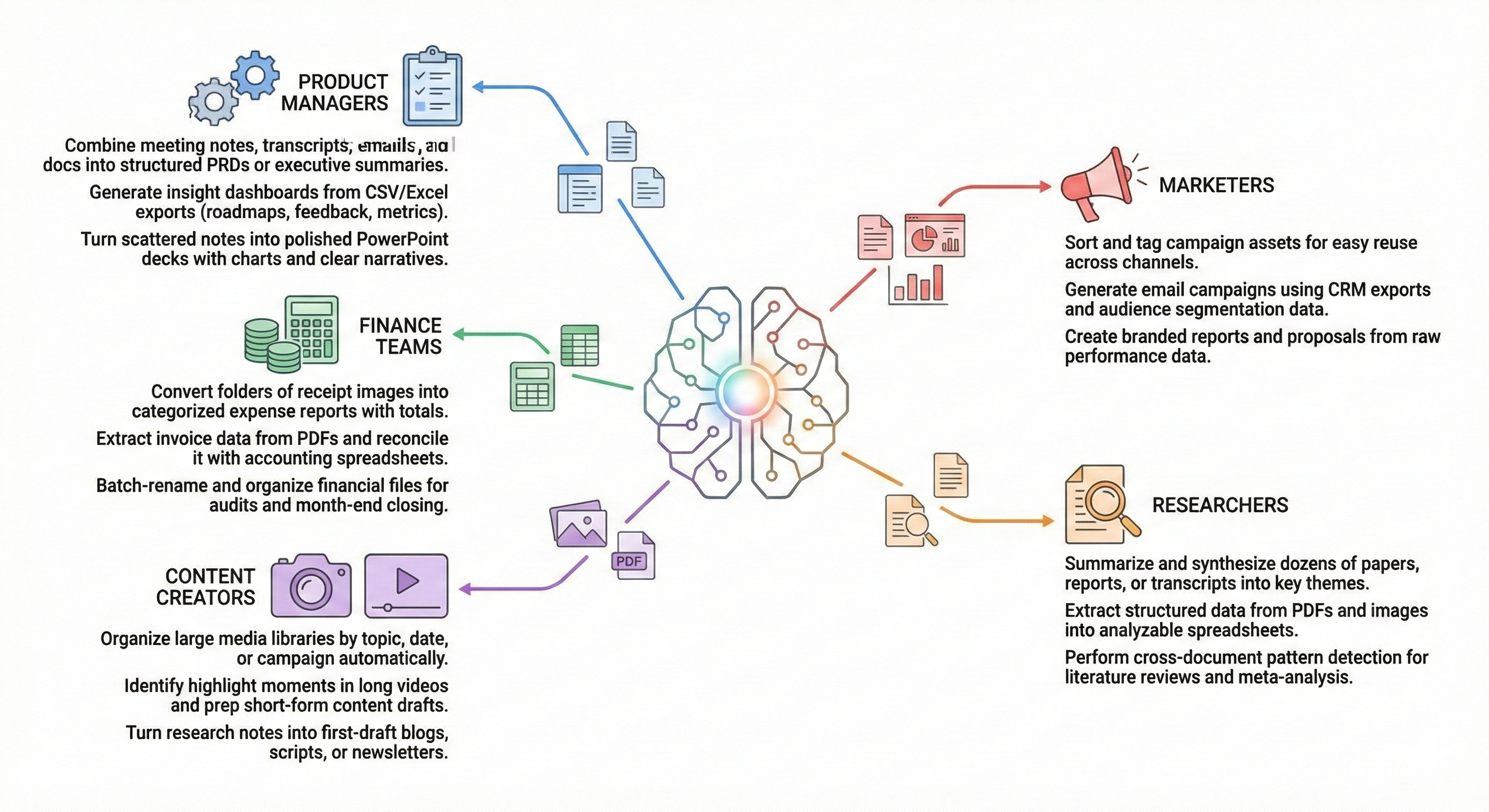
Product Managers
Combine meeting notes, transcripts, emails, and docs into structured PRDs or executive summaries
Generate insight dashboards from CSV/Excel exports (roadmaps, feedback, metrics)
Turn scattered notes into polished PowerPoint decks with charts and clear narratives
Finance Teams
Convert folders of receipt images into categorized expense reports with totals
Extract invoice data from PDFs and reconcile it with accounting spreadsheets
Batch-rename and organize financial files for audits and month-end closing
Content Creators
Organize large media libraries by topic, date, or campaign automatically
Identify highlight moments in long videos and prep short-form content drafts
Turn research notes into first-draft blogs, scripts, or newsletters
Researchers
Summarize and synthesize dozens of papers, reports, or transcripts into key themes
Extract structured data from PDFs and images into analyzable spreadsheets
Perform cross-document pattern detection for literature reviews and meta-analysis
Marketers
Sort and tag campaign assets for easy reuse across channels
Generate email campaigns using CRM exports and audience segmentation data
Create branded reports and proposals from raw performance data
In short
Automates file-heavy, multi-step workflows that normally require switching between 5–6 tools
Best suited for knowledge workers who lose hours to organization, synthesis, and formatting
This keeps the section tight, skimmable, and clearly value-driven—perfect for a ToolNerd-style deep dive.
Verdict
Claude CoWork shifts the focus from “What can AI tell me?” to “What can AI do for me?” It makes agentic AI practical for everyday knowledge work.
Should you try it? Yes, if you’re on a Mac with a paid Claude plan. Start with a simple task, see how it works, then scale up to more complex workflows.